

WordPress email logs
Read notification send results and choose how long to keep the metadata.
The Delivery log records the result reported by WordPress's mail hooks. Use it to investigate notifications such as password resets, form submissions, and order emails. It is available in Free and paid builds.
This log is separate from the paid security audit history and from the Sent folder of a connected mailbox.
Turn logging on
- Open PressedMail > Settings > WordPress Email.
- Find Delivery log.
- Set Keep entries for to 30, 60, or 90 days.
- Save the settings, then trigger a notification you control.
- Return to the table and find the matching time, recipient, and subject.
The default retention is 30 days. Do not log sets retention to zero and stops new entries. Existing rows are cleared by scheduled pruning; changing the setting is not an immediate erase operation. Clearing log history removes diagnostic evidence, so keep any details you still need first.
Read an entry
| Field | What it tells you |
|---|---|
| Time | When WordPress recorded the attempt; the stored timestamp is UTC |
| Recipient | The first recipient and a recipient count |
| Subject | A shortened subject, up to 255 characters |
| Sender | The effective From address |
| Server | The resolved SMTP connection label and identifier, when one was resolved |
| Status | Sent or failed according to the WordPress send hook |
| Attempt and error | The recorded attempt and a shortened failure message |
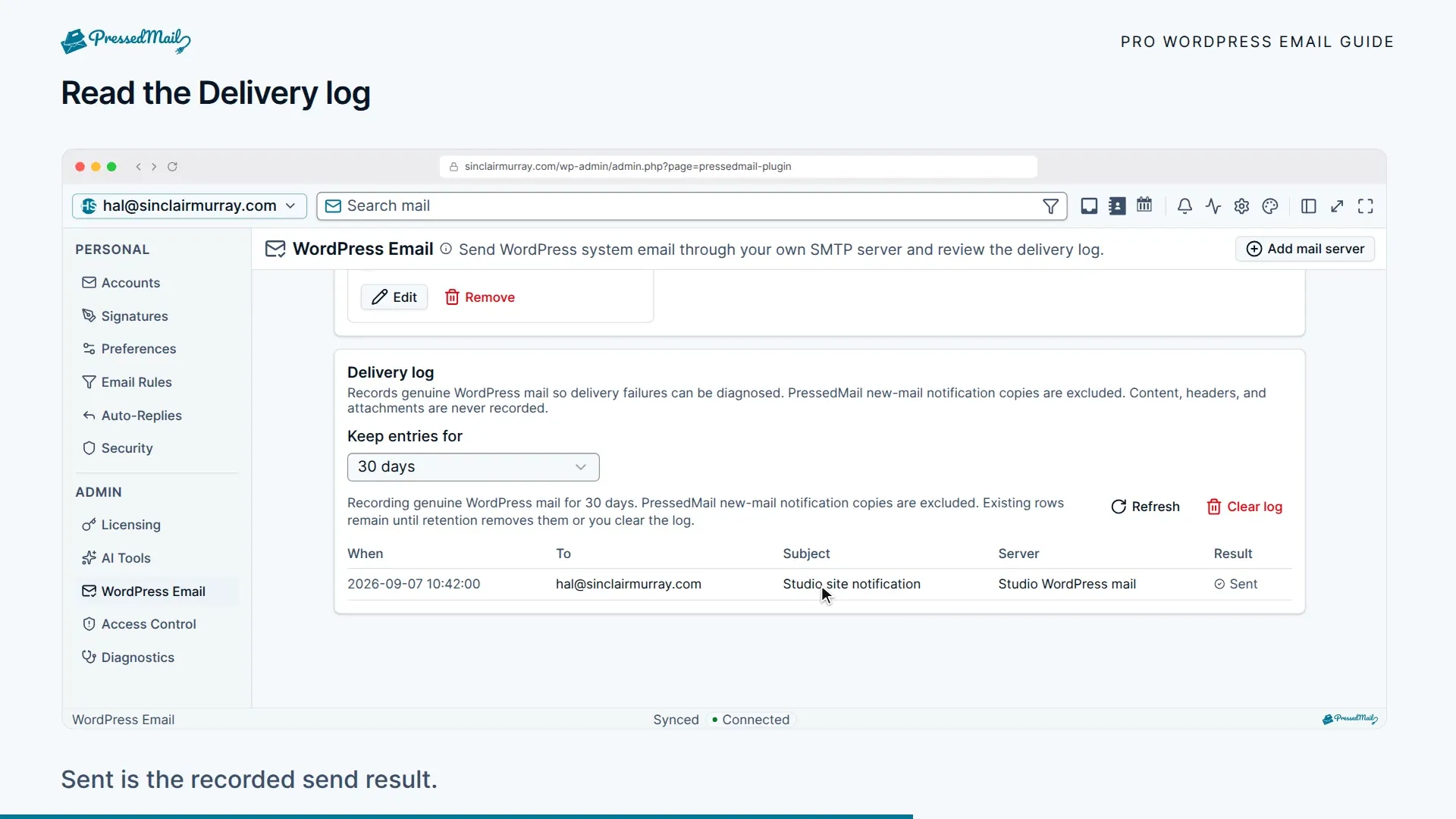
The log does not store message bodies, attachments, or raw headers. Subjects and recipient addresses can still contain personal information. Limit access and retention accordingly.
PressedMail's new-mail notification copies are excluded. An email sent by a separate API, or otherwise outside the observed WordPress hooks, may have no row.
Sent does not mean delivered
A sent result means the sending operation reported success. The provider can still reject delivery later, place mail in spam, or return a bounce. Check the receiving account and the provider's delivery records before concluding the message arrived.
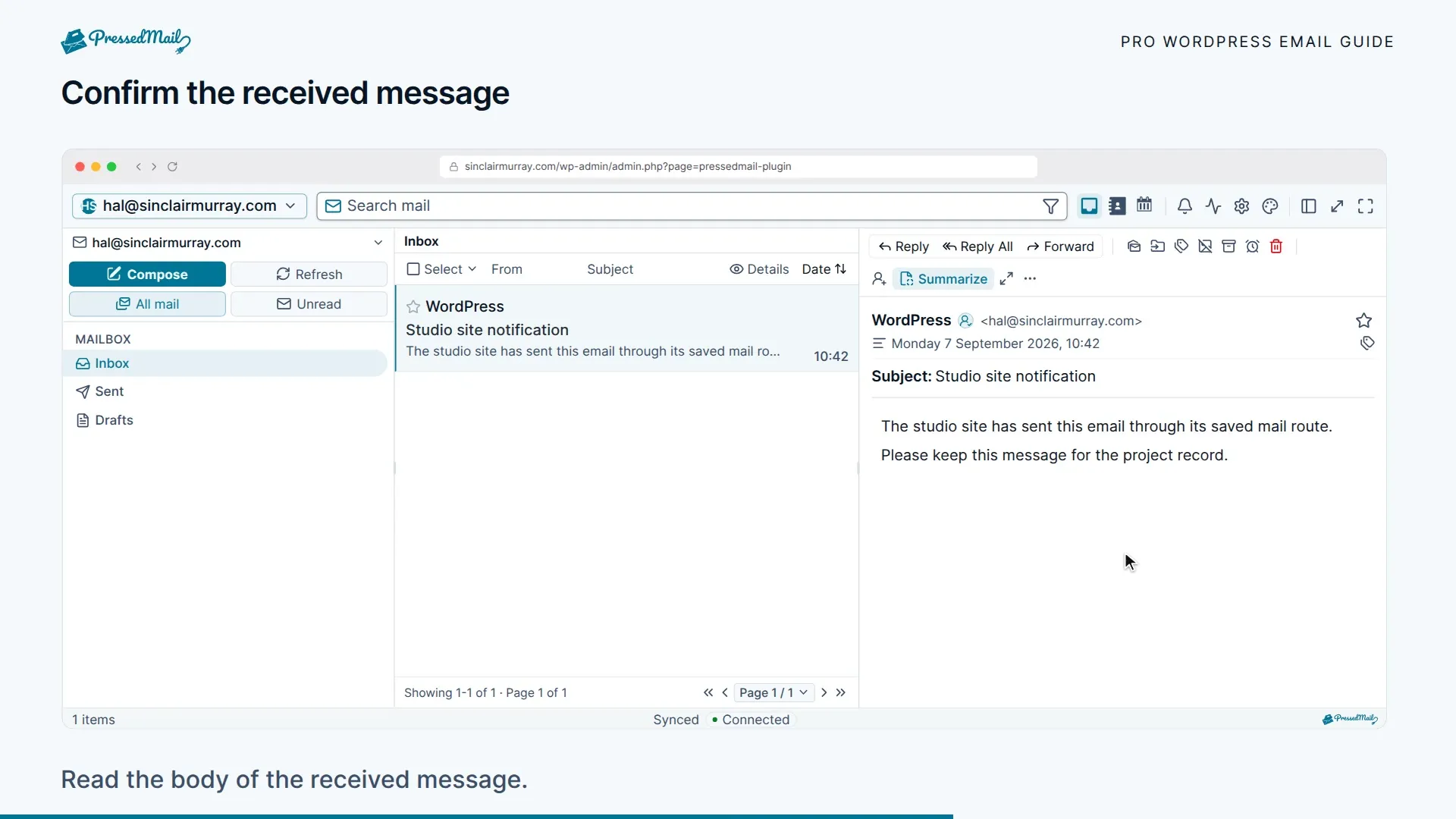
For a failed result, start with the actual error: authentication, hostname, certificate, sender authorization, or a blocked port. Correct that setting, then repeat a controlled test.
No row for an expected email
Confirm logging was enabled before the event. Then check that the form, store, or plugin was configured to send that notification and that it uses WordPress mail. The log cannot reconstruct past messages or prove that an absent notification was never attempted through another service.
Use WordPress SMTP setup to check routing, and Find the problem and collect diagnostics when preparing a support report.