

Before adding a Microsoft 365 mailbox to WordPress, get two answers: is the connection permitted by your organization, and does the installed email client support the account's required authentication and servers?
PressedMail supports Microsoft OAuth for mailbox connections. Its current Outlook preset, however, uses smtp-mail.outlook.com, while Microsoft documents smtp.office365.com for Exchange Online client submission. That difference must be resolved in a supported configuration before this becomes a reliable Microsoft 365 read-and-send workflow.
The steps below show how to prepare, connect when the requirements are met, and judge the result. They do not present the current preset as a verified Exchange Online deployment. For the broader approval decision, start with Microsoft 365 email inside WordPress.
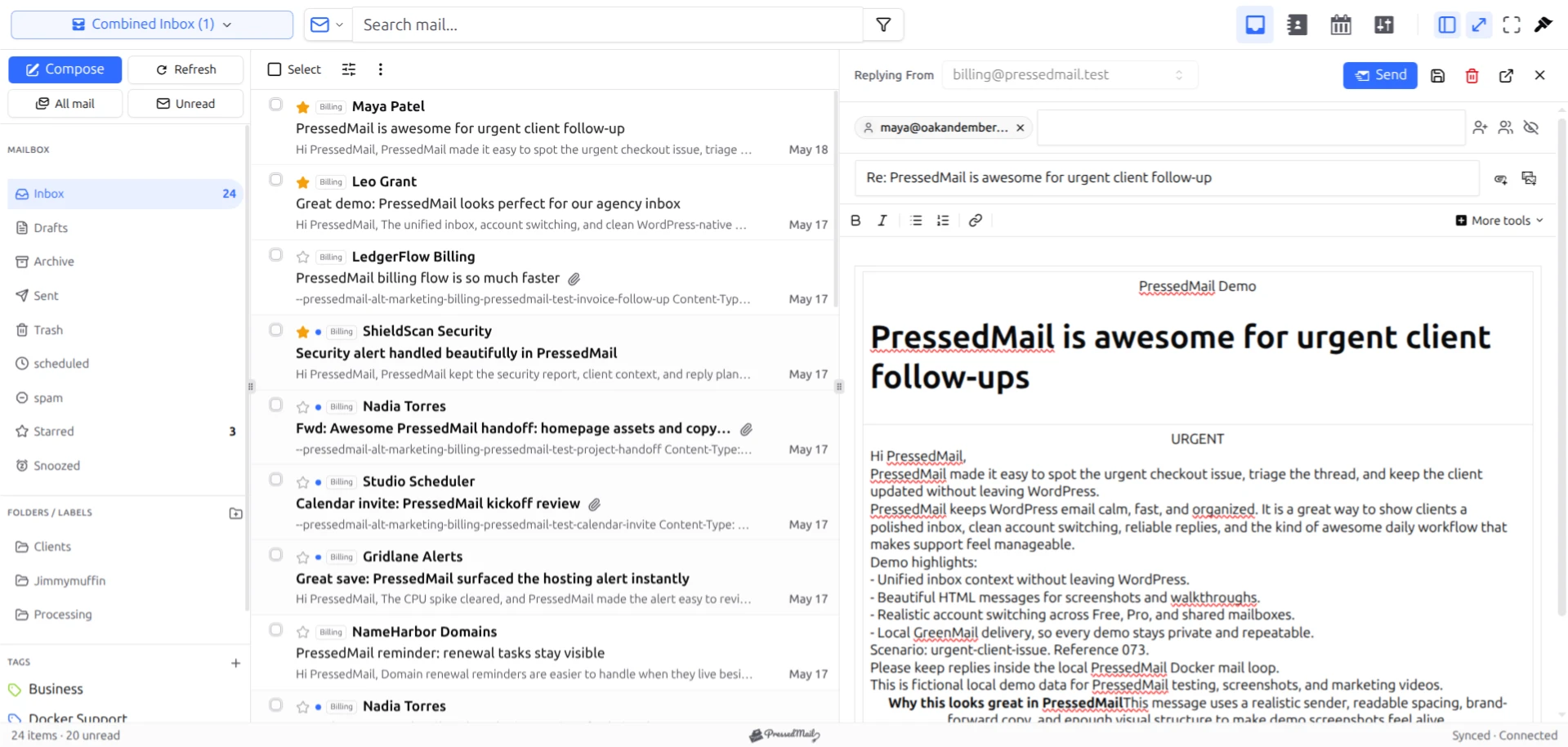
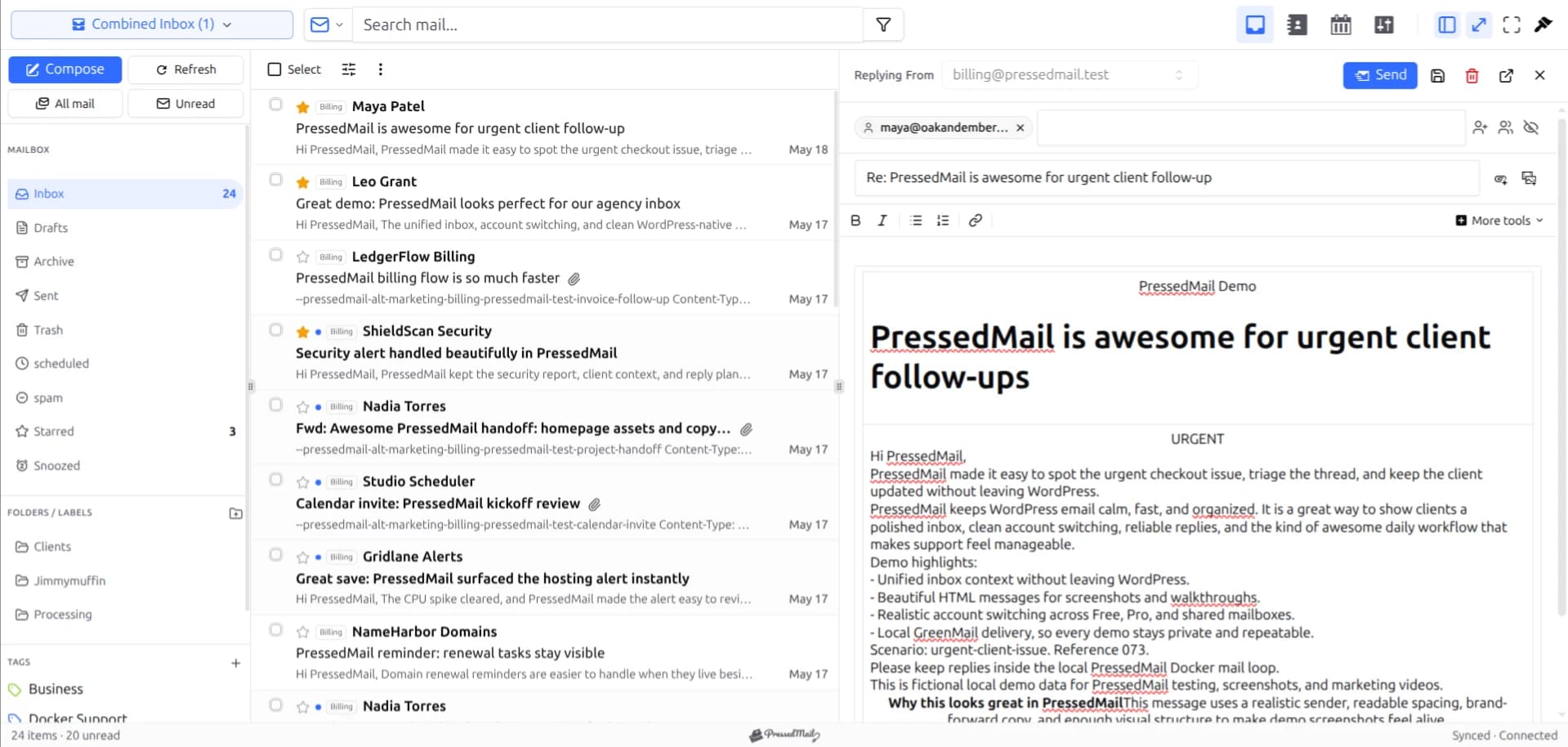
PressedMail screenshot using fictional mail. It illustrates the working area, not a completed Microsoft 365 deployment test.
1. Identify the mailbox and its owner
Use the actual user mailbox you intend to connect. A public email address may instead be an alias, a distribution group, or a shared mailbox. Do not assume it has independent credentials or behaves like a normal user mailbox.
Agree who owns the mail and who owns the WordPress site. Connecting a business mailbox to a site managed by someone outside the organization introduces an access question even when the server settings are correct.
For an agency-managed site, document which client approved access and which WordPress users need it. The agency mailbox management guide covers those boundaries. Do not share one WordPress administrator login just to make the inbox convenient.
2. Confirm tenant approval
Ask the Microsoft administrator whether the application and intended IMAP/SMTP access comply with tenant policy. Microsoft supports OAuth for these mail protocols, but that support is not automatic consent for every application. Microsoft's OAuth protocol guidance.
A consent prompt may require an administrator. Other policies may prevent access even after the user authenticates. Keep the request specific to the mailbox and use case.
SMTP AUTH has organization and mailbox controls in Exchange Online. Ask the administrator to assess them, not to weaken security defaults or broadly enable access to satisfy a tutorial. Microsoft's SMTP AUTH reference.
If the answer is that the organization does not permit this application or protocol route, stop. Outlook on the web or an approved desktop client remains the appropriate way to access that mailbox.
3. Resolve the server compatibility requirement
For Exchange Online authenticated client submission, Microsoft specifies smtp.office365.com, port 587, with STARTTLS. This is different from the consumer Outlook.com SMTP hostname in PressedMail's current Outlook preset. Microsoft 365 application sending guidance.
Confirm that your installed PressedMail version can use the Exchange Online endpoint while retaining the supported Microsoft OAuth flow. Do not assume an Outlook-branded button guarantees that exact configuration.
If the required combination is unavailable, use an approved client and seek a supported product configuration. Switching to a password-based custom IMAP form does not solve an OAuth requirement.
The Outlook IMAP and SMTP settings reference keeps consumer and business values separate. The OAuth and app-password comparison explains why changing credentials is not a substitute for compatibility.
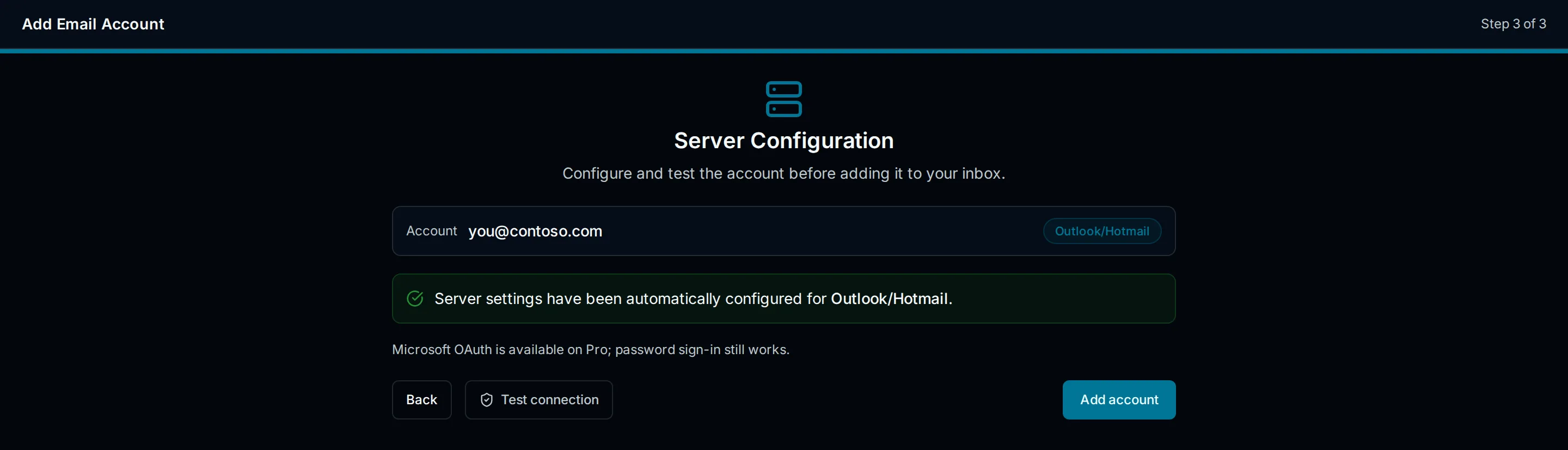
Drawn setup illustration. The current account option must support the required Exchange Online server and authorization together; the picture is not proof that it does.
4. Authorize the intended Microsoft account
Proceed only once the account is approved and the installed connection supports the required configuration.
Open the Microsoft account connection in PressedMail and follow the Microsoft sign-in flow. Check the email identity displayed by Microsoft before approving access. A browser signed into several Microsoft accounts can select an account you did not intend to use.
Review the requested access. If an administrator approval message appears, use the organization's normal approval process. Do not sign into a more privileged account simply to make the message disappear.
After the redirect back to WordPress, check the account identity shown in PressedMail. Completing the redirect is one milestone. It is not yet proof that the mailbox can receive or send through the configured protocols.
5. Verify receiving independently
Send a plain test message to the Microsoft 365 address from a separate mailbox. Use a recognizable subject such as “WordPress mailbox connection check,” with no confidential information.
Open the inbox in PressedMail and find that message. Check that the sender, subject, and body match what you sent. Open a folder that already exists in the mailbox, then compare its contents with Outlook on the web.
Do not begin by moving or deleting important messages. IMAP is access to the provider mailbox, not a detached demonstration copy. Folder and message actions can affect what another client sees. The IMAP versus SMTP guide explains the different responsibilities of receiving and sending.
If the inbox will not load, record the error and the stage. A network timeout, an authorization rejection, and an unavailable protocol point to different investigations.
6. Verify sending at the destination
Reply to the test message from PressedMail. Then open the receiving mailbox and confirm that the reply arrived with the expected From address and readable content.
Check where the sent message appears in the Microsoft mailbox. Do not infer sent-folder behavior solely from a “sent” notification in the interface.
If receiving works but sending fails, preserve the working IMAP setup. Investigate the outgoing hostname, OAuth permissions, SMTP AUTH policy, and the reported SMTP result. Retrying the ordinary Microsoft password is not the next step.
For a business workflow, record the successful receive and send checks with their date and installed version. Recheck after a meaningful account-policy or connection change.
WordPress system mail still needs separate setup
This mailbox connection does not automatically handle password resets, order emails, or contact form messages generated by WordPress. PressedMail's WordPress SMTP feature uses a separate server configuration.
Choose an approved site-mail transport for those messages and test it independently. A transactional sender may be more suitable than a staff mailbox. Our WordPress SMTP guide covers that route without confusing it with reading an inbox.
Removing access later
Know how the organization will revoke application access and remove unnecessary WordPress access. Removing a user from one system does not prove the other system has been addressed.
Also review any stored messages and backups under the organization's retention requirements. Do not treat token revocation as a command that erases previously stored content.
PressedMail is useful when mailbox work belongs beside WordPress administration and the account is compatible. If the approved security model or required connection is unavailable, keeping the mailbox in Outlook is a valid result.
FAQ
Can I follow the Outlook.com tutorial instead?
Only for a personal Outlook.com account. A business mailbox has different policy considerations and a different documented SMTP submission hostname.
Can an alias be connected as a separate inbox?
Do not assume so. Identify the underlying mailbox and its authorized identity. A receiving address and an independently sign-in-capable mailbox are not the same thing.
Is a successful inbox test enough?
No. Verify SMTP sending and actual receipt separately. Also check sent-message behavior before depending on the workflow.
What if the required SMTP hostname is unavailable?
Do not call the setup complete. Use an approved alternative client until PressedMail supports the correct endpoint and authentication combination for the account.
Manage your email inside WordPress
PressedMail Free adds an email client directly to your WordPress dashboard. Connect a compatible IMAP/SMTP mailbox, read and send mail, organize messages, and configure WordPress SMTP.




