

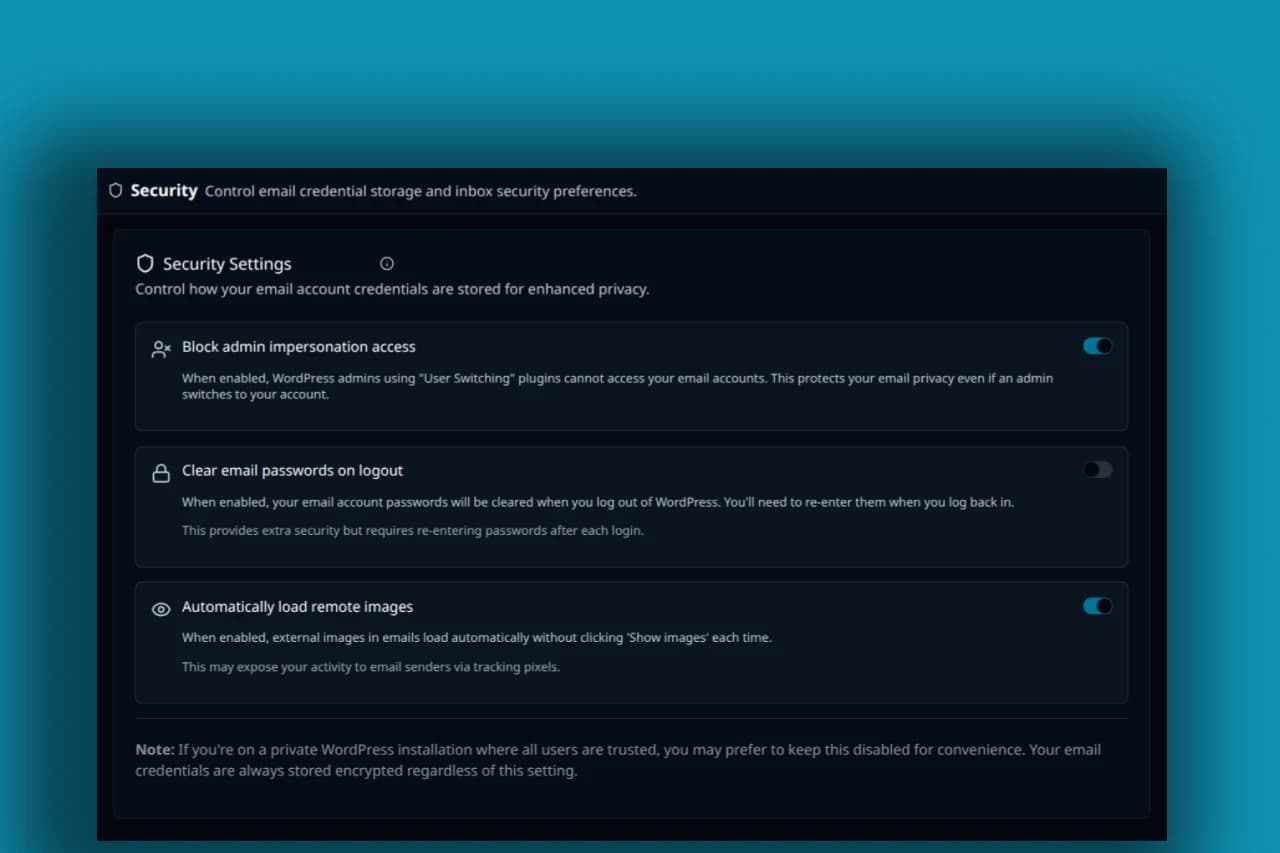
If a WordPress email connection rejects your Microsoft password, generating an app password is not the default fix. Outlook.com requires Modern Authentication for its IMAP and SMTP settings, and Microsoft 365 access depends on the organization's permitted authentication and protocol configuration.
PressedMail supports Microsoft sign-in for its mailbox connection. Use that OAuth flow where the account and connection are supported. Do not disable multifactor authentication or relax a tenant's security controls to make a password-based tutorial work.
There is also a product compatibility check for Microsoft 365: the current PressedMail Outlook preset uses the consumer outgoing hostname. Authentication support alone does not resolve that server difference. The Microsoft server settings reference explains it before you connect.
What OAuth changes
With OAuth, the application sends you to Microsoft's sign-in and authorization flow. You authenticate with Microsoft and approve the requested access when your account policy allows it. The application then uses tokens for the authorized connection rather than storing your ordinary Microsoft password.
That does not mean the application has no sensitive credentials. Tokens can grant access too. Protect the WordPress site, its administrator accounts, and server access accordingly.
Microsoft documents OAuth for IMAP, POP, and SMTP, including the permissions an application needs for those protocols. The client must implement that authorization flow. Microsoft's OAuth protocol documentation.
For the personal-account procedure, follow connecting Outlook.com to WordPress. For a business account, review Microsoft 365 access requirements with the administrator first.
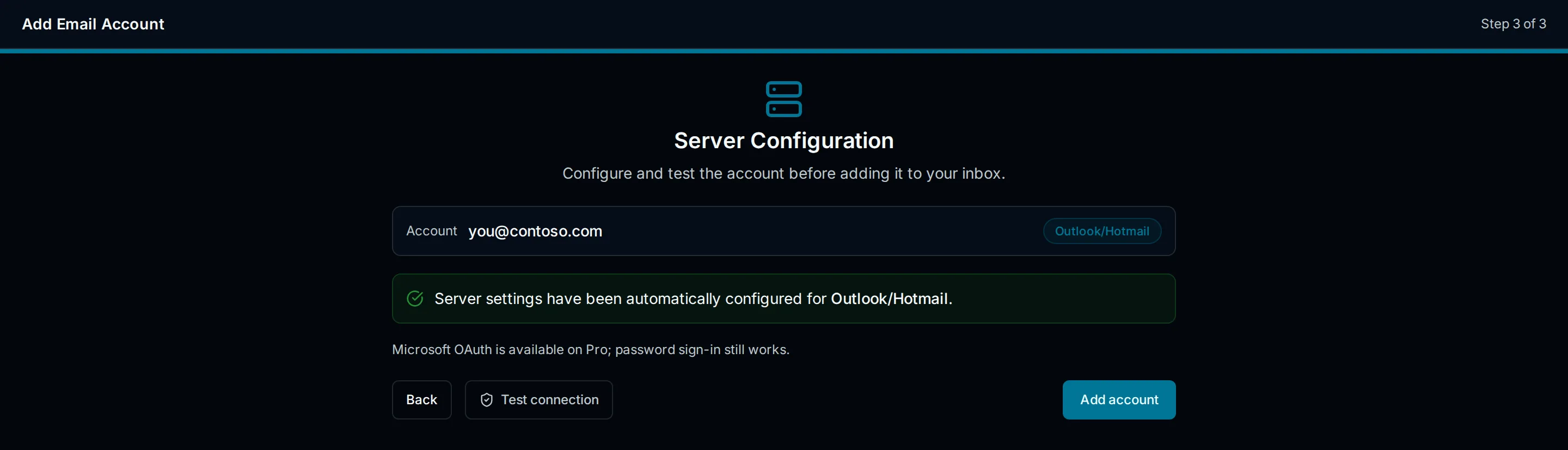
Drawn setup illustration, not a Microsoft consent screen. Authorization takes place through Microsoft's sign-in flow.
What an app password does not change
An app password is still a password-style credential. It is not an OAuth token, does not add Modern Authentication to a client, and does not override a provider's decision to reject a particular authentication method.
Microsoft's current Outlook.com settings explicitly require OAuth2 or Modern Auth. An older guide recommending an app password for any Outlook IMAP connection is therefore not a reliable substitute for that requirement. Outlook.com connection requirements.
For Microsoft 365, there is no safe universal instruction to “create an app password and try again.” Tenant configuration, the application's capabilities, and the protocol in use all matter. If the organization requires an approved OAuth application, use one. If PressedMail cannot satisfy the approved configuration, use another permitted client rather than weakening the organization around the plugin.
This is different from an eligible Gmail app-password connection. Providers do not share one authentication policy simply because both expose IMAP and SMTP.
OAuth does not enable every protocol
A user can complete Microsoft sign-in and still encounter a mail connection failure. The application may lack the relevant permission, the account may not be allowed to use IMAP, or SMTP AUTH may be unavailable under the organization's settings.
Exchange Online has organization-level and mailbox-level SMTP AUTH controls. OAuth support for SMTP does not make those controls disappear. Microsoft's SMTP AUTH policy documentation.
Treat each result separately:
- Sign-in: did Microsoft authenticate the intended user?
- Authorization: did the account or administrator permit this application access?
- Receiving: can the application open the intended mailbox through IMAP?
- Sending: can it submit a message through the correct SMTP service?
- Delivery: did the message arrive at the recipient mailbox?
This sequence avoids a common mistake: changing the password when the actual failure concerns protocol policy or the wrong SMTP server.
Check the account family before troubleshooting
Personal Outlook.com and business Microsoft 365 use different documented outgoing hostnames. Microsoft's consumer reference gives smtp-mail.outlook.com. Its Exchange Online submission guidance gives smtp.office365.com, using port 587 and STARTTLS. Microsoft 365 application sending options.
PressedMail's current Outlook preset contains the consumer hostname. Before using a Microsoft 365 mailbox, confirm that your installed version supports the correct Exchange Online endpoint together with Microsoft OAuth. This is a compatibility requirement, not something consent alone fixes.
A password-based Custom IMAP connection is not a replacement for an OAuth connection just because it allows a different hostname. If the supported combination is unavailable, stop there and use Outlook on the web or another approved client.
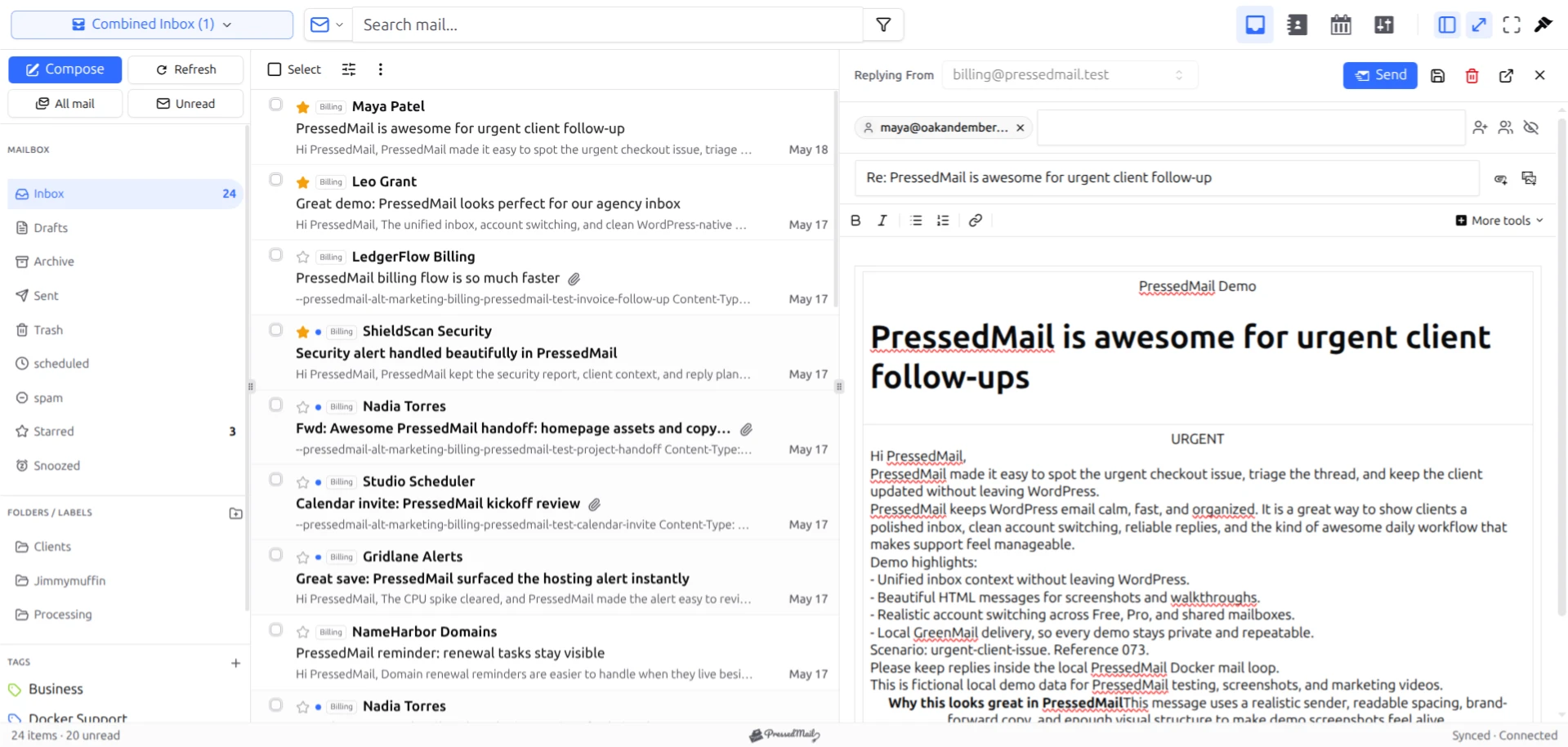
PressedMail screenshot with fictional messages. It shows the mailbox workspace, not an authentication or tenant-policy test.
A practical troubleshooting order
Start by identifying whether the address belongs to a personal Microsoft account or a work tenant. Confirm the selected identity in the browser authorization window; existing Microsoft sessions can make it easy to authorize the wrong account.
Next, save the exact error without passwords, tokens, or private messages. Note whether it appeared during sign-in, consent, inbox loading, or sending. That detail determines whether the next person should inspect Microsoft access policy, the mail endpoint, or the WordPress host's network connection.
For a work tenant, give the administrator the application request and the failed stage. Ask whether the setup is permitted. Do not ask them to disable security controls as an experiment.
Once access is approved and the correct connection is supported, perform the receive-and-reply checks in the Microsoft 365 connection walkthrough. Use harmless test content and confirm the reply at its destination.
Mailbox access and WordPress notifications are different
PressedMail's mailbox OAuth connection does not automatically configure WordPress system mail. Site notifications use a separate SMTP server configuration in PressedMail.
If your goal is only to send password resets or contact form messages, choose a mail transport that supports the provider's approved authentication method. You may not need an inbox connection at all. See SMTP plugins versus a full email client for that distinction.
FAQ
Should I turn off two-factor authentication?
No. Keep the account's protection in place. Choose a supported authentication flow and an application that meets the account policy.
Why did Microsoft sign-in succeed but sending fail?
Sending introduces separate SMTP requirements: the correct server, the required permissions, and applicable SMTP AUTH policy. Sign-in success is not a sending test.
Do I need to register my own Microsoft application?
Do not infer that from Microsoft's developer documentation. An ordinary PressedMail user should follow the product's supported connection flow. App registration instructions are for application implementers unless the product explicitly requires a customer-managed registration.
Does revoking access remove old messages from WordPress?
Revocation stops the revoked authorization from granting continued access. It does not establish that previously stored content has been deleted. Review local data and backups separately under your retention policy.
Manage your email inside WordPress
PressedMail Free adds an email client directly to your WordPress dashboard. Connect a compatible IMAP/SMTP mailbox, read and send mail, organize messages, and configure WordPress SMTP.




