

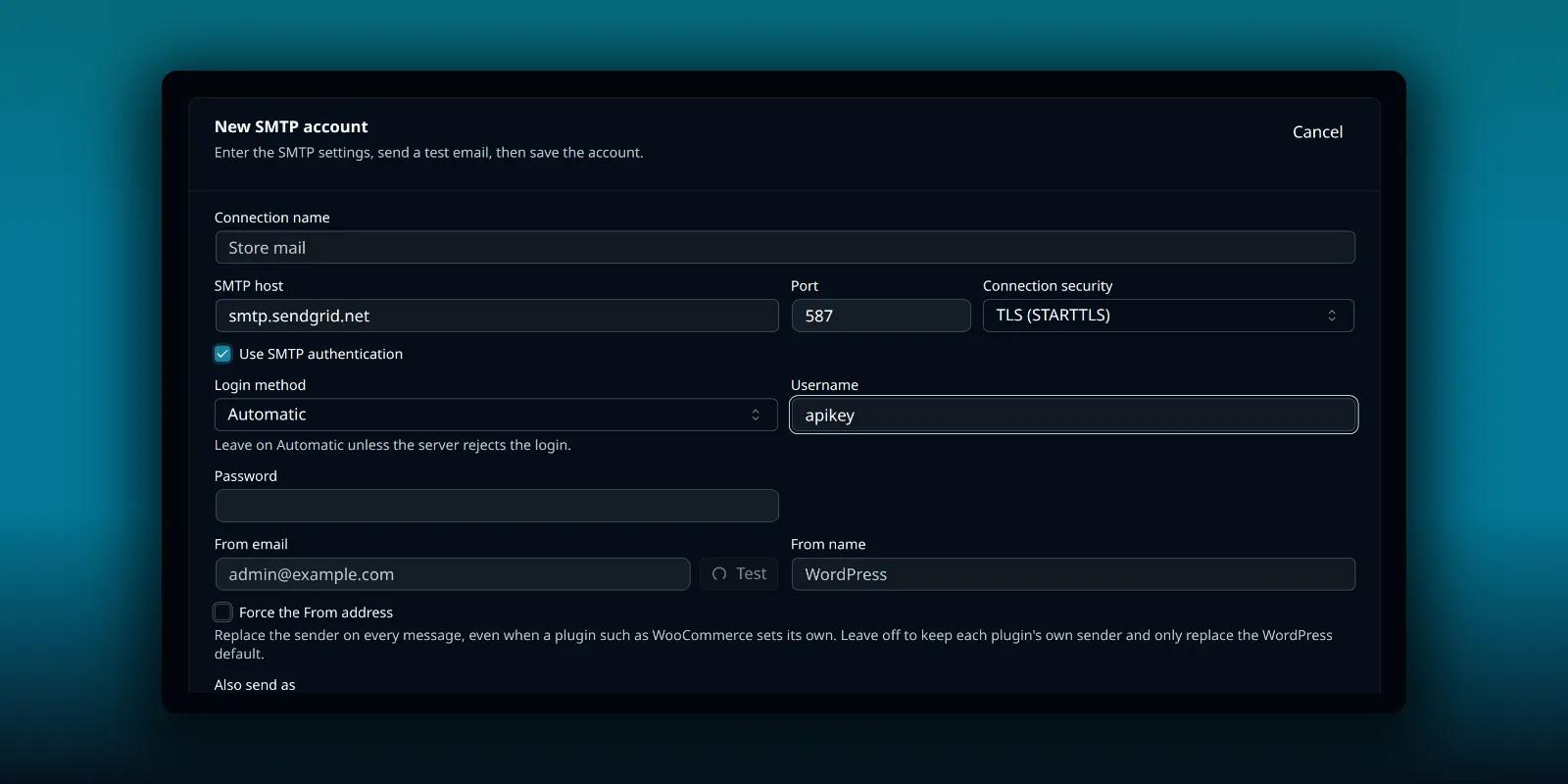
SendGrid has the strangest SMTP login of the common providers. The username is not your account name or your email address. It is the word apikey, typed exactly like that. Everything else is ordinary, and once you know the trick, WordPress’s own mail can leave through SendGrid in a few minutes.
This guide connects SendGrid to PressedMail’s WordPress Email settings. It covers WordPress’s notifications, not your inbox.
What you need
- A SendGrid account and an API key with at least Mail permission.
- A verified sender identity for the address you send as.
- PressedMail with a WordPress Email SMTP slot. Free has one. Paid builds have several.
How SendGrid logs in over SMTP
SendGrid’s SMTP guide gives the steps:
- Create an API key with at least Mail permissions.
- Set the server host to
smtp.sendgrid.net. - Set the username to the string
apikey. SendGrid is explicit that this is the exact string and not the API key itself. - Set the password to the API key from step 1.
- Set the port to 587, or another port from the list below.
That is the whole login. The username never changes, and the API key is the secret.
The settings
| Field | Value |
|---|---|
| SMTP host | smtp.sendgrid.net |
| Port | 587 (also 25 or 2525 for TLS) |
| Connection security | TLS (STARTTLS) |
| Username | apikey |
| Password | Your API key |
SendGrid says to use port 25, 2525 or 587 for an unencrypted or TLS connection and port 465 for an SSL one, and that 587 with TLS is typically the best choice. In PressedMail, 587 pairs with TLS (STARTTLS) and 465 pairs with SSL.
Add it in PressedMail
Open PressedMail, then Settings, then WordPress Email, then SMTP Accounts. On Free, the tab is Mail servers and the button reads Add mail server. Choose Add SMTP account.
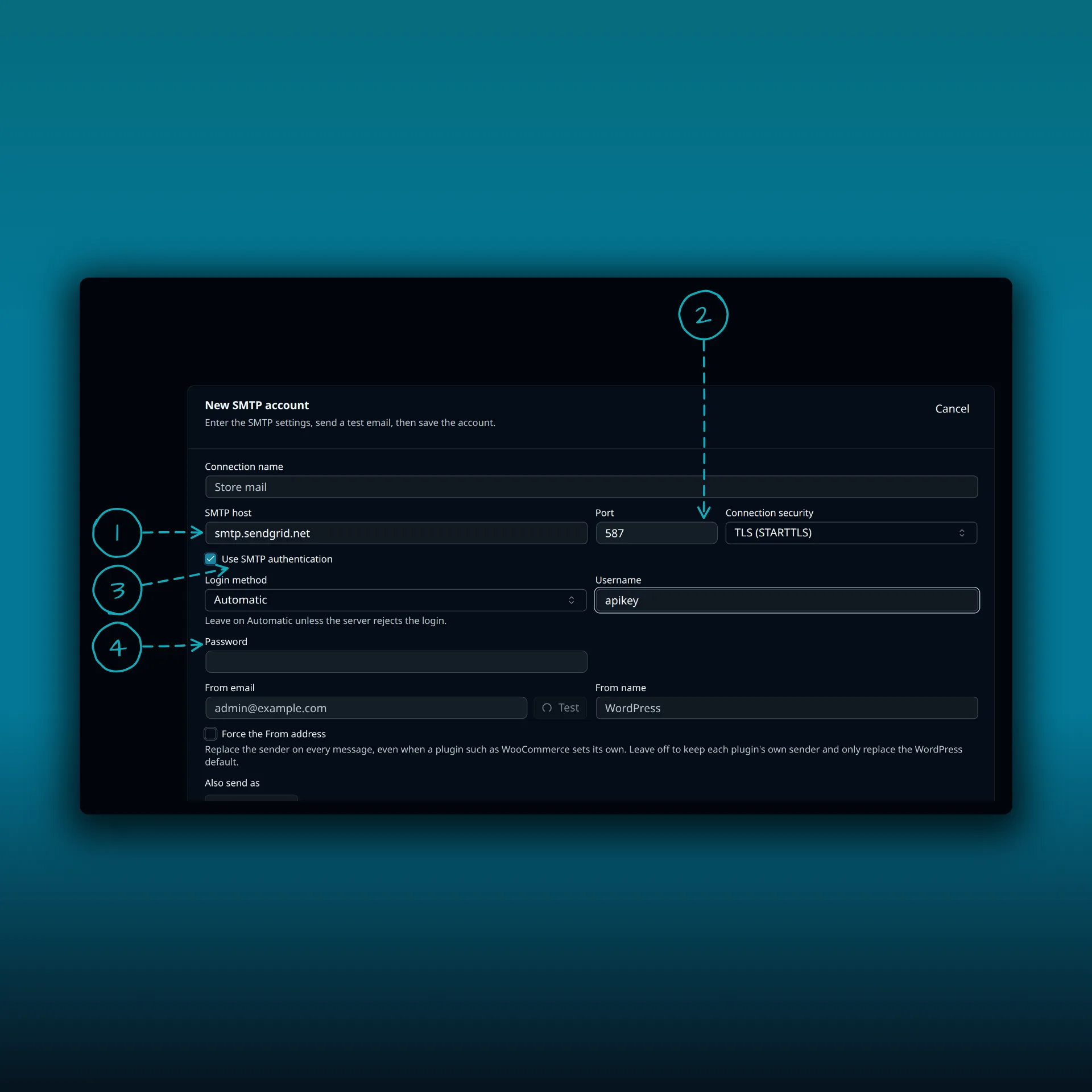
- SMTP host. smtp.sendgrid.net.
- Port and connection security. 587 with TLS (STARTTLS).
- Use SMTP authentication. Leave it on.
- Username and password. The username is the word apikey. The password is the API key.
The picture shows the host, port and username typed from SendGrid’s documentation and nothing saved. Paste your real API key into the password field yourself.
Set the From email to an address you have verified with SendGrid, then save and test.
A clean API key
SendGrid warns about one failure that looks like a wrong password. SMTP ends each command with a line break, so a stray newline or space in the pasted key stops authentication from succeeding. This happens when you copy a key from a terminal that wraps long lines. Paste the key into the field and check that nothing sits after it.
Also note that SendGrid’s own command-line example encodes the key in Base64 for a manual login. You do not do that in PressedMail. The form takes the plain key.
Verify the sender
SendGrid requires a verified sender identity for the address you send from. Its page on sender verification covers a single address and a whole domain. A domain suits a site better, because notifications may come from more than one address.
If WordPress or a plugin sends from an address you have not verified, SendGrid refuses it. You can keep one sender by turning on Force the From address in PressedMail. Contact forms that set the visitor as the sender will then go out under your address, so keep the visitor in Reply-To. The routing guide explains how PressedMail chooses a server and sender.
Limits to know
SendGrid says you may send up to 5,000 messages on one SMTP connection and open up to 10,000 concurrent connections from a single server. A WordPress site that sends notifications will not come near those, but a large import that triggers thousands of emails might. Spread bulk sending out, or use a campaign.
Switch WordPress over to it
Adding the account does not move WordPress’s mail by itself. On a paid build, open the Default SMTP tab and choose PressedMail SMTP.

- The tabs. Paid builds show SMTP Accounts, Default SMTP and System Emails. Free shows System Emails and Mail servers.
- Add SMTP account. The Free button reads Add mail server.
- WordPress default. PHP mail().
- PressedMail SMTP. Sends what WordPress, a plugin or a theme sends through the server you set up here. It stays unavailable until you add one.
- A note that your PressedMail inboxes are not affected either way.
The picture is from a paid build.
Test it
Press Send Test Email with an address you control, then trigger a real WordPress message such as a password reset. Check the recipient mailbox, including spam. The SMTP test guide separates the checks: the form saving, SendGrid accepting the message and the recipient receiving it.
If the connection works and mail still goes missing, the guide to stopping WordPress email going to spam and Test connection passes but sending fails cover the usual causes. The delivery log guide shows what PressedMail recorded.
Common questions
What do I type as the username?
The word apikey, exactly. It is not your account name and it is not the key.
Which permission does the API key need?
At least Mail permissions, according to SendGrid’s SMTP guide.
Which port should I use?
587 with TLS (STARTTLS) is typically the best choice. Use 465 with SSL if you need it.
Why does authentication fail with the right key?
Check the pasted key for a newline or trailing space, and make sure the username is exactly apikey.
Does this send mail from my inbox?
No. This is WordPress’s own mail. The WordPress SMTP guide explains the difference.
Manage your email inside WordPress
PressedMail Free adds an email client directly to your WordPress dashboard. Connect a compatible IMAP/SMTP mailbox, read and send mail, organize messages, and configure WordPress SMTP.

