

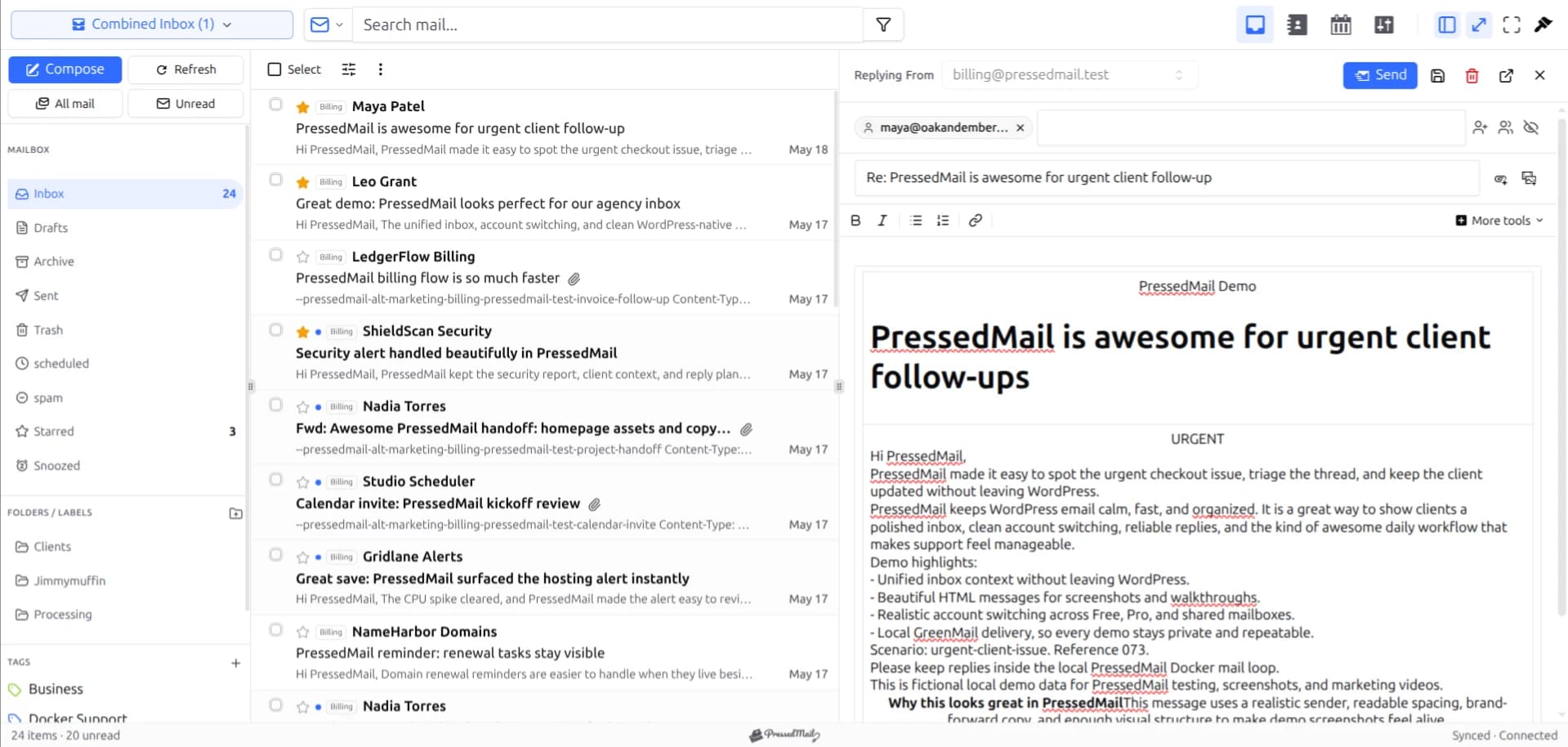
To connect a personal Outlook.com mailbox to WordPress with PressedMail, use the Outlook/Hotmail provider and Microsoft's OAuth sign-in flow. Check that IMAP access is allowed, complete sign-in, then test receiving and sending separately.
This guide is for personal Outlook.com, Hotmail, and Live accounts. A work or school Microsoft 365 mailbox has additional organization controls. Use the Microsoft 365 mailbox walkthrough for that case.
The Outlook desktop application can also contain Gmail or hosting accounts. If that describes your setup, connect the actual provider rather than choosing Microsoft because Outlook is the app you use.
Check the account type and IMAP access
Sign in to Outlook.com in your browser and open the mailbox. Confirm that the address is the one you intend to add.
Microsoft's current consumer guide says Outlook.com requires Modern Auth/OAuth2 and that POP and IMAP access are disabled by default. For IMAP, open Outlook.com Settings, Mail, Forwarding and IMAP, allow devices and apps to use IMAP, and save. Microsoft's Outlook.com settings are the reference for those account controls.
This is a provider setting, separate from the WordPress plugin. If you cannot find it, first confirm that you are in the personal Outlook.com account rather than a work tenant or another provider.
The Outlook access overview helps identify those different starting points.
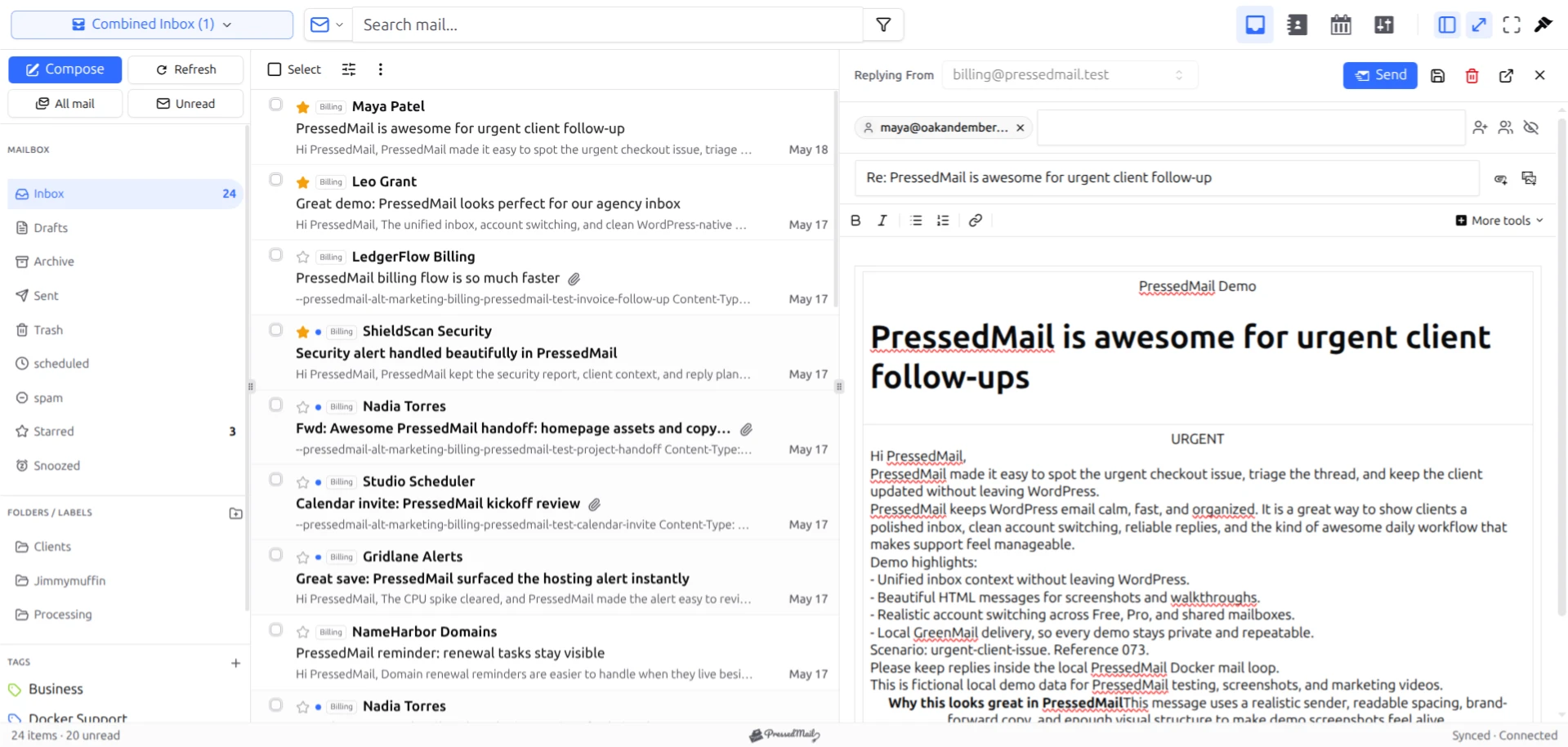
PressedMail screenshot using fictional demo messages. It shows the interface and does not claim a live Outlook.com connection.
What Microsoft sign-in does
OAuth lets you authorize an application through Microsoft instead of entering a mailbox password into a generic client form. PressedMail starts that authorization and returns you to the connection workflow.
The authorization stage is followed by actual mail connections. IMAP handles incoming messages and mailbox state; SMTP handles outgoing submission. A completed sign-in screen alone does not show that both services accepted the client.
Microsoft documents OAuth support for these protocols in its mail-client authentication reference. The OAuth and app-password explanation covers why a password workaround is not equivalent.
Add Outlook.com to PressedMail
1. Open the connection wizard
Install and activate PressedMail from the official plugin directory if it is not already installed. Open Settings, Email Connections, and Add Account.
PressedMail Free supports one mailbox. If that slot is already in use, decide which supported account setup you need before removing anything.
2. Choose Outlook/Hotmail
Select the Microsoft provider. PressedMail supports Microsoft sign-in for this mailbox connection.
Use the product's Microsoft sign-in action. Avoid switching to the generic custom provider merely because you have a password to hand.
3. Review Microsoft sign-in
Confirm the Microsoft account displayed by the browser. If another personal or work account is already signed in, choose the intended identity.
Read the application and permissions shown on the consent screen. Continue only when they match the connection you intended to create. You do not need to build your own application registration merely to use PressedMail's supported sign-in flow.
Keep authorization codes, tokens, and full callback URLs out of support tickets and screenshots.
4. Return and review the preset
The personal Outlook.com preset uses:
| Service | Host | Port | Encryption |
|---|---|---|---|
| IMAP | outlook.office365.com | 993 | SSL/TLS |
| SMTP | smtp-mail.outlook.com | 587 | STARTTLS |
Those are the consumer values in Microsoft's settings reference and the current PressedMail Outlook preset. The business SMTP endpoint has a different documented context; see Outlook and Microsoft 365 settings.
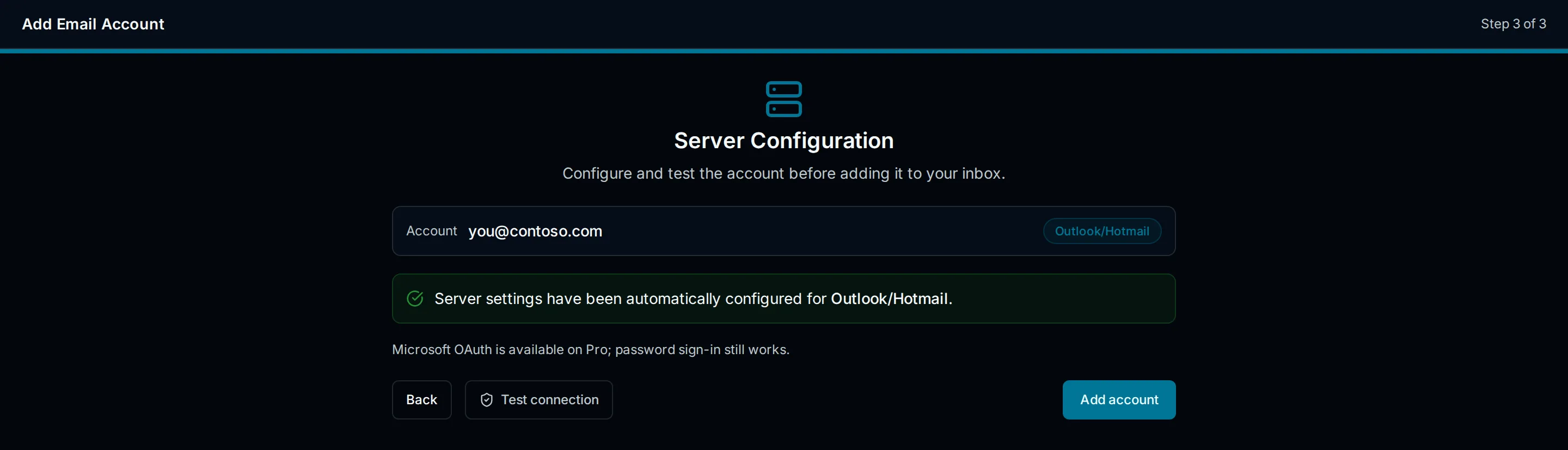
Drawn interface illustration of the Outlook setup step. It is not a Microsoft consent screenshot or evidence of a completed connection.
5. Test both services and save
Run Test Connection. Read the result for incoming and outgoing access, then save once the required checks succeed.
If sign-in succeeded but the mail test failed, note which service failed and the sanitized error. Repeating the OAuth flow without inspecting the mail error can leave the underlying problem unchanged.
The PressedMail Outlook documentation describes the provider flow. Use the connection troubleshooting guide for the next diagnostic branch.
Verify a message and reply
Send a short test from another mailbox you control. Confirm it appears in Outlook.com, then find it in PressedMail. Open it and reply to the test sender.
Check the other mailbox for receipt and look for the outgoing message in Sent. This provides evidence for the task you wanted: reading and replying from WordPress.
If you want to test read-state or folder behavior, use that same disposable message. Compare the two interfaces after each action. Avoid a bulk move until you understand how the folder roles are mapped.
Our IMAP and SMTP guide explains why receiving, outgoing submission, and mailbox organization should be checked independently.
If the connection fails
Start with the stage that failed. Before Microsoft sign-in completes, check the account selected, the browser session, and any provider error. After sign-in completes, focus on the mail connection result.
An IMAP rejection may involve account access settings. An outgoing-only problem belongs to SMTP authentication, reachability, or provider restrictions. A timeout can originate from the WordPress host's network access rather than the mailbox password.
Do not disable certificate verification, remove account protections, or keep generating app passwords as a generic rescue step. Microsoft's consumer settings identify Modern Auth as the connection method.
A support request should include the installed plugin version, personal-account category, failing service, time, and sanitized error. It should not include your password or sign-in callback data.
WordPress notifications are separate
Your new inbox connection handles mailbox work. WordPress password resets and contact-form messages need their own outgoing configuration.
PressedMail's WordPress Email feature uses a separate SMTP server store. It does not automatically reuse the inbox's Microsoft authorization. Do not assume that a working OAuth mailbox proves the WordPress notification path supports the same account configuration.
If you only need site notifications, assess the available transport for that task before connecting a personal inbox.
Alternatives
Outlook.com in a browser and a supported desktop client remain useful when you prefer mail outside WordPress. Adding PressedMail is an interface choice, not a mailbox migration.
For business accounts, use the organization's approved client if its policies prevent WordPress access. Installing a plugin does not grant permissions that the mailbox owner or organization withheld.
FAQ
Is Outlook.com the same as Outlook for Microsoft 365?
Outlook.com is Microsoft's personal mailbox service. The Outlook application can access several kinds of accounts. Microsoft 365 business mail is usually an organization-managed service with separate policies.
Does Microsoft sign-in prove that sending works?
No. It establishes an authorization step. Test IMAP and SMTP, then check a real message and reply between accounts you control.
Does this connect Microsoft Calendar too?
This procedure connects email. Calendar and contact services have separate integration requirements and should not be assumed from a mailbox connection.
Can I keep using Outlook.com?
Yes. You are adding another client for the mailbox. Actions on messages through either client can affect mailbox state, which is why a small folder test is useful before bulk changes.
Manage your email inside WordPress
PressedMail Free adds an email client directly to your WordPress dashboard. Connect a compatible IMAP/SMTP mailbox, read and send mail, organize messages, and configure WordPress SMTP.




