

Gmail can work inside WordPress when your Google account allows the authentication method your email client uses. For PressedMail's Gmail connection, that means an eligible Google app password. Google sign-in is not available in this connection flow. Accounts that cannot issue app passwords cannot use this Gmail connection today. PressedMail Gmail documentation describes that product limit.
Once connected, IMAP gives PressedMail access to messages and folders; SMTP handles replies and new outgoing mail. Gmail remains your mailbox provider. You can keep using Gmail alongside WordPress.
If you are still choosing between those interfaces, start with the Gmail access overview. This guide covers the connection itself.
Check your Google account first
Open Gmail and confirm that you can read the mailbox you intend to connect. Then identify whether it is a personal account or a managed Google Workspace account. A company address may use Gmail while remaining subject to organization policies.
Personal Gmail no longer has an Enable IMAP switch. Google removed that choice in January 2025, with IMAP available by default for personal accounts. Instructions that tell every reader to find and enable that switch are outdated. Managed accounts need their own administrator check. Google's current client-access guidance explains the distinction.
App passwords require two-step verification and are unavailable for some account configurations. Follow the Gmail app-password guide before opening WordPress. If the option is missing, check eligibility rather than repeatedly entering your normal Google password.
For a managed address, ask the administrator whether both mailbox access and the required credential are allowed. The Google Workspace guide covers that decision. Leave the connection alone if organization policy rules it out.
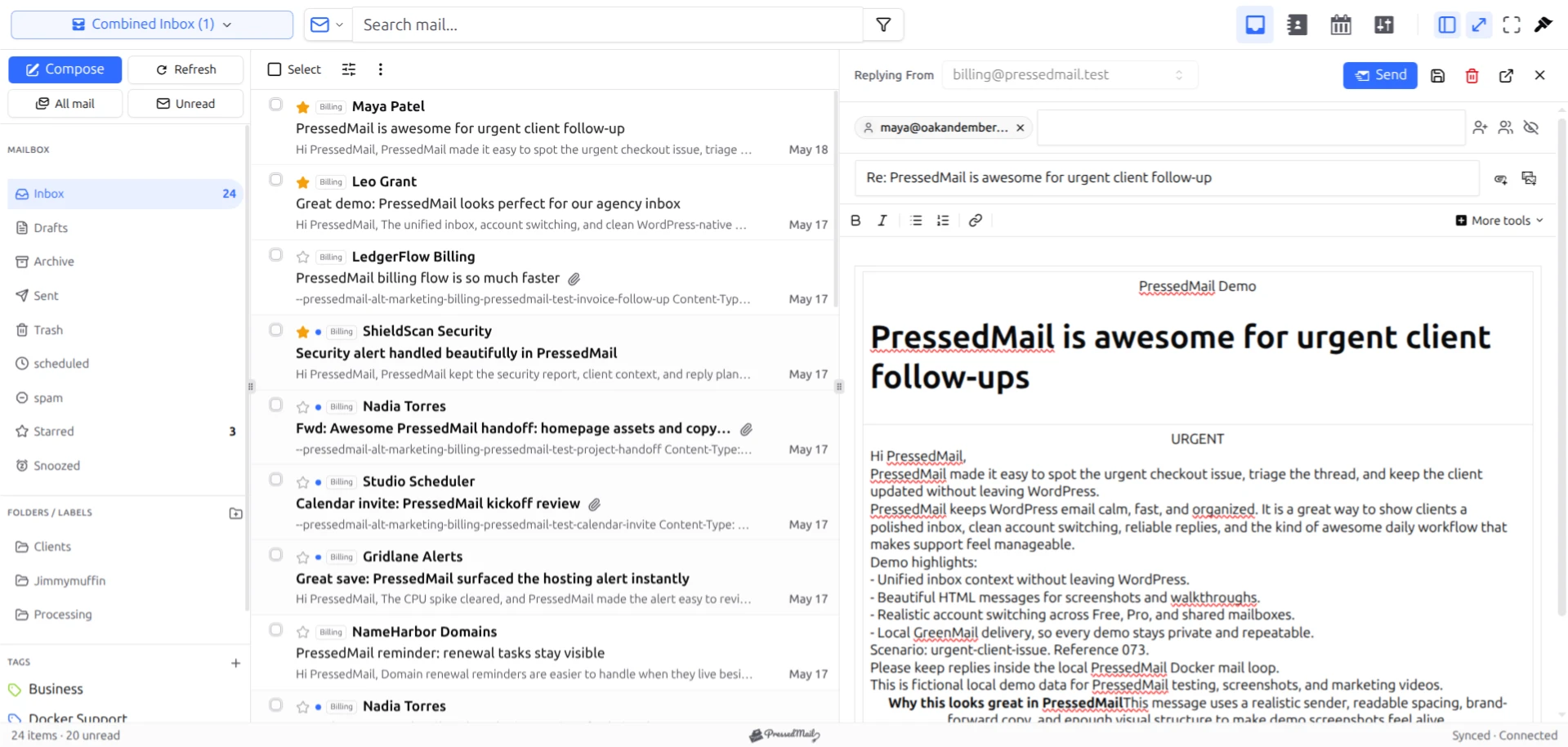
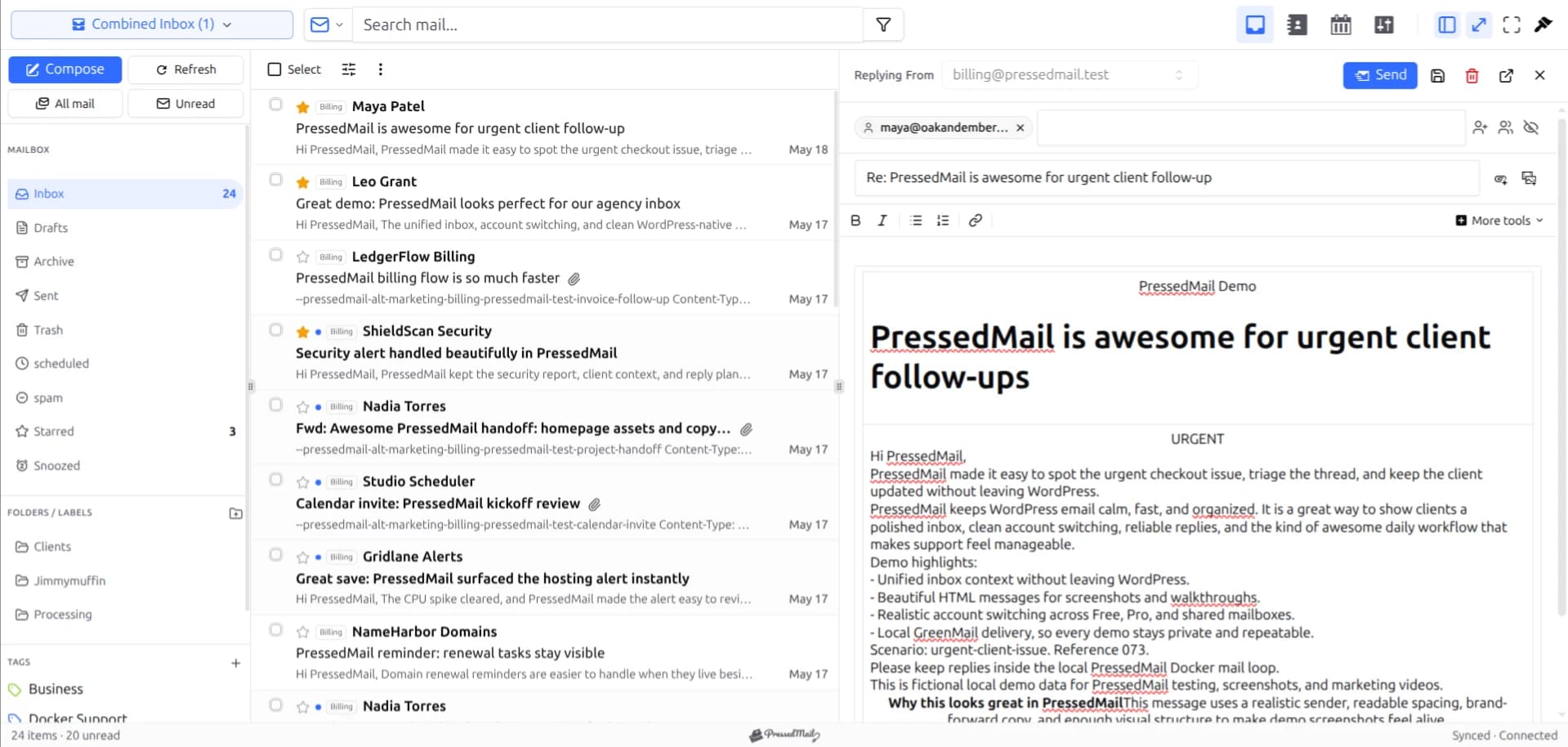
PressedMail screenshot with fictional demo messages. It shows the reading and replying interface, not a live Gmail connection.
What the connection needs
The Gmail preset supplies the following server values:
| Purpose | Host | Port | Encryption |
|---|---|---|---|
| Read and synchronize mail | imap.gmail.com | 993 | SSL/TLS |
| Send mail | smtp.gmail.com | 587 | STARTTLS |
Use your full Google mailbox address as the username. The two services use different ports because they do different jobs. Incoming mail does not pass through the outgoing SMTP server on its way into PressedMail.
Google documents these services in its IMAP and SMTP reference. The preset values above also match PressedMail's current provider configuration. For field-by-field references, use Gmail IMAP settings and Gmail SMTP settings.
Your WordPress server must be able to reach those services. A working Gmail browser tab proves that your computer can access Gmail's website; it does not prove that the hosting server can make an IMAP connection.
Connect the mailbox
1. Install PressedMail and open Email Connections
Install PressedMail Free from the official WordPress plugin directory and activate it. Open PressedMail, then go to Settings and Email Connections. Choose Add Account.
Free supports one mailbox. If you already have a mailbox connected, account limits need to be resolved before adding another. Do not remove a working account merely to investigate a second provider.
2. Select Gmail
Choose Gmail in the provider step. Enter the full email address, a display name you recognize, and the permitted app password.
Keep the provider identity separate from the interface layout. PressedG is a visual layout name; selecting that layout does not connect Google.
3. Review the server configuration
The preset fills the Gmail hostnames, ports, and encryption choices. Check that the account address is the intended mailbox. Copying credentials from a different signed-in Google account is an easy mistake when several Google sessions are open.
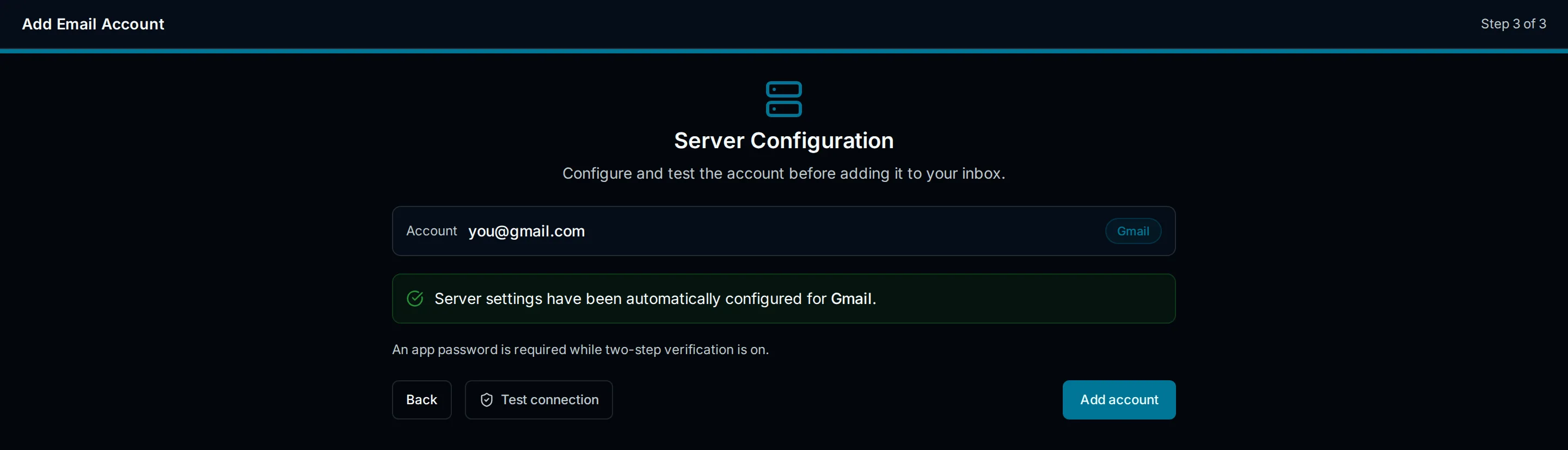
Interface illustration of the Gmail preset. The screen is drawn and does not establish a successful provider connection.
4. Run Test Connection
Read both the incoming and outgoing results. Treat a failure as information about a particular stage:
- Authentication rejection points to the username, credential, or account policy.
- A timeout suggests that the service could not be reached in time.
- A certificate error concerns the secure connection and server identity.
- An SMTP-only failure affects sending even if IMAP works.
Do not turn off certificate verification to get past an error. Record the error without including credentials and use the connection troubleshooting documentation.
5. Save and verify a small round trip
After the connection check succeeds, save the account and allow the initial synchronization to finish. Start with one message you can identify, such as a test sent from another mailbox you control.
Confirm that the message appears in Gmail and PressedMail. Open it in WordPress, send a short reply, and check the other mailbox for receipt. Then inspect Sent in Gmail.
These observations answer different questions. Seeing the incoming message checks retrieval. Sending a reply checks the outgoing path. Finding the reply at the recipient checks receipt for that particular test.
Understand Gmail labels and folders
Gmail labels do not behave exactly like a filing cabinet with one folder per message. A message can have several labels, so it can appear through more than one IMAP folder. A message visible in Inbox and All Mail is not automatically a duplicate created by the client.
Start with a small set of familiar folders. Check Inbox, Sent, Trash, and a custom label before making bulk changes. Use a disposable test message if you want to learn how moving or deleting behaves across the two interfaces. Our IMAP and SMTP explanation covers the underlying division of work.
Keep WordPress notifications separate
Connecting this mailbox lets you read and reply in PressedMail. WordPress password resets, form notifications, and store emails use a separate sending path.
PressedMail's WordPress Email settings maintain their own SMTP server configuration. Adding a Gmail inbox does not automatically configure that server. Follow the SMTP guide if you also want WordPress-generated messages to use Gmail.
When another approach fits better
Keep using Gmail in its own tab if your account cannot create an app password. A mail client with Google's supported sign-in flow is another option. Google's preference for its sign-in flow does not make that flow available in every client.
Forwarding mail to another inbox can be useful, but it changes where messages arrive and can complicate replies. It does not create this IMAP connection or reproduce every Gmail label.
FAQ
Can I use my ordinary Google password?
Use the account's permitted app password for the current PressedMail Gmail path. Your normal Google password is not a substitute for that credential.
Can I receive mail if SMTP fails?
IMAP and SMTP are separate services, so one can work while the other fails. A mailbox intended for reading and replying needs both paths checked.
Why is the first synchronization taking time?
Mailbox size, available folders, hosting resources, and provider responses affect the initial work. Check one known message and the connection status before assuming that an incomplete first view means the account was rejected.
Will removing PressedMail delete Gmail?
Removing a client connection is different from deleting the Google mailbox. Message operations performed while connected can still affect the provider mailbox, so review any deletion or cleanup action before confirming it.
Manage your email inside WordPress
PressedMail Free adds an email client directly to your WordPress dashboard. Connect a compatible IMAP/SMTP mailbox, read and send mail, organize messages, and configure WordPress SMTP.




