

Gmail SMTP uses smtp.gmail.com with either port 587 and STARTTLS or port 465 and SSL/TLS. Authentication uses the full mailbox address and an allowed credential. For PressedMail's Gmail connection, that credential is an eligible Google app password.
These settings can support outgoing mail, but your WordPress application still needs to use the configured SMTP route. Reading Gmail in an inbox and sending a website notification are separate jobs.
Gmail SMTP settings
| Field | Setting |
|---|---|
| SMTP host | smtp.gmail.com |
| Preferred PressedMail preset pairing | Port 587 with STARTTLS |
| Alternative secure pairing | Port 465 with SSL/TLS |
| Username | Full Google mailbox address |
| Credential for current PressedMail Gmail path | Eligible app password |
| From address | Address the account is permitted to send from |
Google documents the secure port choices and full-address authentication in its application-email guidance. Its protocol reference covers the underlying service.
Do not combine port 465 with a STARTTLS setting intended for port 587. The port and encryption mode form a pair.
Check eligibility before configuring WordPress
Google sign-in is not available in PressedMail's Gmail connection flow. Your account must be able to use the supported app-password path. The app-password setup guide covers prerequisites and missing-option cases.
A managed Workspace account may have additional policy restrictions. If the organization does not permit the required method, use its approved application-mail service. Changing a port does not change the account's authentication policy.
For a Gmail inbox, the PressedMail Gmail guide supplies the connection sequence. For receiving mail, use Gmail IMAP settings.
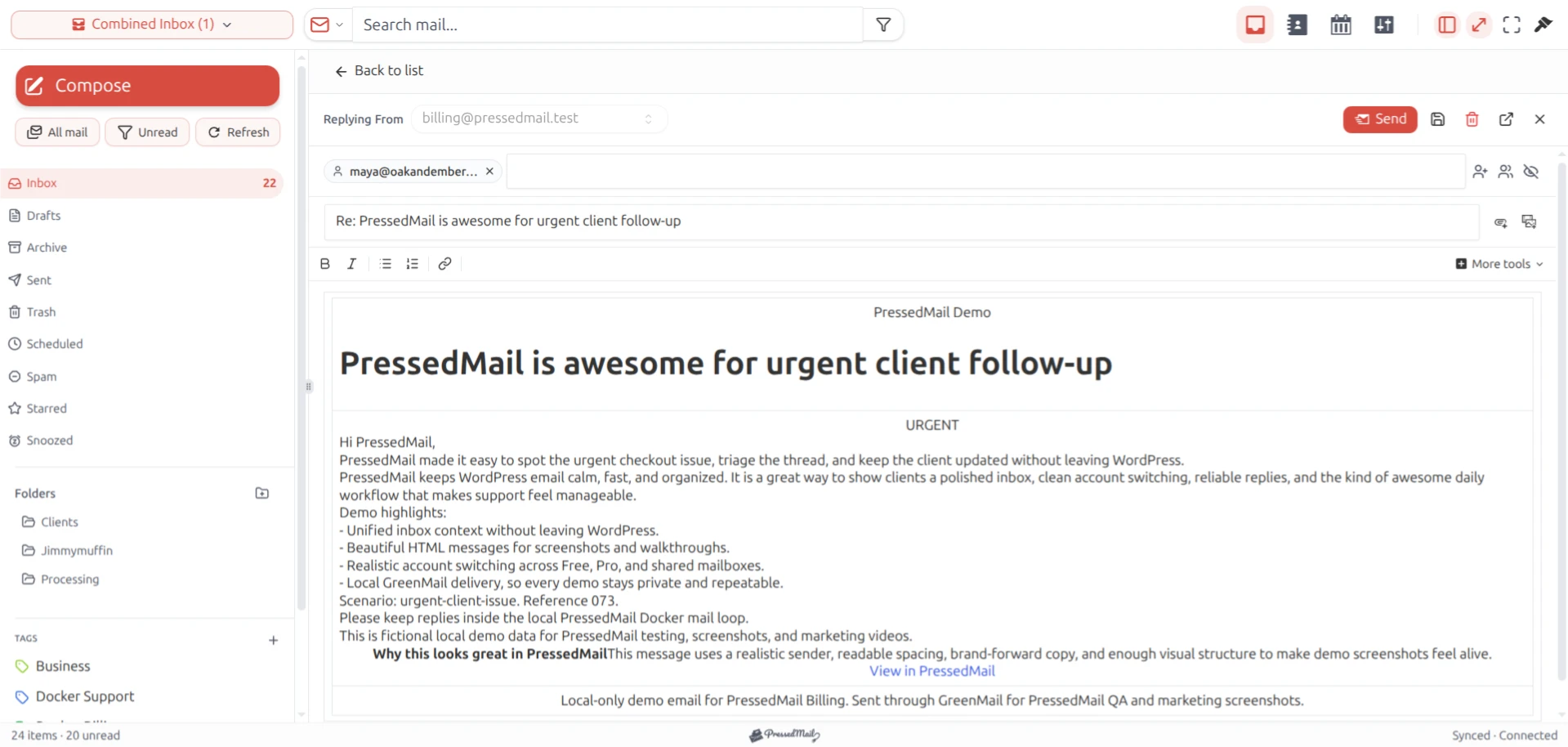
PressedMail screenshot with fictional email. This composer sends mailbox replies; it is separate from WordPress-generated notification configuration.
Configure the WordPress sending path
1. Identify what generates the message
A password reset, contact form, and WooCommerce notification can all originate from WordPress code. Find out whether the component sends through wp_mail() or through its own external API.
An SMTP configuration for wp_mail() only affects messages that use that path. The WordPress SMTP guide explains the application-to-transport handoff.
Also identify any existing SMTP plugin. Keep one clear owner for the active transport rather than leaving several plugins with competing settings.
2. Add the SMTP server under WordPress Email
PressedMail maintains WordPress SMTP server configurations separately from inbox accounts. Opening a Gmail inbox does not create or select a WordPress SMTP server.
In PressedMail's WordPress Email settings, add the server using the host, port, encryption, username, and permitted password above. Free supports one WordPress SMTP server; additional routing capabilities belong to the relevant paid configuration.
Use the current server controls rather than treating the older illustration below as a field-by-field specification.
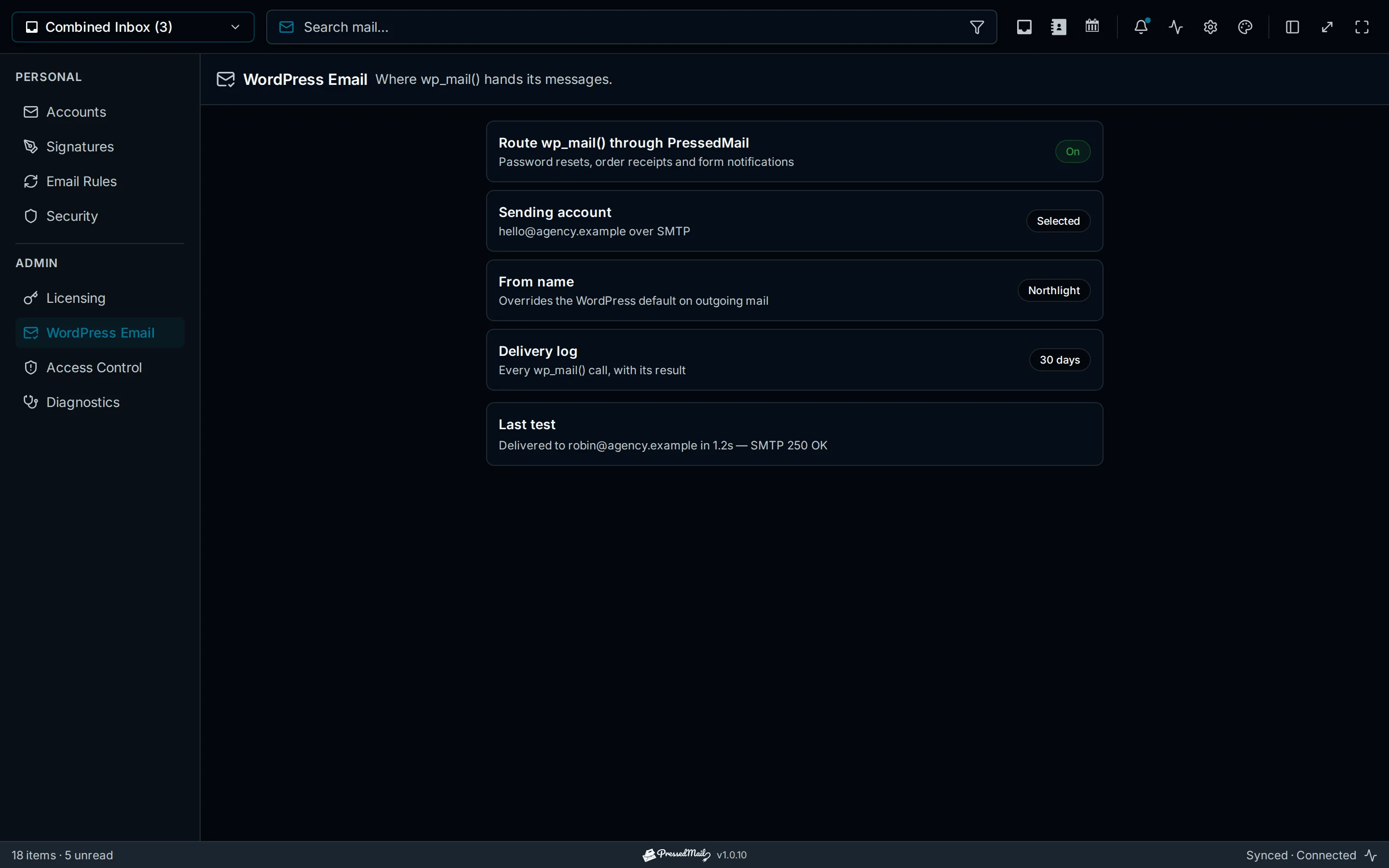
Drawn interface illustration. The depicted account selection, retention, and test values are illustrative; current WordPress Email uses a separate SMTP server configuration.
3. Set an authorized sender
Use an address the Google account is allowed to send from. A contact-form visitor's address normally belongs in Reply-To, not in the authenticated From field.
Changing the visible From address does not authorize that address at Google. If you use a Workspace alias or another approved sending identity, follow the provider's rules for that identity.
4. Test through WordPress
Run the SMTP test with an address you control. Then trigger one representative notification through the application path you care about.
Check the plugin result, any recorded error, and the recipient mailbox. A successful application call, server acceptance, recipient delivery, and inbox placement are separate observations. WordPress itself warns that a successful wp_mail() return value does not establish recipient receipt.
Use the SMTP test procedure to keep these checks separate.
Troubleshoot the result
If authentication fails, check the full account address and credential eligibility. A recently changed Google password can invalidate an existing app password; replace the dedicated credential when that applies.
If the connection times out, ask the WordPress host whether outbound connections to the selected SMTP service and port are allowed. A working Gmail browser session does not test that server-to-server path.
If the server rejects a sender, compare the configured From identity with the authenticated account and its allowed aliases. If the provider reports a sending limit, stop repeated test sends and review that account's current allowance.
If Gmail accepts the message but the recipient finds it in spam, move to WordPress spam-placement troubleshooting. More password changes are unlikely to solve a recipient filtering decision.
When to use a different sending service
A human mailbox can be appropriate for modest site mail when provider policy permits it. A site with sustained transactional traffic may need a service whose limits, monitoring, and operational model fit that workload.
Google Workspace relay is a distinct administrator-configured service. It should not be confused with smtp.gmail.com mailbox submission, and it does not create a readable WordPress inbox.
Choose the outgoing route based on the application's needs. The inbox client can remain a separate decision.
FAQ
Does a connected Gmail inbox configure WordPress notifications automatically?
No. PressedMail's inbox connection and WordPress SMTP server configuration are separate. Configure and test the WordPress Email route explicitly.
Is port 465 more secure than 587?
Both documented configurations can provide encrypted transport when paired with the correct TLS mode. A mismatched configuration is the problem to avoid.
Can Gmail send WooCommerce mail?
A compatible, permitted SMTP setup can carry messages that WooCommerce sends through the WordPress mail path. Provider limits and sending policy still apply; test the actual store notification you depend on.
Does a successful test guarantee future delivery?
No. It establishes the observed result of that test. Credentials, provider policy, quotas, network access, and recipient filtering can change.
Manage your email inside WordPress
PressedMail Free adds an email client directly to your WordPress dashboard. Connect a compatible IMAP/SMTP mailbox, read and send mail, organize messages, and configure WordPress SMTP.




