

Email clients restrict remote images because loading an image can contact a server outside the message. That request can reveal information about the retrieval and, when the image URL contains an identifier, connect it to a particular email.
The restriction also has a visible cost: logos, product pictures, and image-based layouts may be missing until you allow them. An image can be useful and still create a request the reader did not expect.
The choice is about when to fetch outside content. It does not require assuming that every logo is malicious.
A remote image is different from an attached image
An HTML message can refer to an image by its web address. The message contains the address, while the image itself stays on a server. To display it, the client or an intermediary must obtain that resource.
An inline attachment works differently. The image data is included with the email and referenced from the message. It can appear in the body without the client fetching that same picture from the sender's website.
This is why seeing an image does not, by itself, prove that remote-image blocking failed. First identify where the image data came from. Cached copies and proxy retrieval can further change what happens during a later viewing.
If you are new to the interface around the message, reading email in WordPress explains the inbox and reading pane.
What an image request can tell a sender
A direct request reaches the server hosting the image. The server can observe details of the request, which may include a network address and timing. A unique address for the image can also identify which message prompted it.
The exact information depends on the client and the network path. A proxy can request the resource on the reader's behalf. A cache can reuse an earlier response. The sender does not necessarily see the reader's own IP address or an accurate time of intentional reading.
Apple's Mail Privacy Protection explanation describes background retrieval through relays. That example shows why “the image was fetched” and “the person opened the message at that moment” are different claims.
The detailed tracking-pixel guide explains how request identifiers become open measurements and where those measurements become uncertain.
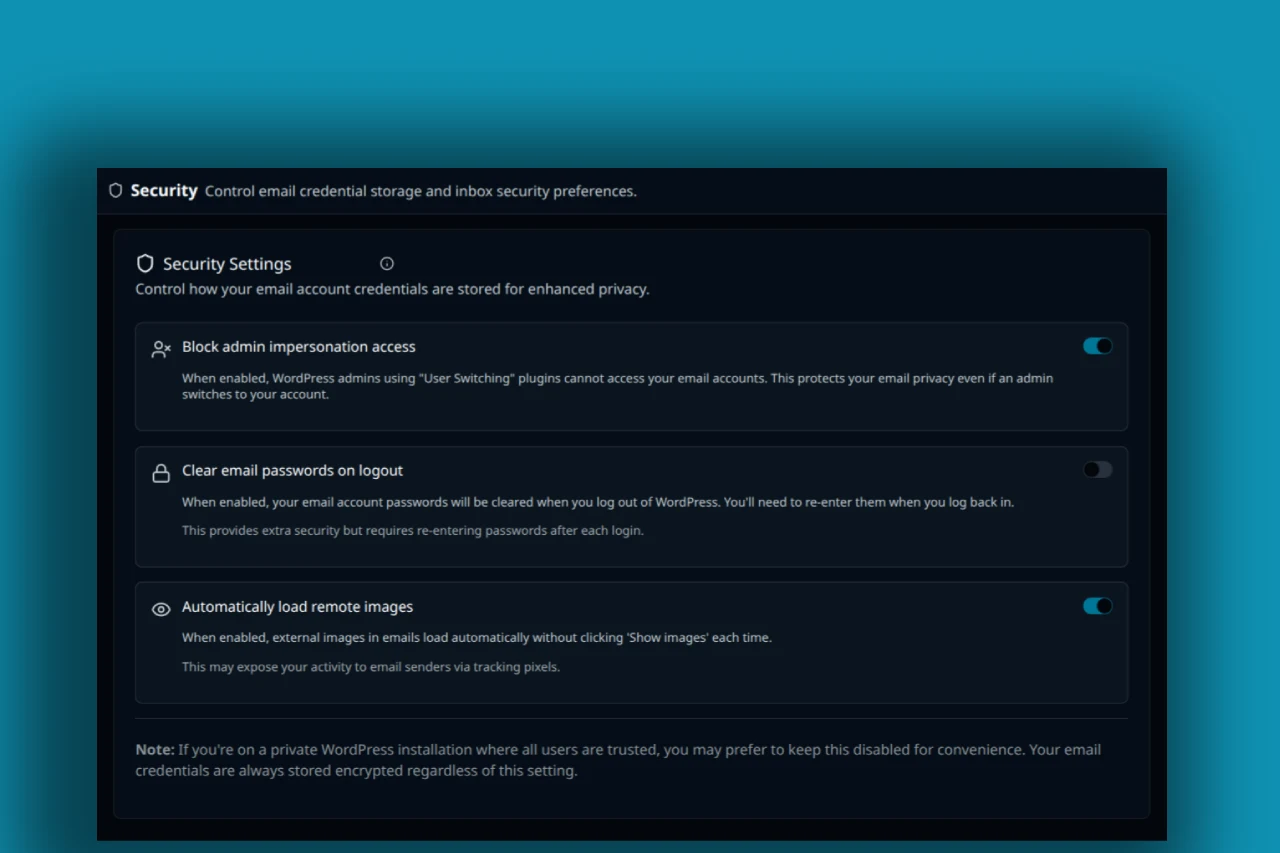
Screenshot of PressedMail security settings. Automatically load remote images is ON in this capture; it does not show blocked image requests.
Choose your PressedMail image setting deliberately
Open PressedMail's security settings and review Automatically load remote images. Turning automatic loading off makes the image decision something you can consider while reading, rather than accepting the behavior without checking it.
Read the message's text first. For an ordinary written enquiry, its signature image may add nothing you need. For a message whose useful information is in a chart or product picture, you may decide to load it after checking the sender.
Use the loading control offered in the reading view for that message. If the screen or installed version differs from an older screenshot, follow the current security documentation and the controls actually available.
Do not treat this setting as proof that all external requests are impossible. Email can reference resources through more than one mechanism, including styling and fonts. PressedMail's HTML display applies separate policies, and some HTTPS resource types can remain permitted.
The HTML display guide explains sanitization, frame isolation, and resource rules separately.
Check the sender before allowing more content
A familiar display name is not enough. Inspect the full address and consider whether the message makes sense in an existing conversation.
If the message asks for a password, payment, or urgent account change, verify that request through an address or service you already know. Loading its pictures does not make its claims more reliable.
An image-only message can be difficult to assess without loading anything. You can ask the sender to resend the essential information as text or use their established website to find the same information.
This is also an accessibility issue. A message that puts all of its meaning into one image is harder to read when images are unavailable or when a reader depends on assistive tools. If you send business mail, include the important information as actual text and use meaningful alternative text for supporting pictures.
Blocking, proxying, and scanning are different choices
A client can withhold a resource until the user permits it. Another client may retrieve the resource through an intermediary. A service may also inspect images for known harmful content. These mechanisms answer different questions.
Gmail lets readers ask before displaying external images. Google also says that its image processing limits information available to senders, while acknowledging that senders may sometimes know whether an image-containing email was opened. See Google's image settings guidance.
Do not assume that connecting a Gmail mailbox to another client transfers every behavior of Gmail's web interface to that client. The mailbox provider and the reading application have different roles. Gmail versus a WordPress email client covers that distinction.
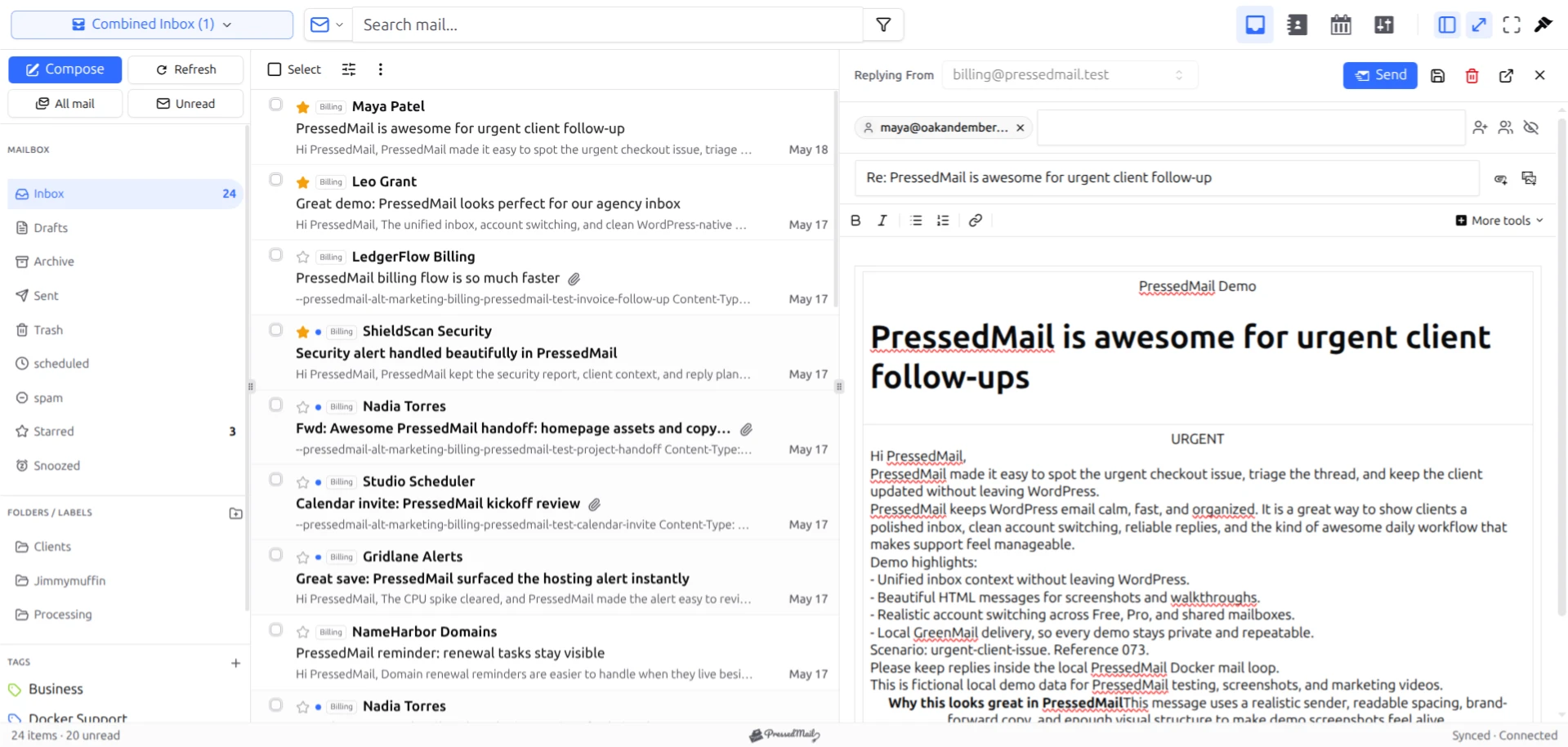
Screenshot with fictional mail in the PressedM layout. It illustrates ordinary reading, not a before-and-after network test.
If you need to verify what is loaded
A site maintainer can inspect a harmless test message containing an image hosted on a server they control. Record the current setting, open the message, and inspect the browser's network requests.
Repeat with the intended loading choice, accounting for caching. A previously loaded image may appear without another request to the original server. A fresh test resource can help separate that effect from the image setting.
Use your own mailbox and test endpoint. Do not turn a privacy check into tracking unsuspecting recipients or collecting customer network information.
The result describes the tested message and configuration. It does not establish that every possible HTML resource is blocked or that no other application retrieved the message's content.
For most readers, the practical routine is less technical: know the setting, read the request, inspect the sender, and load outside content when it is useful. That fits within a daily WordPress email workflow.
Links and attachments remain separate decisions
Blocking an image does not prevent you from clicking a link. The destination website can receive a request when you open it, and the URL itself can contain identifiers.
Downloading an attachment also moves the task into another application. The image setting does not establish the safety of that file.
Treat the control as one part of reading mail, with a specific purpose. It can reduce or change automatic image retrieval without replacing link inspection, account protection, or careful handling of unexpected files.
Common questions
Are all remote images tracking pixels?
No. Many are ordinary logos and pictures. However, a visible image can use an identifying URL too, so size alone does not tell you whether retrieval is measured.
Can I read a message without its images?
Often, yes. Text remains useful in many messages. An image-only layout may omit information until the image loads, which is a reason for senders to include readable text.
Why does an image still appear with automatic loading off?
It may be an inline attachment, a cached resource, or content handled through another supported path. Inspect its source before drawing a conclusion about the setting.
Does blocking images stop link tracking?
No. Opening a link is a separate request. Its destination and any identifier in the URL remain relevant.
Does a remote-image setting guarantee privacy?
No single setting establishes that. Client behavior, proxies, caches, other resources, and separate link clicks all affect what can be observed.
Manage your email inside WordPress
PressedMail Free adds an email client directly to your WordPress dashboard. Connect a compatible IMAP/SMTP mailbox, read and send mail, organize messages, and configure WordPress SMTP.




