

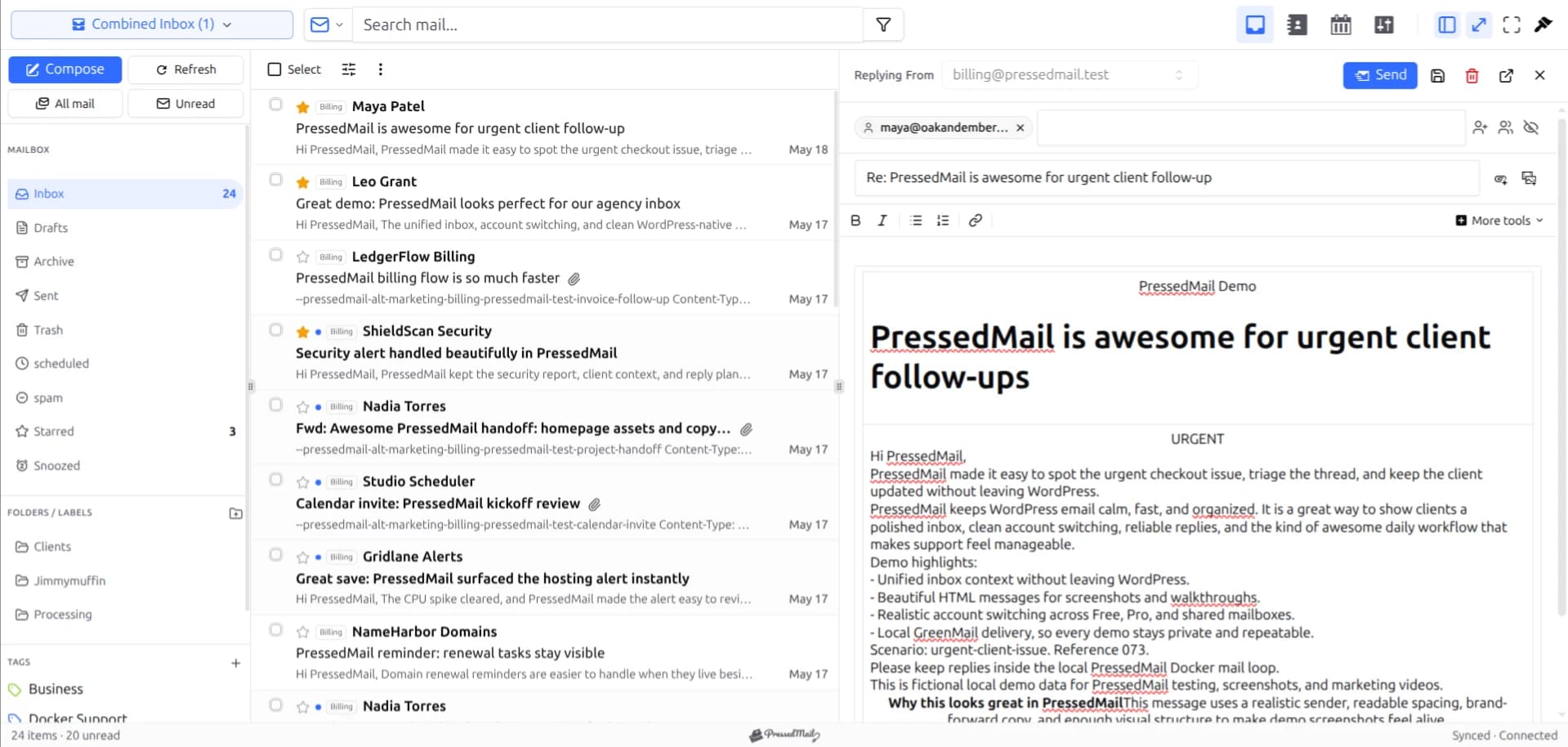
An SMTP plugin configures how a website sends email. An email client gives a person an interface for reading, replying to, and organizing a mailbox. A website can need either job or both.
PressedMail combines a mailbox interface with separate WordPress SMTP configuration. That combination does not make incoming mail, composer replies, and website notifications the same process.
Start by naming the task. “My password resets do not arrive” is a sending problem. “I want to answer customer mail in wp-admin” is an inbox requirement. Installing a component for one does not automatically complete the other.
The three paths involved
Incoming mail reaches your provider's mailbox. A compatible client reads it through IMAP and displays the messages and folders.
A reply written in that client uses the mailbox's outgoing connection to submit the message. In a typical compatible setup, that is SMTP.
A notification generated by WordPress begins in the website. Many plugins use WordPress's wp_mail function, though some use a separate provider API.
| Starting action | Responsible configuration | Useful first check |
|---|---|---|
| Read an incoming message | Mailbox's IMAP connection | Does known mail appear after sync? |
| Send a composer reply | Mailbox's outgoing connection | Does a controlled recipient receive it? |
| Send a WordPress notification | Site SMTP or API configuration | Does the actual website trigger use the intended route? |
The IMAP and SMTP guide explains those protocol roles without assuming WordPress is your mail host.
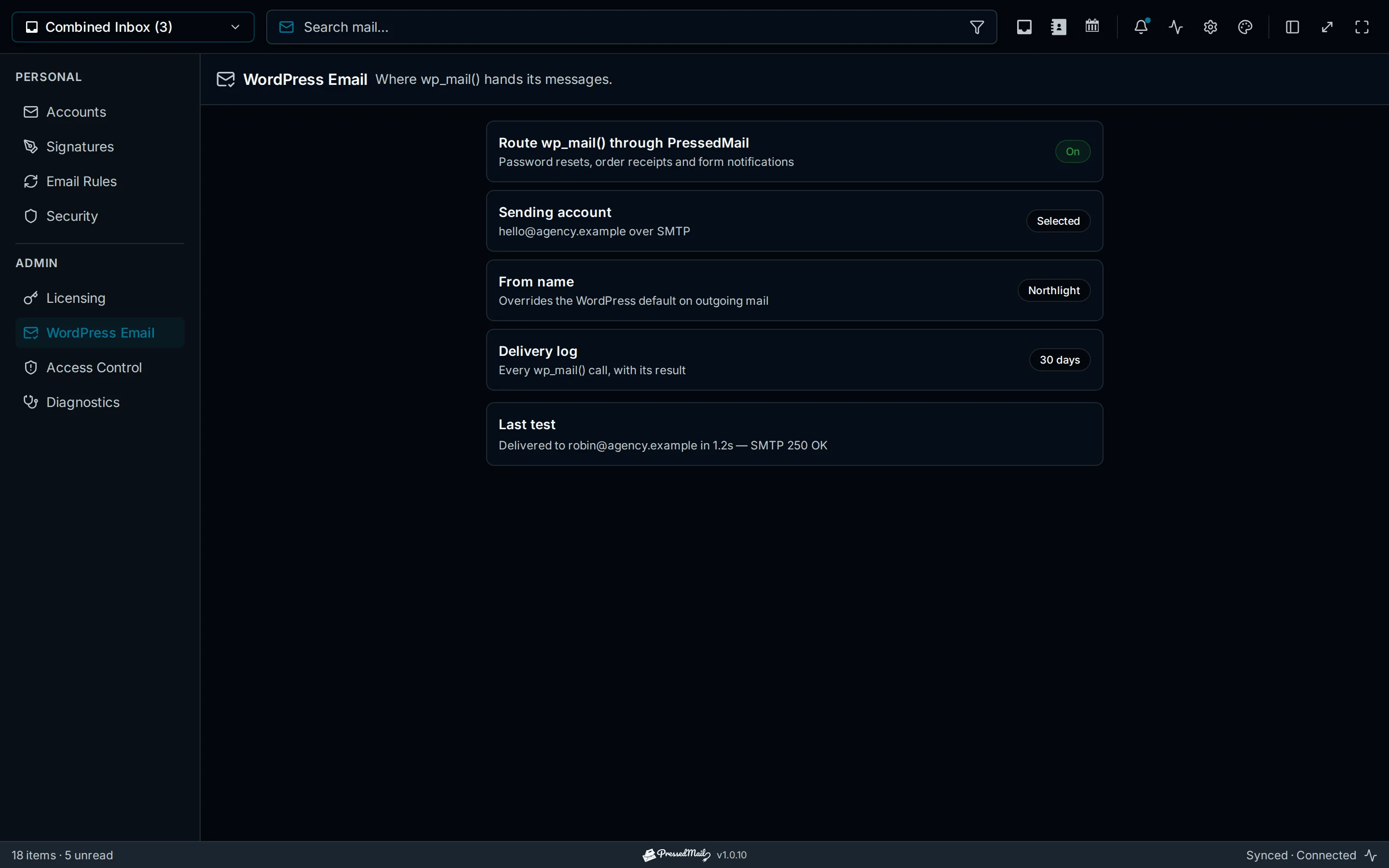
Illustration of WordPress email settings. Example results and retention values are explanatory, not a record of a real test.
What an SMTP plugin normally adds
An SMTP integration can replace the web server's ordinary sending path with an authenticated provider connection. Depending on the product, it may also offer provider APIs, multiple routes, logs, or other features.
The category name is not a complete specification. One plugin may use username-and-password SMTP while another integrates directly with a provider API. Their authentication, logging, and failure behavior can differ.
What this does not inherently add is a mailbox reading pane. Configuring outgoing transport does not retrieve incoming messages, synchronize provider folders, or supply an interface for replying to correspondence.
If your sole requirement is outgoing website notifications, a suitable SMTP or API plugin can be enough. You do not need an inbox interface merely to make a password reset leave the website through an intended provider.
For the function behind many of those messages, read wp_mail explained.
What a full email client adds
An email client lets the user open a mailbox, read a message, reply, and organize what remains. Its value is the work done with correspondence after it arrives.
PressedMail places that interface in WordPress. Free includes one mailbox, basic composing, folders, and manual tags. Paid features include multiple accounts, combined views, contacts, calendar, and advanced productivity tools.
The client still requires a compatible mailbox provider. It does not create an address by itself or replace the server receiving email for your domain.
For example, a customer can send a revision request to your business mailbox. PressedMail can display it while you work on the website. That is different from the website generating a form-notification email about a new submission.
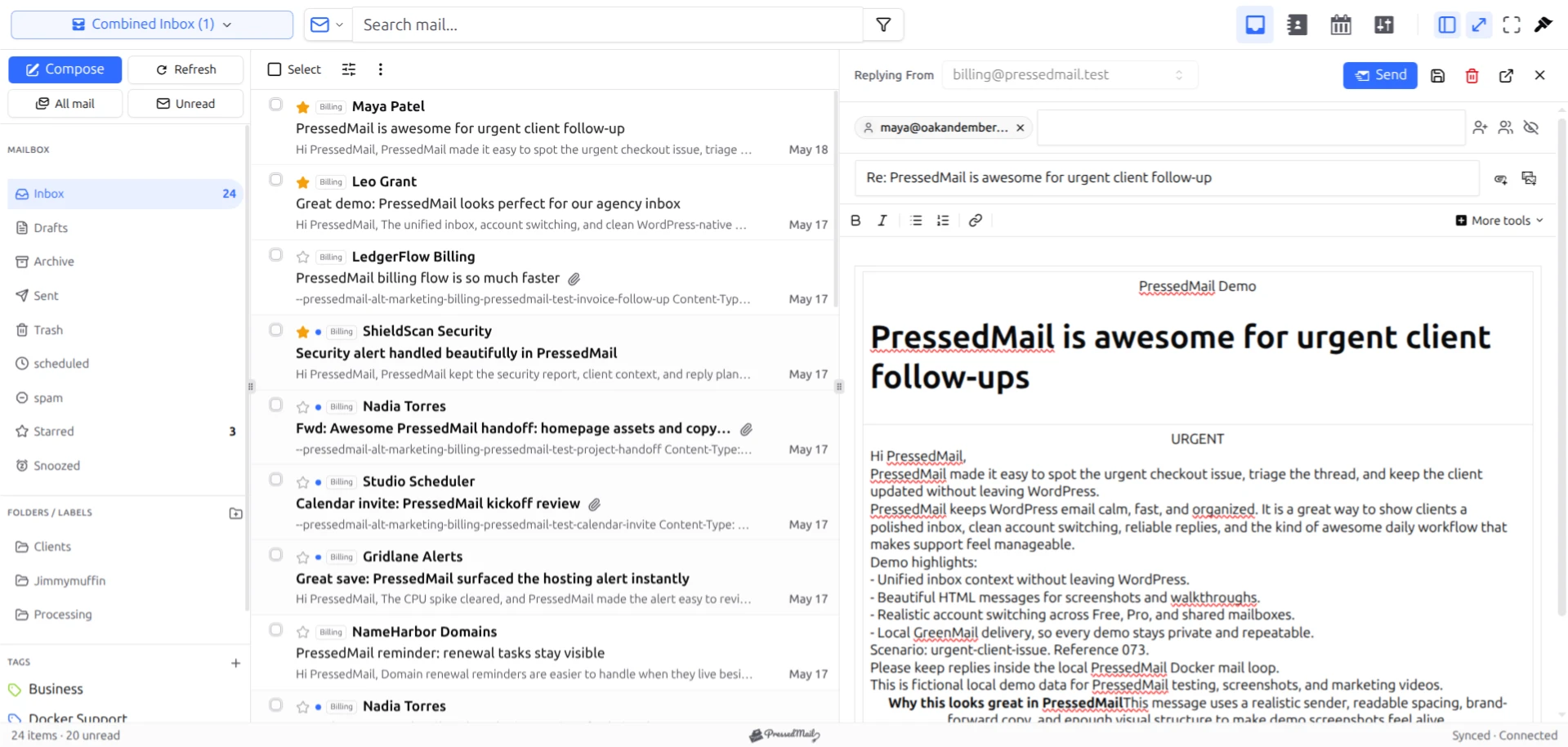
Screenshot of fictional correspondence in the PressedM layout. It shows mailbox work rather than WordPress's system-mail transport.
PressedMail configures WordPress SMTP separately
PressedMail's WordPress Email area is a site-wide administrator setting. It stores SMTP server details separately from a user's mailbox connections.
The server configuration includes the SMTP host, port, security mode, authentication details, From address, and From name. Free supports one server connection. Pro adds multiple server connections and routing according to the sender address.
Connecting an inbox does not automatically populate or activate that system-mail configuration. The same provider may supply both services, but you still need to configure and test the relevant path.
The Force From control also affects behavior. When enabled, it replaces the sender on messages handled by the route. When disabled, deliberately supplied sender addresses can remain, while the WordPress default is replaced according to the configuration. Use a sender the provider permits.
The WordPress SMTP setup guide covers the setup sequence. Account authentication in the inbox is not evidence that a separate site SMTP server supports the same method.
Choose one owner for the site-mail route
Before enabling a new sender, inspect what the site already uses. Two plugins changing the same WordPress mailer can interfere or leave the effective configuration unclear.
A plugin that sends directly through its own email API is a different case. Its messages may bypass wp_mail and therefore bypass the SMTP route you are editing. Check the integration rather than assuming every notification follows the same path.
You can use PressedMail for the inbox while retaining an established site sender. Keep PressedMail's WordPress SMTP route disabled if another integration is intended to own that job, then verify the resulting behavior.
For a change to an existing sender, use the SMTP-plugin replacement checklist. Preserve the working configuration until its replacement has passed the site's relevant checks.
Test each required behavior
Start with one owned mailbox and a harmless incoming message. Confirm it appears, then reply and inspect the receiving address. This tests the mailbox workflow.
Next, configure the intended site sender and run its test. Then trigger the actual website messages you rely on, using controlled recipients and a suitable test context.
A contact form, password reset, and store receipt can differ in sender headers, content, and the plugin generating them. A successful settings-page test is useful but should not be the only check for a business-critical notification path.
If a particular trigger fails, record whether WordPress attempted the send, which route handled it, and what the provider reported. Avoid repeated blind sends that make the logs harder to interpret or send duplicate messages.
Logs describe an outcome at a particular point
PressedMail's WordPress mail log stores metadata rather than full message bodies, raw headers, or attachments. That metadata can still contain personal information, including limited recipient information and the subject.
Current retention choices are 30, 60, or 90 days. Zero stops new logging, and scheduled retention cleanup clears existing rows while logging is off. Preserve any needed diagnostic evidence before choosing zero.
A success record describes the sending path's reported result. WordPress explicitly warns that successful processing does not prove receipt. Check the recipient mailbox during setup rather than interpreting the log as a read receipt.
The delivery log guide explains how to use those records. Missing mail may require checking provider rejection, recipient filtering, and the actual address.
Match the software to the requirement
For outgoing site notifications alone, compare the sender's provider support, authentication, routing, and diagnostic needs. An inbox adds little if no one intends to read mail in WordPress.
For correspondence inside wp-admin, evaluate the client against reading, replying, folder behavior, and the provider's account policy. If you also want WordPress SMTP in the same product, assess its separate configuration against the existing sender.
Requirements such as a helpdesk queue or team message assignment need another evaluation. A full email client does not automatically provide those systems.
Common questions
Will an SMTP plugin let me read incoming mail?
Not by configuring SMTP alone. Incoming mailbox access needs a client and a supported incoming connection such as IMAP.
Does connecting a PressedMail mailbox route WordPress email?
No. WordPress SMTP is a separate administrator configuration.
Can a form plugin bypass that route?
Yes, if it uses its own provider API or another independent sending mechanism. Check the form integration's actual transport.
Does a successful log entry mean the recipient read the message?
No. It does not establish inbox placement or reading. It records the sending path's reported outcome.
Can I use PressedMail only as an inbox?
Yes. Keep system-mail ownership with the intended existing integration and test that configuration.
Manage your email inside WordPress
PressedMail Free adds an email client directly to your WordPress dashboard. Connect a compatible IMAP/SMTP mailbox, read and send mail, organize messages, and configure WordPress SMTP.




