

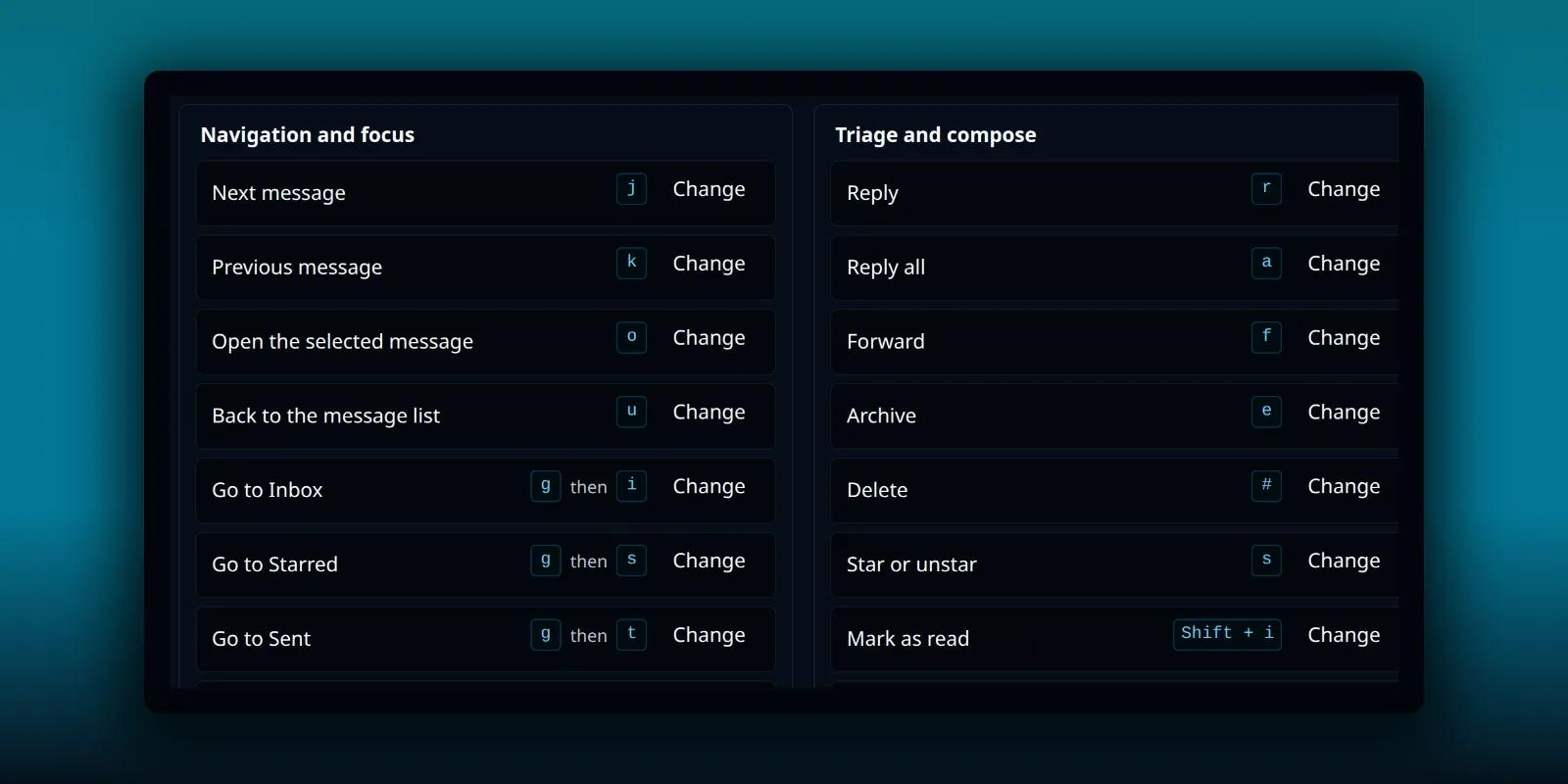
You can run most of your inbox from the keyboard. Move down the list, open a message, reply, archive it and jump to the next one without touching the mouse. PressedMail has had this since version 1.8.3, and the keys follow the habits of Gmail-style webmail.
This guide lists every shortcut, explains the two-key sequences and tells you when the keys stay quiet so they never fire while you type. It also covers how to change them and how to turn them off.
See the list from inside PressedMail
Press ? anywhere in PressedMail and a list of every shortcut opens. That key is fixed and has no Change button. It is the quickest way to check a key without leaving your mail.
The same list lives in your preferences. Open PressedMail, then Settings, then Preferences, and choose the Keyboard tab.
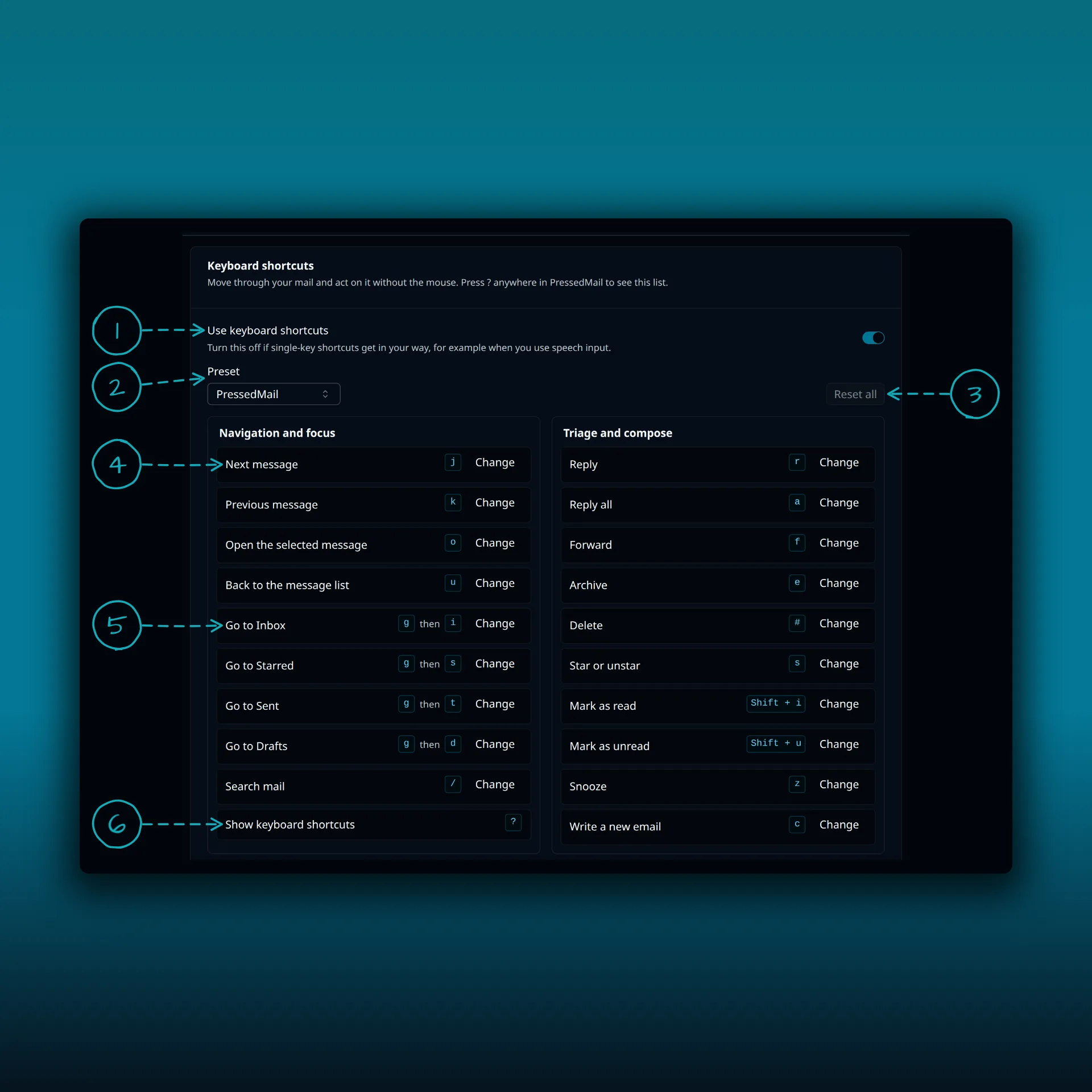
- Use keyboard shortcuts. The switch for the whole feature.
- Preset. Which set of keys is in use.
- Reset all. Puts every key back to its default.
- Next message, with the key j. Each row shows its key.
- Go to Inbox. A two-key sequence, g then i.
- Show keyboard shortcuts. The question mark, which opens the list from anywhere.
The picture comes from a paid build, so it shows Change buttons and a preset menu. A Free site shows the same keys as a fixed list with the on and off switch and no way to rebind them.
Moving around
| Key | What it does |
|---|---|
j | Next message |
k | Previous message |
o | Open the selected message |
u | Back to the message list |
g then i | Go to Inbox |
g then s | Go to Starred |
g then t | Go to Sent |
g then d | Go to Drafts |
/ | Search mail |
Acting on a message
| Key | What it does |
|---|---|
r | Reply |
a | Reply all |
f | Forward |
e | Archive |
# | Delete |
s | Star or unstar |
Shift and i | Mark as read |
Shift and u | Mark as unread |
c | Write a new email |
z | Snooze (paid builds) |
The z key is in the paid builds’ list. Free has snooze too, through the toolbar button, but its fixed key list has no snooze key. The guide to snoozing and scheduling covers the menu.
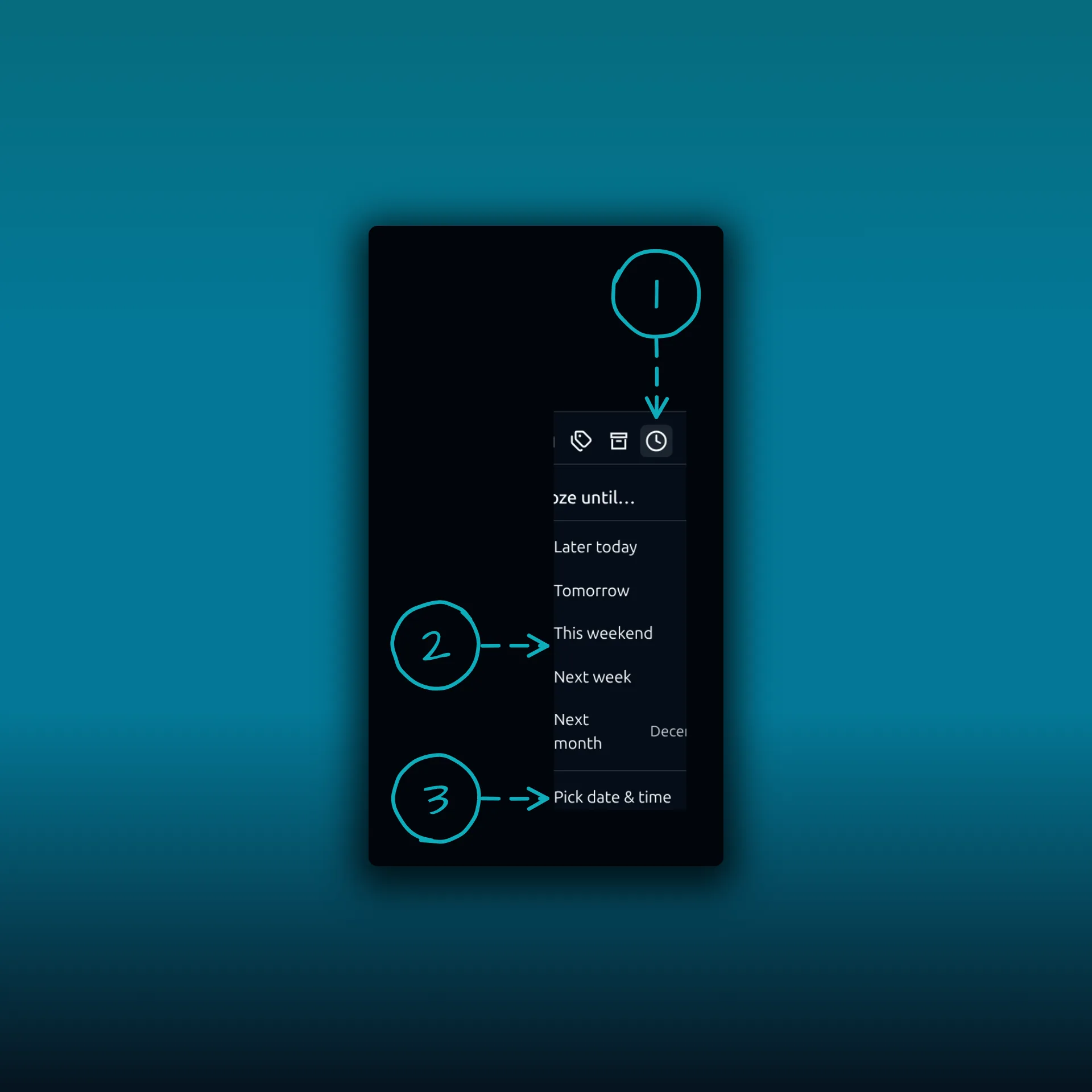
- The Snooze email button in the toolbar above an open message.
- The suggested times, each with the exact time it means.
- Pick date & time, for a moment the list does not offer.
The z key opens this menu for the selected message. Pick a time and the message leaves the inbox until then.
How the two-key sequences work
The four “go to” shortcuts take two keys. Press g, let go, then press the second key. PressedMail waits one second for the second key. If it does not arrive, the first press is forgotten and you start again.
That window is short on purpose, so a stray g does not hang around waiting. If you find the pace awkward, rebind the shortcut to a single key on a paid build.
When the keys stay quiet
Single-key shortcuts are dangerous in an app where you also type. PressedMail ignores them in these cases:
- You are typing in a field, such as search, a subject line or the composer.
- A dialog, menu, popover or select is open, or a modal panel such as the lock screen.
- Your focus is in WordPress’s own admin bar or menu.
- You turned the feature off in Preferences.
Holding a key down repeats only for next and previous message. Holding e will not archive a run of mail while you rest a finger on it. This also matches the guidance in WCAG 2.1.4, which asks that single-key shortcuts can be turned off or remapped. The switch under Use keyboard shortcuts is that control. Its note says to turn it off if single-key shortcuts get in your way, for example when you use speech input.
The setting belongs to your user. Turning it off on your account leaves a teammate’s keys alone.
Changing a key on a paid build
Press Change beside an action, then press the key or keys you want. Paid builds also offer three presets in the menu:
- PressedMail, the default set listed above.
- Gmail, which uses the same letters for next, previous, archive, compose, star, reply, reply all and forward.
- Outlook, which moves several actions onto Ctrl combinations. Compose becomes
n, because browsers keep Ctrl+N for a new window and never pass it to the page.
A preset only changes the actions it names. The rest keep their current keys.
PressedMail refuses a key another shortcut already uses, and a key that is the first half of a sequence counts too. If g starts “go to” sequences, you cannot give g alone to another action. Reset all returns every key to the default set.
A short routine to try
Open your inbox and press j and k to move through the list. Press o to open a message, r to reply, then close the reply and press e to archive. Press g then i to come back to the inbox. The post on managing email without leaving WordPress shows what that day looks like, and the search guide covers what happens after you press /.
Frequently asked questions
Do the shortcuts work on a Free site?
Yes. Free has the same navigation and action keys as a fixed set, with the on and off switch. Rebinding, presets and the snooze key are on paid builds. The plan guide lists the rest.
Why does nothing happen when I press j?
Check that your cursor is not in a field and that no dialog or menu is open. Then check that Use keyboard shortcuts is on in Preferences, under Keyboard.
Can I turn the shortcuts off?
Yes. Switch off Use keyboard shortcuts. It applies to your account only.
Does the question mark list show my custom keys?
It shows the keys you currently have. On a paid build that includes anything you changed.
Do these keys work in the composer?
The mailbox shortcuts stay quiet while you type in the composer. Formatting keys inside the editor are a separate thing.
Manage your email inside WordPress
PressedMail Free adds an email client directly to your WordPress dashboard. Connect a compatible IMAP/SMTP mailbox, read and send mail, organize messages, and configure WordPress SMTP.

