

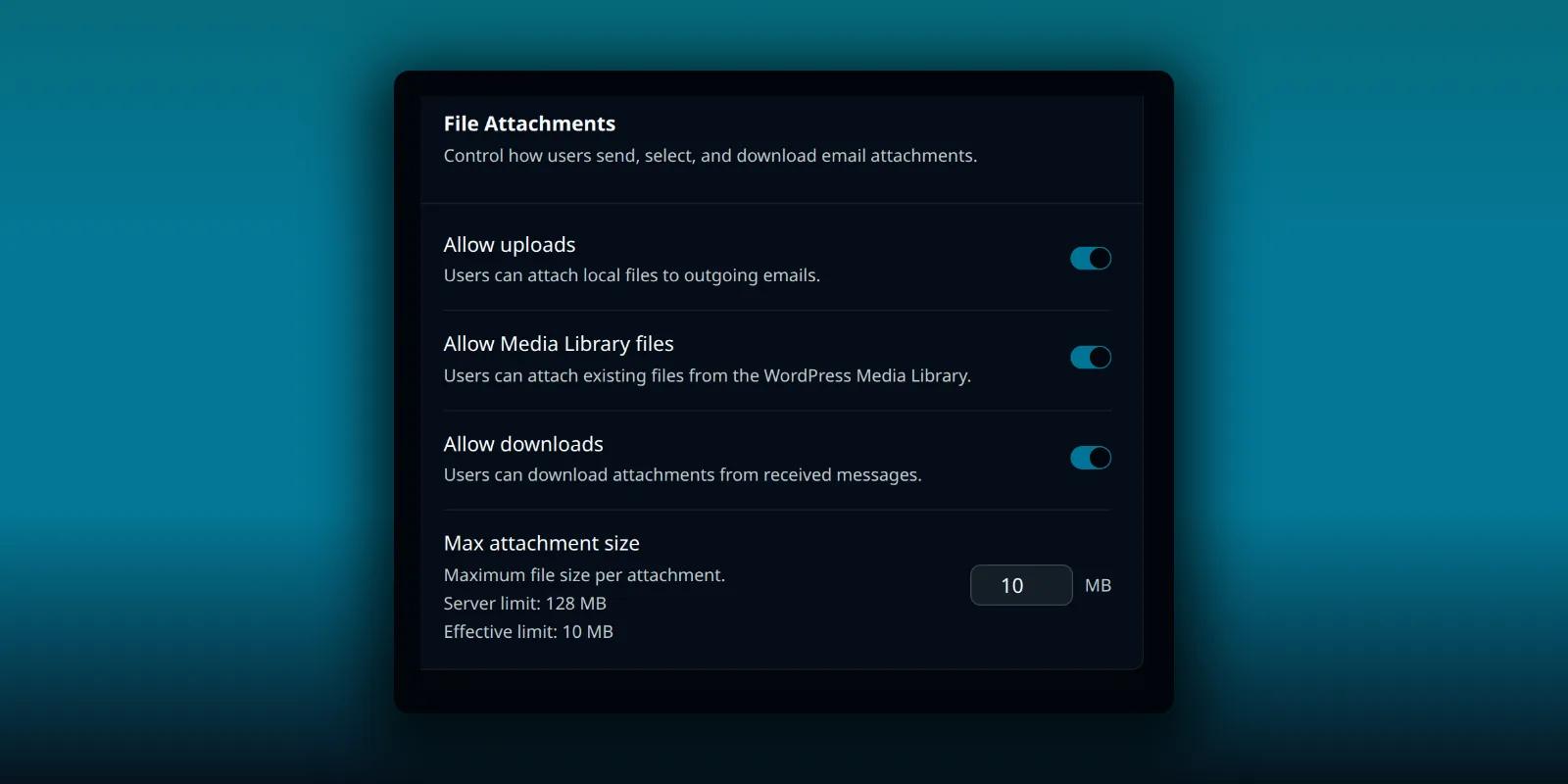
Attachments are where email gets heavy. A file can be too big to send, too risky to open or simply not the kind of thing you want people pulling into a shared site. PressedMail gives an administrator four switches for this, and a built-in preview for the files that are safe to look at in place.
This guide covers the settings, how the size limit really works and what the preview can and cannot open.
The four settings
Open PressedMail, then Settings, then Access Control. The File Attachments card is on the General tab.
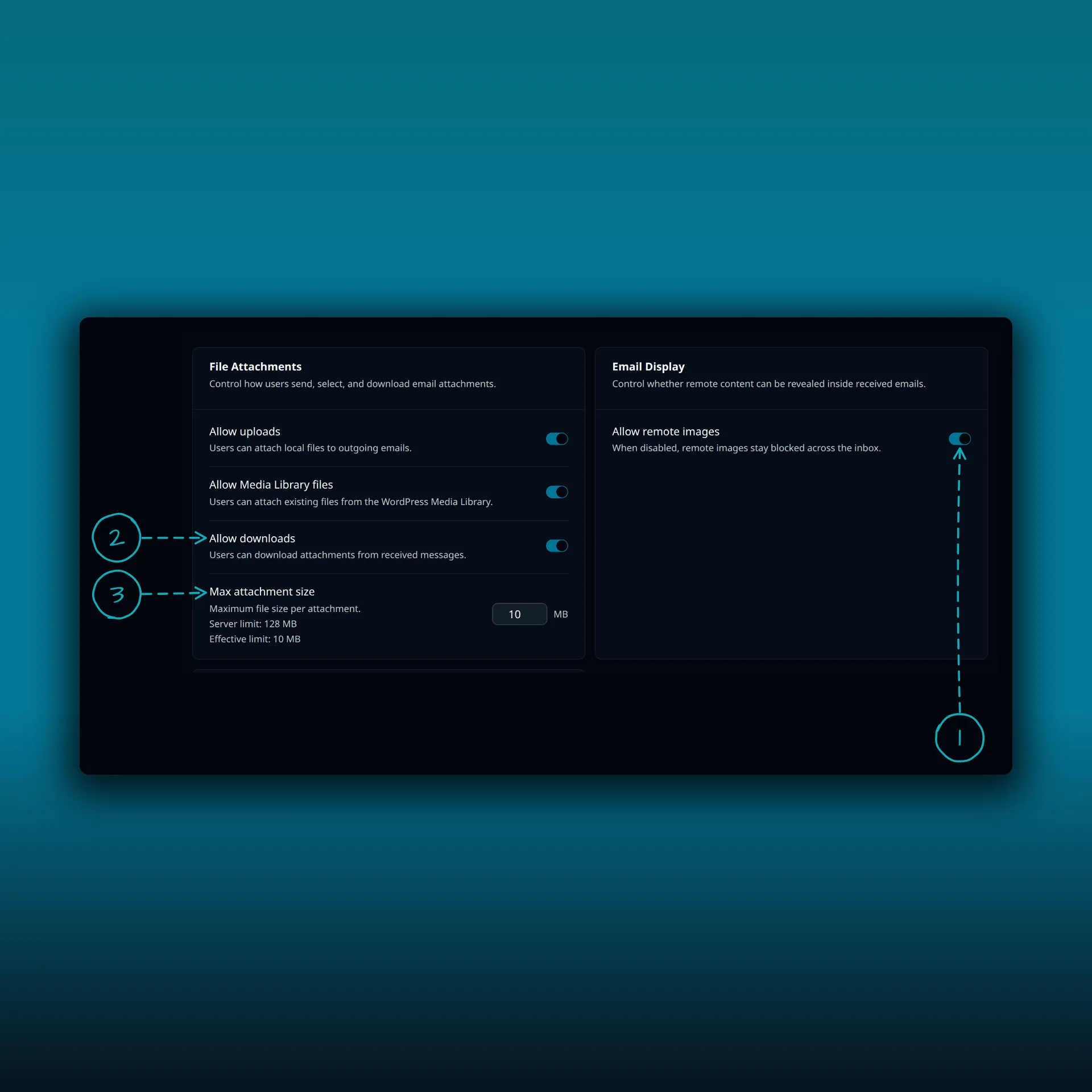
- Allow remote images, in the Email Display card beside it.
- Allow downloads, in the File Attachments card.
- Max attachment size.
The card controls these four things:
- Allow uploads. Users can attach local files to outgoing emails.
- Allow Media Library files. Users can attach existing files from the WordPress Media Library.
- Allow downloads. Users can download attachments from received messages.
- Max attachment size. The largest file one attachment can be, in megabytes.
They are separate. You can let people attach from the Media Library and block uploads from their computers, or let them download what they receive and stop them from sending files. When any are restricted, a Restrictions Active note under the card says in plain words what people can and cannot do.
Attaching happens in the composer, with the icons at the end of the Subject row. The tour image below shows the composer’s top controls, including the attach buttons.
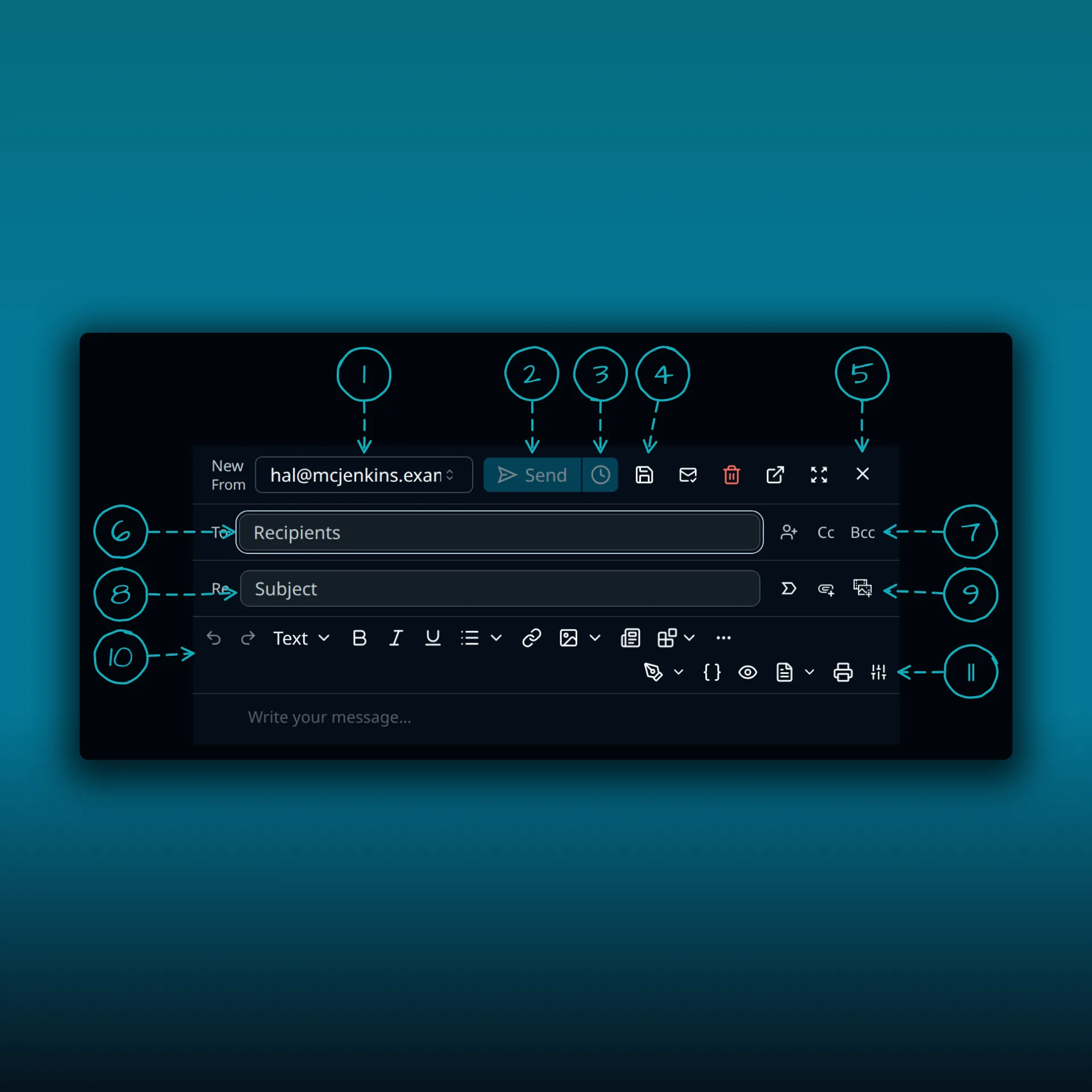
- From account.
- Send.
- Schedule send.
- Save draft.
- Close.
- To.
- Cc and Bcc.
- Subject.
- Mark as important and the attach buttons.
- The formatting toolbar.
- The second toolbar row: Signature, Fields, Preview, Format, Print and Customize toolbar.
How the size limit works
Max attachment size starts at 10 MB. You can set it from 1 up to the largest upload your server allows. The card shows two lines under the field. Server limit is the lower of two PHP settings, upload_max_filesize and post_max_size, which the PHP manual describes. Effective limit is what PressedMail will really enforce, which is the smaller of your setting and the server limit.
On the demo site the server limit is 128 MB and the setting is 10 MB, so the effective limit is 10 MB. If your host’s limit is lower than your setting, the lower number wins. To raise the real ceiling you change the setting, but you may also need your host to raise its PHP upload limit.
A mail provider has its own limit on message size too, and PressedMail cannot change that. A file that passes PressedMail’s check can still be rejected by the receiving server. The SMTP failure guide covers what a rejected send looks like.
What the preview can open
For a received attachment, PressedMail can show a preview without downloading it first. It previews two kinds of file:
- Images in PNG, JPEG, GIF or WebP format.
- PDF documents.
Everything else shows only a download. The server decides the type from the file’s actual bytes, not from the name or the label the sender put on it, so a file renamed to look like a PDF is not shown as one.
Images open in a viewer that zooms in up to eight times. A PDF opens in a viewer that runs inside a sandboxed frame. It has no network access and no access to the page around it, so a hostile PDF has very little to reach.
The preview has limits:
- A file larger than 15 MiB is not previewed. Download it to open it instead.
- An image above 50 megapixels is refused, whatever its size in bytes.
- A site developer can raise the 15 MiB cap with a filter, but never above the 25 MiB ceiling of the download route.
When a preview cannot open, the dialog says why. The messages are: this file is too large to preview, this kind of file can’t be previewed, this image won’t display, or the message changed on the mail server and you should reload the mailbox. Each one tells you to download the file instead, or to reload.
Turning downloads off also turns previews off
Allow downloads controls both. If an administrator turns it off, people cannot download attachments from received messages, and the preview closes with a clear message: your administrator has turned off attachment downloads, and that includes previews.
That fits a site where received files should never leave the mailbox. It does not affect sending. Allow uploads and Allow Media Library files are separate.
Safety notes
Previewing an image or PDF in PressedMail is gentler than opening a downloaded file in another program, but it is not a guarantee. An attachment can still be part of a scam, and a PDF can still contain a link or a request. The guide to securing email display explains the controls on the message itself, and the spam and phishing guide shows how paid builds flag risky mail. Be careful with unexpected files from unknown senders.
For where attachments end up in your database and uploads folder, see where PressedMail keeps your mail. The attachment copies PressedMail stages for scheduled sends are removed when you delete the plugin with its data, as the uninstall guide explains.
Frequently asked questions
What is the default maximum attachment size?
10 MB. It can go as high as your server’s upload limit allows.
Why is my effective limit lower than I set?
The effective limit is the smaller of your setting and the server limit shown beneath it. Your host’s PHP limit is the lower one.
Which files can PressedMail preview?
PNG, JPEG, GIF and WebP images, and PDF documents. The type is judged from the bytes of the file.
Can I stop people downloading attachments but still let them send files?
Yes. Allow downloads and the two sending switches are separate. Turning downloads off also turns previews off.
Why does a big PDF not preview?
Previews stop at 15 MiB. Download the file to open it in another program.
Manage your email inside WordPress
PressedMail Free adds an email client directly to your WordPress dashboard. Connect a compatible IMAP/SMTP mailbox, read and send mail, organize messages, and configure WordPress SMTP.

