

Updating, deactivating and deleting a plugin sound like three steps on one road. In PressedMail they treat your data three different ways. Two of them touch nothing. The third touches nothing too, unless you flipped one switch first.
This guide walks through each, shows where the switch lives, and lists what it removes. Your provider mailbox is never part of it. PressedMail keeps a local copy of your mail in the WordPress database, and the real mailbox stays with your mail provider. The guide to where PressedMail keeps your mail explains that split.
The short version
An update replaces plugin files and keeps everything. Deactivating pauses the plugin and keeps everything. Deleting the plugin keeps your accounts, mail copy, contacts, events and settings by default. It only wipes them when Delete plugin data on uninstall is on, and that switch is off on a new site.
Before you change anything
Take a backup. Your accounts, the local mail copy, contacts, events and settings all live in the WordPress database, so a database backup covers them. WordPress’s own backup guide lists what a complete backup includes.
Your provider holds the real mail. It does not hold your PressedMail contacts, events or settings, so those depend on your own backup.
Update PressedMail
Free installs get updates through WordPress, the same way as any plugin from wordpress.org. Paid builds update through the PressedMail update service and need an eligible licence. Open PressedMail, then Settings, then Licensing, and press Check for Updates.
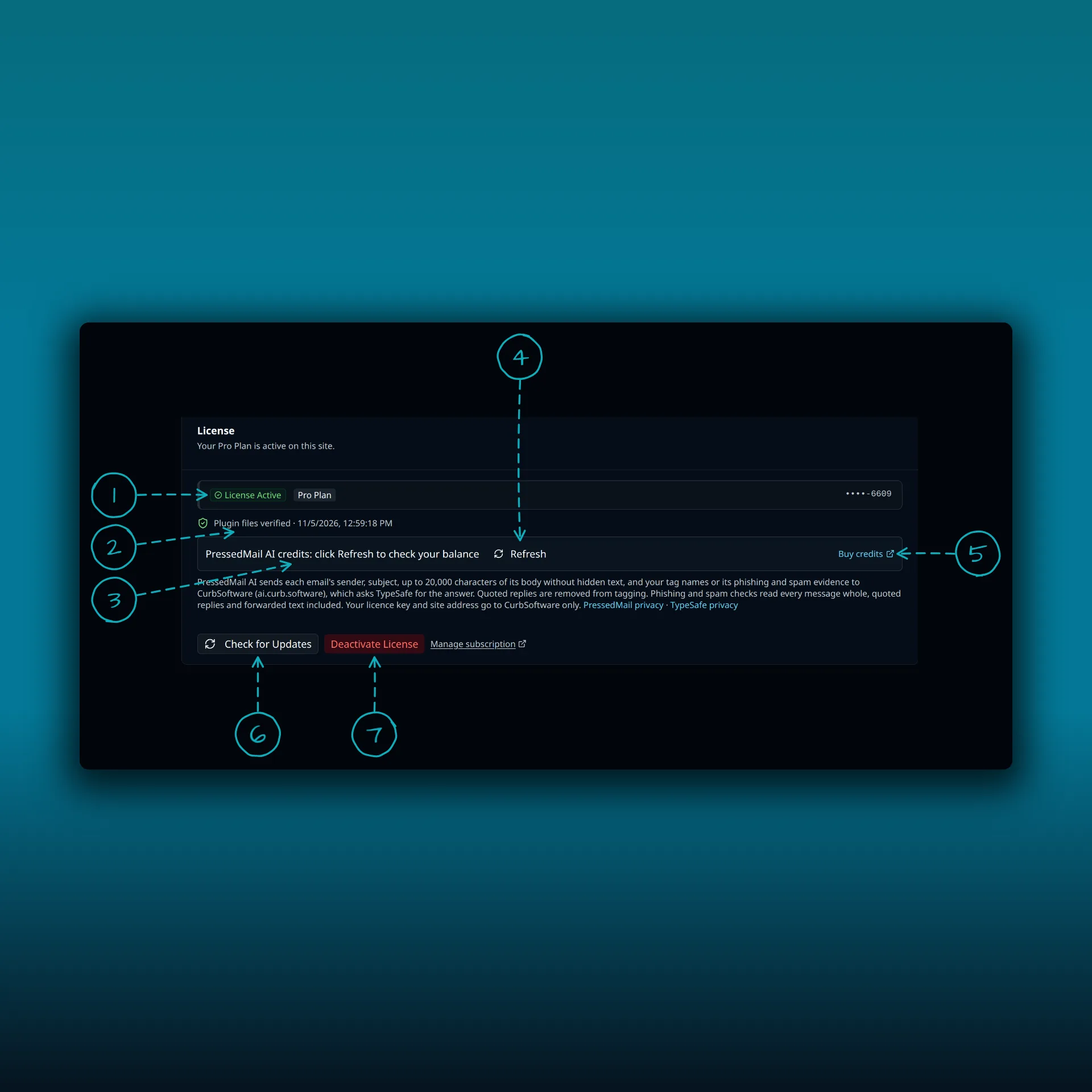
- License Active. The badge shows the plan the licence belongs to.
- Plugin files verified, with the time of the last check.
- The PressedMail AI credits row.
- Refresh. Fetches your credit balance.
- Buy credits.
- Check for Updates.
- Deactivate License. Frees this site’s activation.
The picture comes from the demo site’s Licensing tab. A Free site has no licence to show.
To update:
- Open Dashboard, then Updates, or Plugins.
- Apply the PressedMail update.
- Open PressedMail and confirm the inbox loads.
- Refresh one mailbox. On a paid site, check that the badge still reads License Active.
For a manual paid update, download the ZIP from your account, then use Plugins, Add Plugin, Upload Plugin. WordPress offers to replace the installed copy. Accept. A normal replacement keeps your settings and the saved licence key.
If an update does not show up, or the Licensing tab reports a file problem, the install and activation troubleshooting page has the checks.
Deactivate PressedMail
Use Deactivate in the plugins list to pause PressedMail. Your connected accounts, the local mail copy, contacts, events, preferences and the saved licence key all stay in the database.
The plugin stops running while it is off. Nothing syncs, and a message you scheduled will not go out at its send time. Look at your scheduled messages before you deactivate, or reactivate before the send time. The post on snoozing and scheduling explains how those sends run.
Mail keeps arriving at your provider the whole time. After you reactivate, the next sync brings it in.
Delete PressedMail
Deleting is the step that can remove data, and the default is to keep it. Delete the plugin with the switch off and your accounts, mail copy, contacts, events and settings stay in the database. Install PressedMail again later and your saved configuration is still there.
Two things go on every delete, whatever the switch says. PressedMail removes its scheduled events, because a recurring event with nothing to run is useless. It also removes the capabilities it added to WordPress user roles. Both are wiring, not your data.
The switch that wipes data
Open PressedMail, then Settings, then Data and uninstall. The tab sits under Admin, so only administrators see it.
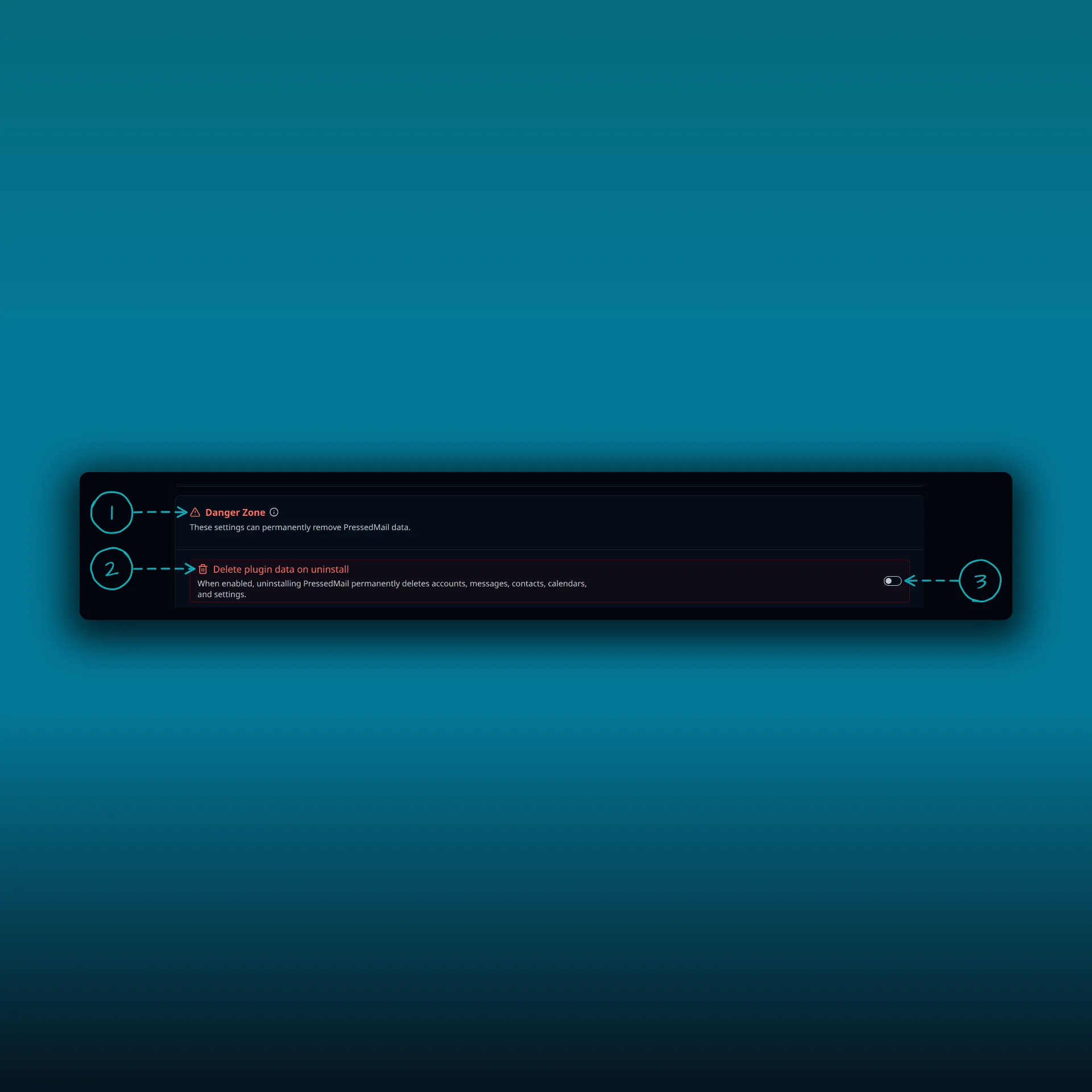
- The Danger Zone card. Its description says these settings can permanently remove PressedMail data.
- Delete plugin data on uninstall. The note under it says that when this is on, uninstalling permanently deletes accounts, messages, contacts, calendars and settings.
- The switch. It is off here, which is the default.
Turning it on opens a confirmation dialog first.
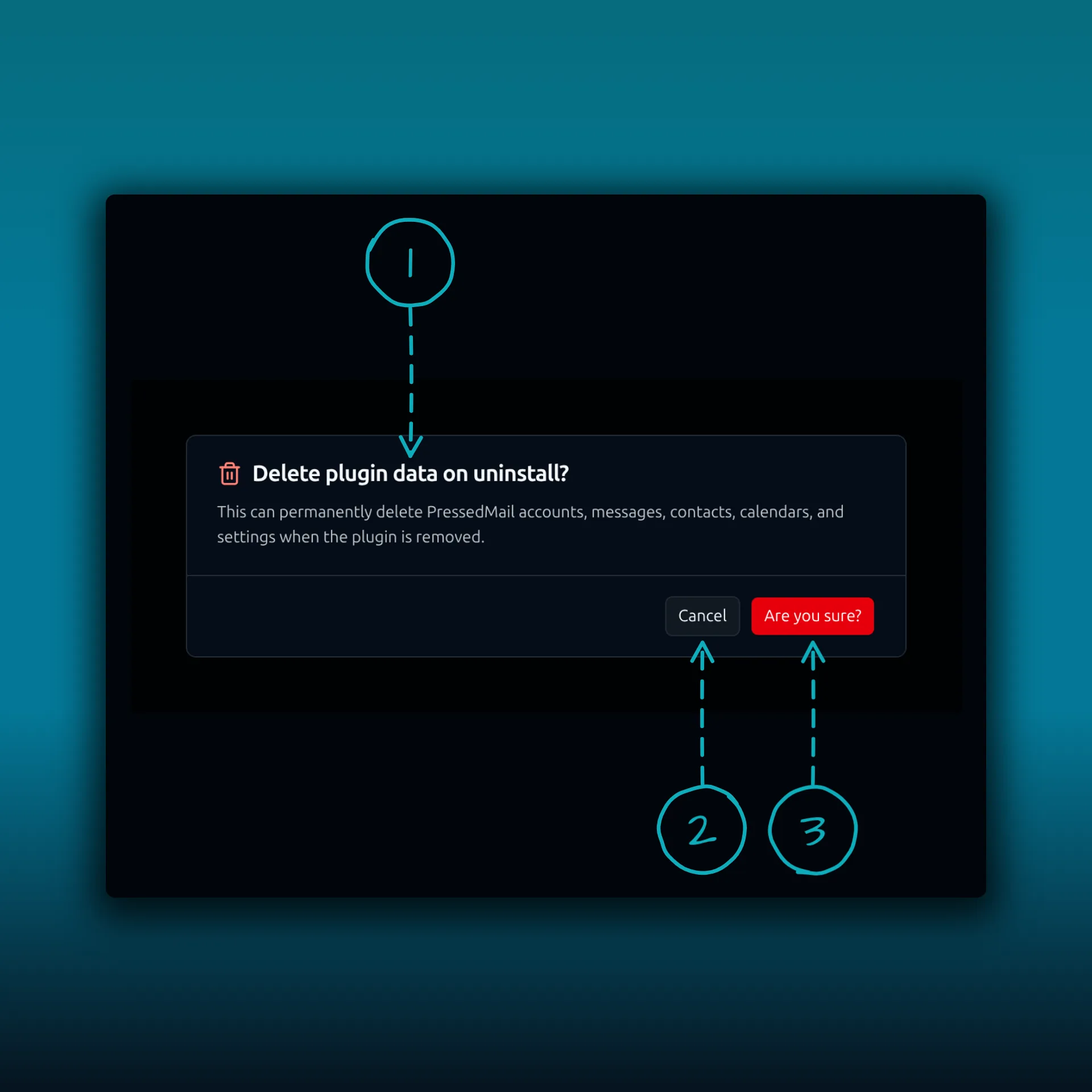
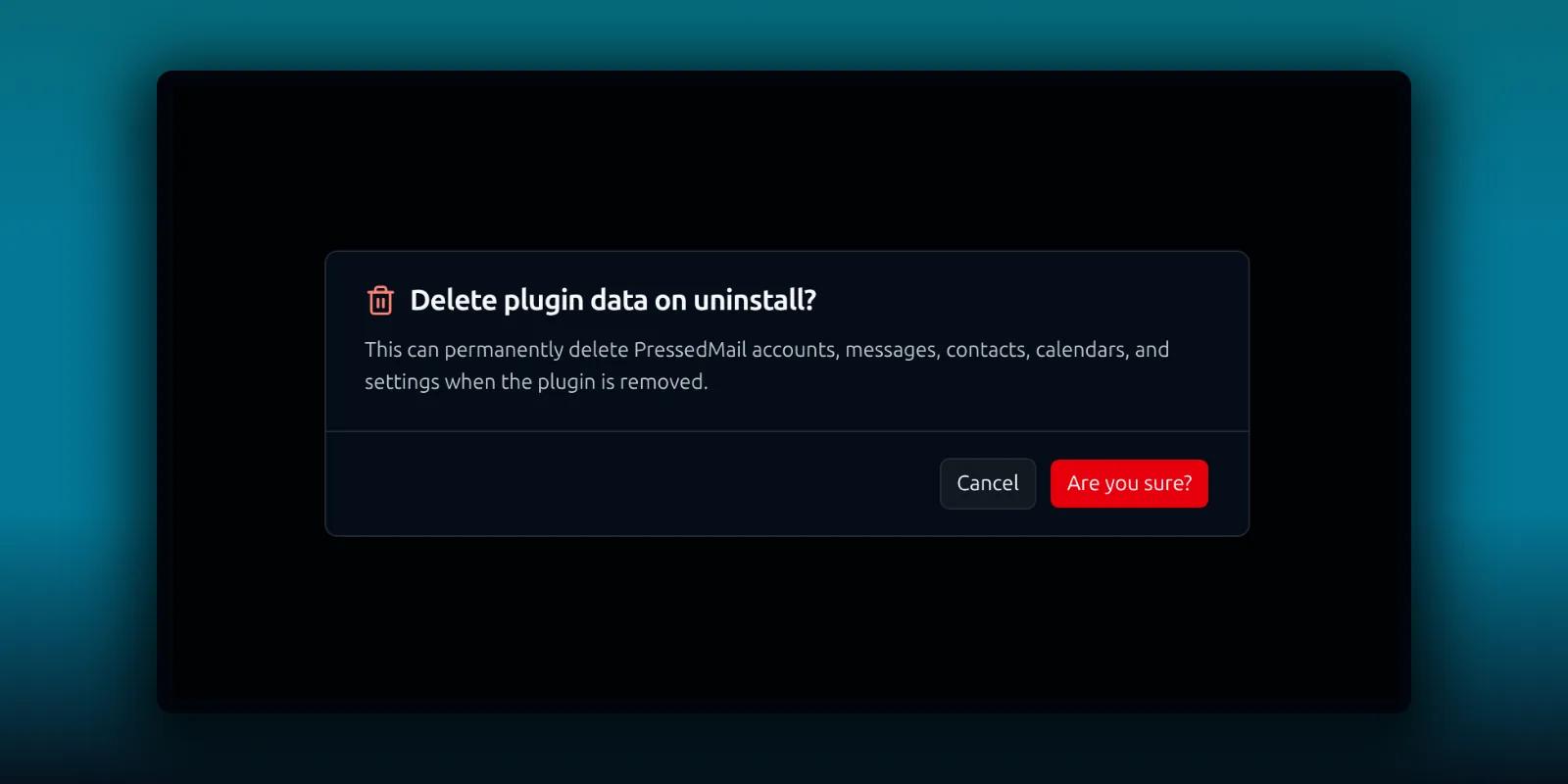
- The title, Delete plugin data on uninstall?
- Cancel. Nothing changes.
- Are you sure?, the red button that turns the setting on.
After you confirm, a red banner stays on the page. It says all PressedMail data will be permanently deleted when the plugin is uninstalled and that the action cannot be undone.
With the switch on, deleting the plugin does the following:
- Drops PressedMail’s database tables, which hold your accounts, the mail copy, contacts, calendars, forms and campaigns.
- Deletes pages PressedMail generated.
- Deletes the files it staged in your uploads folder for scheduled messages.
- Removes its options, post meta and user meta.
PressedMail cannot undo that. If you change your mind, turn the switch off again before you delete the plugin. If you already deleted it, only your own backup restores the data. The mailbox at your provider stays exactly as it was.
Switching between Free and paid builds
Swapping the Free plugin for a paid build, or the other way round, is a different case. Every table and row stays. The build you switch to has no code that reads anything the other build added, so nothing is deleted on the assumption that the switch is permanent. The old build’s scheduled jobs are removed.
If you do want the old data gone, turn on Delete plugin data on uninstall and then delete the plugin. Otherwise leave it. The plan guide lists what each edition adds.
Retiring or moving a site
Deactivate the licence on the Licensing tab before you retire a site or move it to a new domain. Copying WordPress to a new address does not make the new site the licensed one. The Manage subscription link next to the buttons opens your billing page.
If you are setting PressedMail up again somewhere else, the first-test-email guide gets a new site sending quickly.
For how WordPress itself treats deactivation and deletion, see the plugin handbook’s pages on uninstall methods.
Frequently asked questions
Does deleting PressedMail delete my mail at my provider?
No. It only touches what PressedMail stored on your WordPress site. The mailbox at your provider is separate.
Will I lose my accounts if I deactivate the plugin?
No. Accounts, the mail copy, contacts, events, settings and the licence key all stay in the database while the plugin is off.
Is Delete plugin data on uninstall on by default?
No. A new site has it off, so deleting the plugin keeps your data.
I turned the switch on by mistake. What now?
Turn it off again before you delete the plugin. The switch only acts when the plugin is deleted.
Does updating reset my settings?
No. A normal update, including a manual replacement with the ZIP, keeps your settings and the saved licence key.
Manage your email inside WordPress
PressedMail Free adds an email client directly to your WordPress dashboard. Connect a compatible IMAP/SMTP mailbox, read and send mail, organize messages, and configure WordPress SMTP.

