

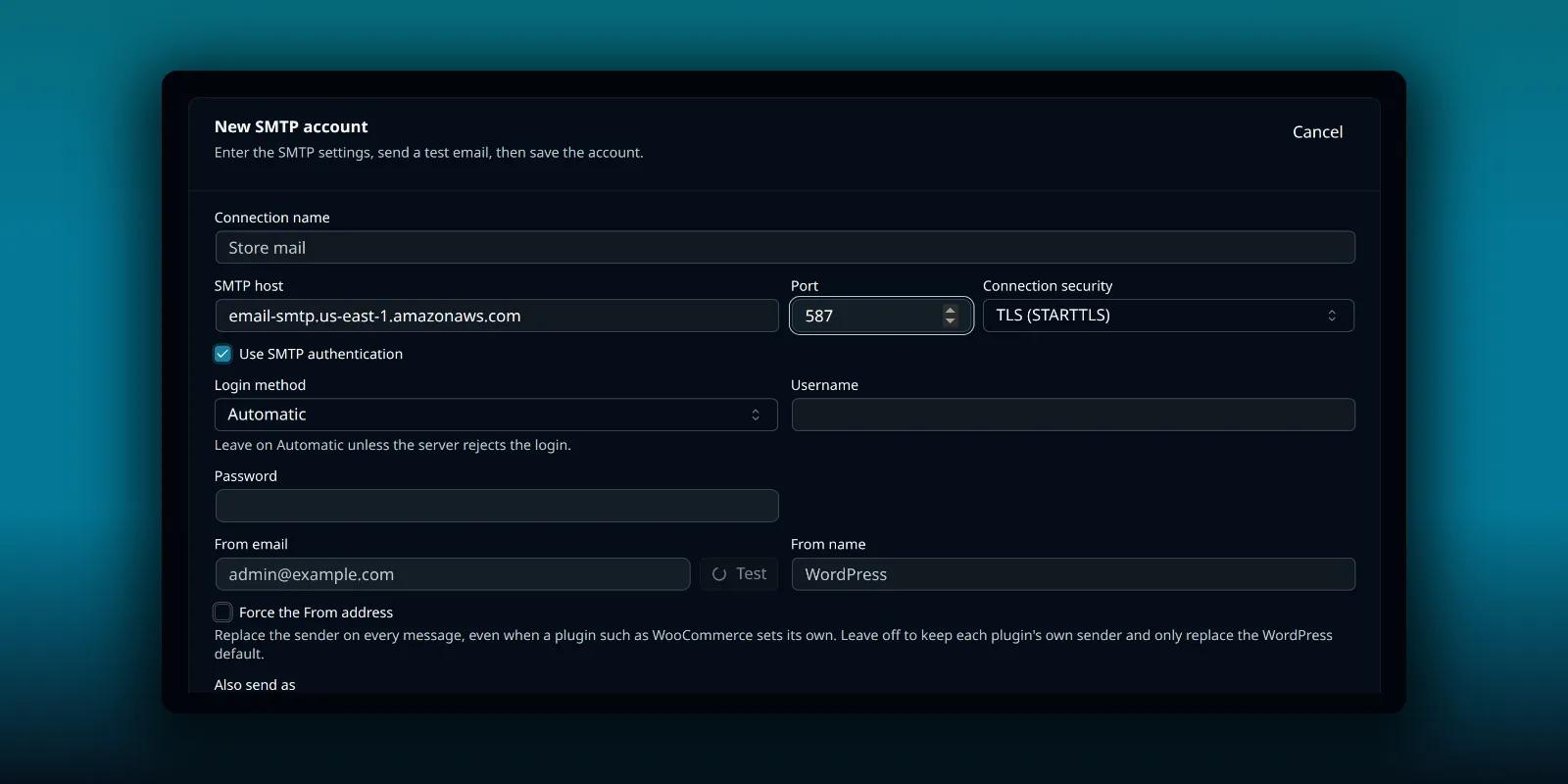
Amazon SES can send WordPress’s own email if you are happy to work inside AWS. It is also a provider where people often get stuck, because three things look like credentials and only one of them works for SMTP.
This guide connects SES to PressedMail’s WordPress Email settings. It covers the SMTP credentials, the sandbox and the sender rules, with Amazon’s own documentation linked at each step. It is about WordPress’s notifications, not your inbox. Connecting a mailbox is a separate job.
What you need
- An AWS account with Amazon SES set up in the Region you want to send from.
- A verified identity for the address or domain you will send as.
- SMTP credentials for that Region.
- PressedMail with a WordPress Email SMTP server slot. Free has one. Paid builds have several.
The three things that look like credentials
Amazon says it plainly: your SMTP credentials are not your AWS access keys, and they are not the login you use for the SES console. They are a separate user name and password that SES creates for SMTP.
They are also tied to a Region. Amazon’s SMTP credentials page says that if you send from more than one Region, you need a set for each.
To create them, sign in to the SES console, open SMTP settings and choose Create SMTP Credentials. SES opens the IAM console and makes a user for you. When you choose Show under SMTP password, you can copy the password or download it. You cannot see it again after you close that dialog, so store it somewhere safe. If you lose it, delete the user and create new credentials.
Creating SMTP credentials this way needs IAM permissions. Amazon lists them, and they are broad enough that the page recommends restricting and monitoring them. If your IAM user lacks them, you may get an error, or credentials that were made without the right policy.
The settings
| Field | Value |
|---|---|
| SMTP host | email-smtp.<region>.amazonaws.com, using your Region |
| Port | 587 (STARTTLS) or 465 (SSL) |
| Connection security | TLS (STARTTLS) for 587, SSL for 465 |
| Username | The SMTP user name SES gave you |
| Password | The SMTP password SES gave you |
SES requires an encrypted connection. Its connection page says STARTTLS works on ports 25, 587 and 2587, and the TLS wrapper on ports 465 and 2465. Pick 587 with TLS (STARTTLS) unless you have a reason not to. Amazon’s list of endpoints, one per Region, is in the AWS General Reference.
Add it in PressedMail
Open PressedMail, then Settings, then WordPress Email, then SMTP Accounts. On Free, the tab is Mail servers and the button reads Add mail server. Choose Add SMTP account.
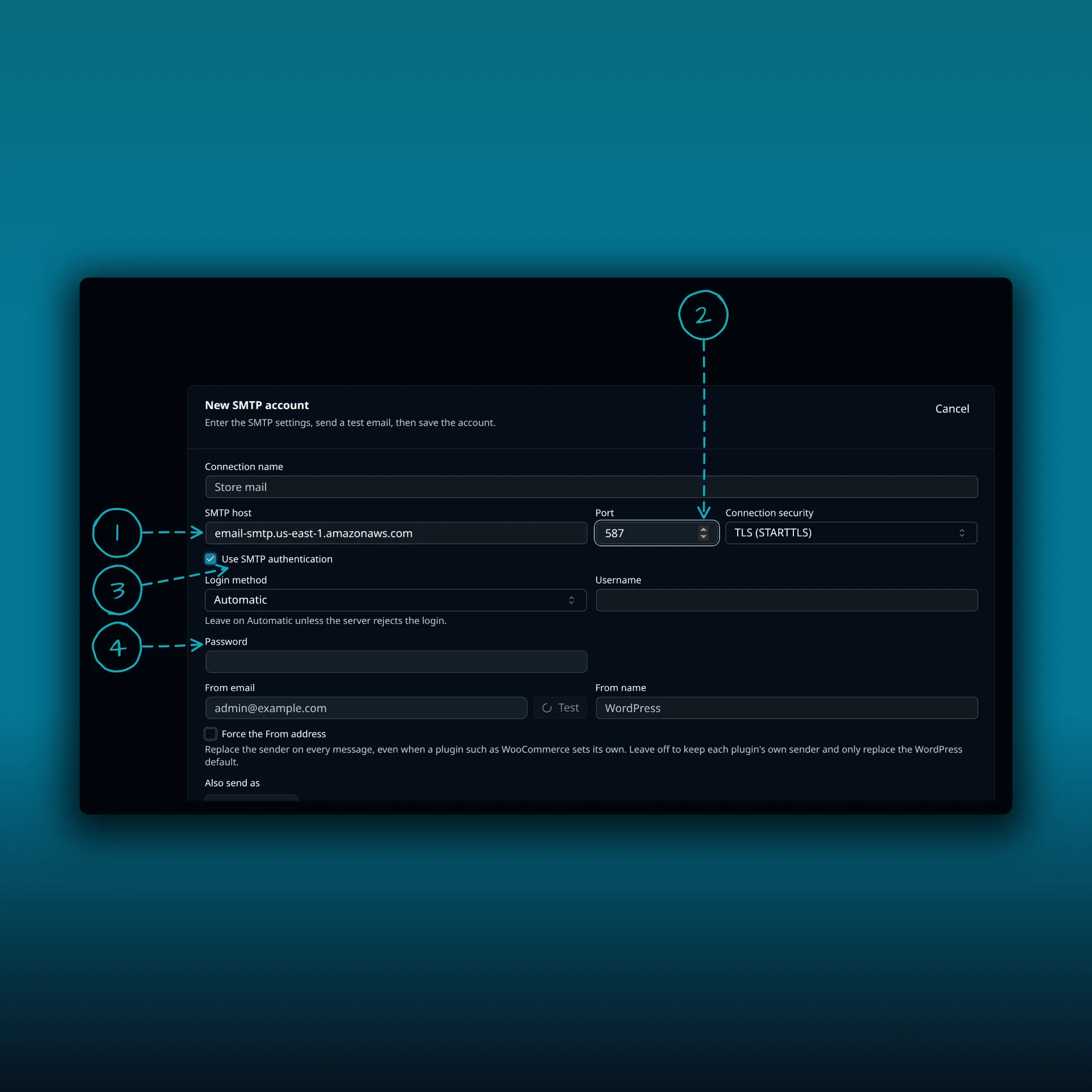
- SMTP host. The endpoint for your Region. The picture shows us-east-1.
- Port and connection security. 587 with TLS (STARTTLS).
- Use SMTP authentication. Leave it on.
- Username and password. The SMTP credentials from SES, not your AWS keys.
The picture shows a typed host and port from Amazon’s documentation and nothing saved.
Then set the From email. It has to be an address you have verified in SES, which the next section explains.
Verify what you send as
SES makes you verify every identity you use as the From, Source, Sender or Return-Path address. Amazon’s page on verified identities covers both single addresses and whole domains. A domain identity covers the addresses at that domain, which suits a site better than verifying addresses one by one.
In PressedMail, put the verified address in From email. If WordPress or a plugin sends mail from another address, SES refuses it. Turning on Force the From address makes the server replace the sender on every message with the one you set. That avoids refusals, but contact forms that set the visitor as the sender will then go out under your address, so keep the visitor’s address in Reply-To. The routing guide explains how PressedMail chooses a server from the sender.
The sandbox
A new SES account starts in the sandbox, per Region. While it is there, Amazon’s production access page says you can send only to verified addresses and domains or to the SES mailbox simulator, at most 200 messages in 24 hours and 1 per second.
That is why a test to a friend’s address fails while a test to your own verified address works. Verify a few test recipients, or ask Amazon to move the account out of the sandbox. After that you can send to any recipient, but your From identities still need to be verified.
Switch WordPress over to it
Adding the account does not move WordPress’s mail by itself. On a paid build, open the Default SMTP tab and choose PressedMail SMTP.
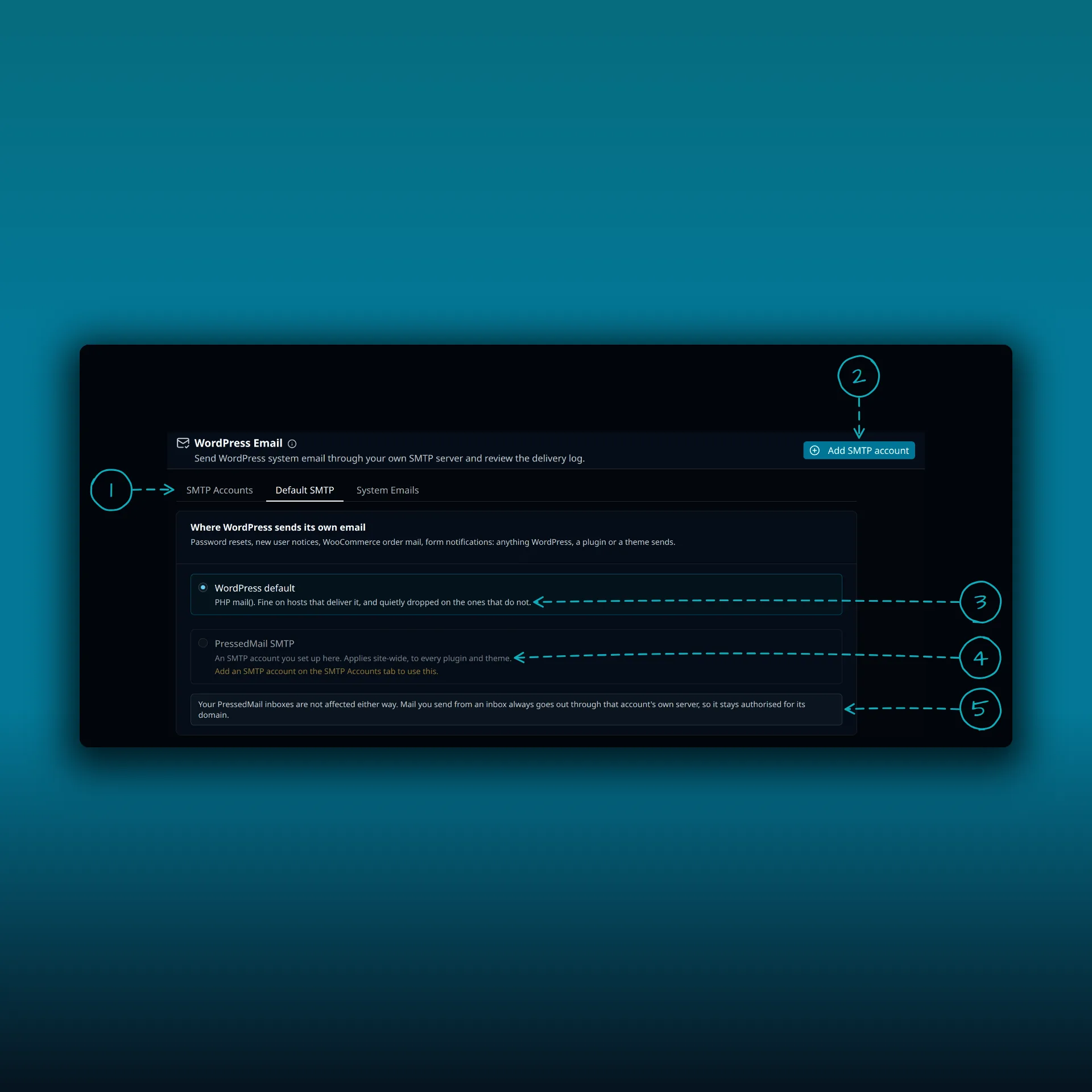
- The tabs. Paid builds show SMTP Accounts, Default SMTP and System Emails. Free shows System Emails and Mail servers.
- Add SMTP account. The Free button reads Add mail server.
- WordPress default. PHP mail().
- PressedMail SMTP. Sends what WordPress, a plugin or a theme sends through the server you set up here. It stays unavailable until you add one.
- A note that your PressedMail inboxes are not affected either way.
The picture is from a paid build.
Test it
Use the Send Test Email button on the form with an address you control, then trigger one real WordPress notification such as a password reset. The SMTP test guide keeps the checks apart: the form saving, SES accepting the message, and the message arriving.
If PressedMail’s delivery log shows the message went out and the recipient never sees it, the cause is usually at the receiving end. The guide to stopping WordPress email going to spam covers sender authorization, and Test connection passes but sending fails covers refusals after a good connection.
A short checklist
- SMTP credentials made in the same Region as the host you typed.
- The SMTP password, not an AWS secret key.
- A verified From address or domain.
- Out of the sandbox, or every recipient verified.
- One transport. Remove other SMTP plugins so two do not compete. The WordPress SMTP guide explains the setup.
Common questions
Can I use my AWS access key as the password?
No. SES SMTP credentials are a separate user name and password, and your SMTP password is different from your AWS secret access key.
Why does SES refuse a test email?
Usually because the account is in the sandbox and the recipient is not verified, or because the From address is not a verified identity.
Do I need credentials for each Region?
Yes. SMTP credentials are unique to each Region, so create a set for each Region you send from.
Which port should I use?
587 with STARTTLS suits most sites. 465 works with the SSL option.
Does this send my inbox mail?
No. It sends WordPress’s own mail. Mail you write in the PressedMail composer goes through the mailbox you picked.
Manage your email inside WordPress
PressedMail Free adds an email client directly to your WordPress dashboard. Connect a compatible IMAP/SMTP mailbox, read and send mail, organize messages, and configure WordPress SMTP.

