

WooCommerce sends its own email, which its email documentation describes: order confirmations, processing notices, invoices, welcome messages. By default, all of it goes wherever your WordPress Email settings send it, in WooCommerce’s own wording.
The PressedMail Woo Bridge changes that. It is a free companion plugin that hands those messages to PressedMail Pro, so each one can use its own PressedMail template, its own SMTP account and its own sender address. This guide covers what you need, how to set it up and what it does and does not touch.
What you need
- PressedMail Pro 1.8.3 or newer, active on the site. The companion does nothing without it.
- WooCommerce 8.2 or newer, active. High-performance order storage is fine.
- At least one SMTP connection set up under Settings, then WordPress Email.
Without the companion, WooCommerce’s email follows your normal WordPress Email routing and nothing changes. The routing guide explains that part.
Install it
Download Woo Bridge from the Downloads page of your PressedMail account, next to the Pro download. Install and activate it like any plugin: Plugins, Add New, Upload Plugin.
It adds no screen of its own. Its controls appear inside PressedMail, under Settings, then WordPress Email, in a WooCommerce panel. If PressedMail Pro or WooCommerce is missing, the panel says which one.
Pick a template, a server and a sender
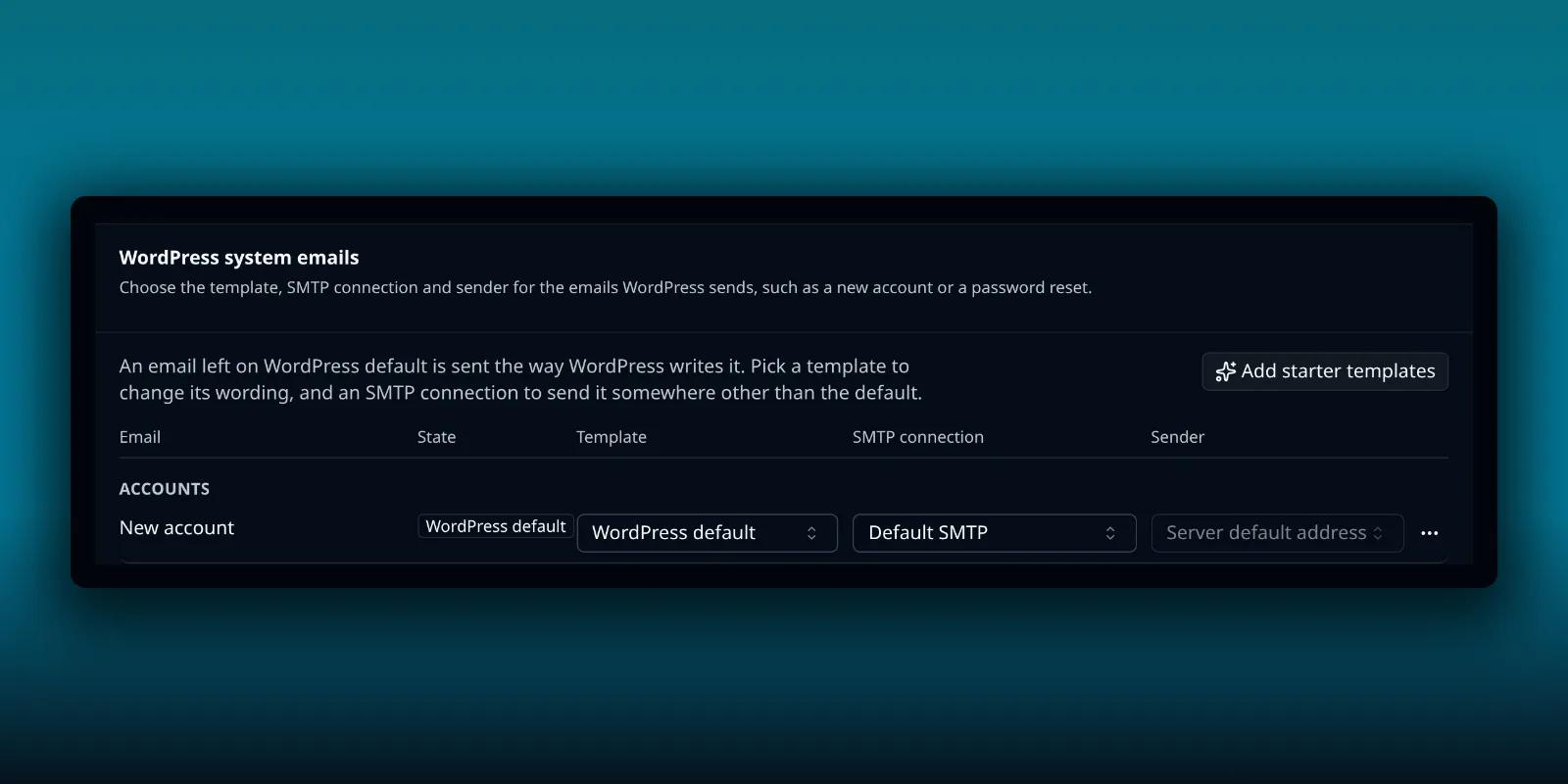
The WooCommerce panel lists every email WooCommerce has registered. For each one you can choose three things, the same three that the System Emails tab offers for WordPress’s own messages.
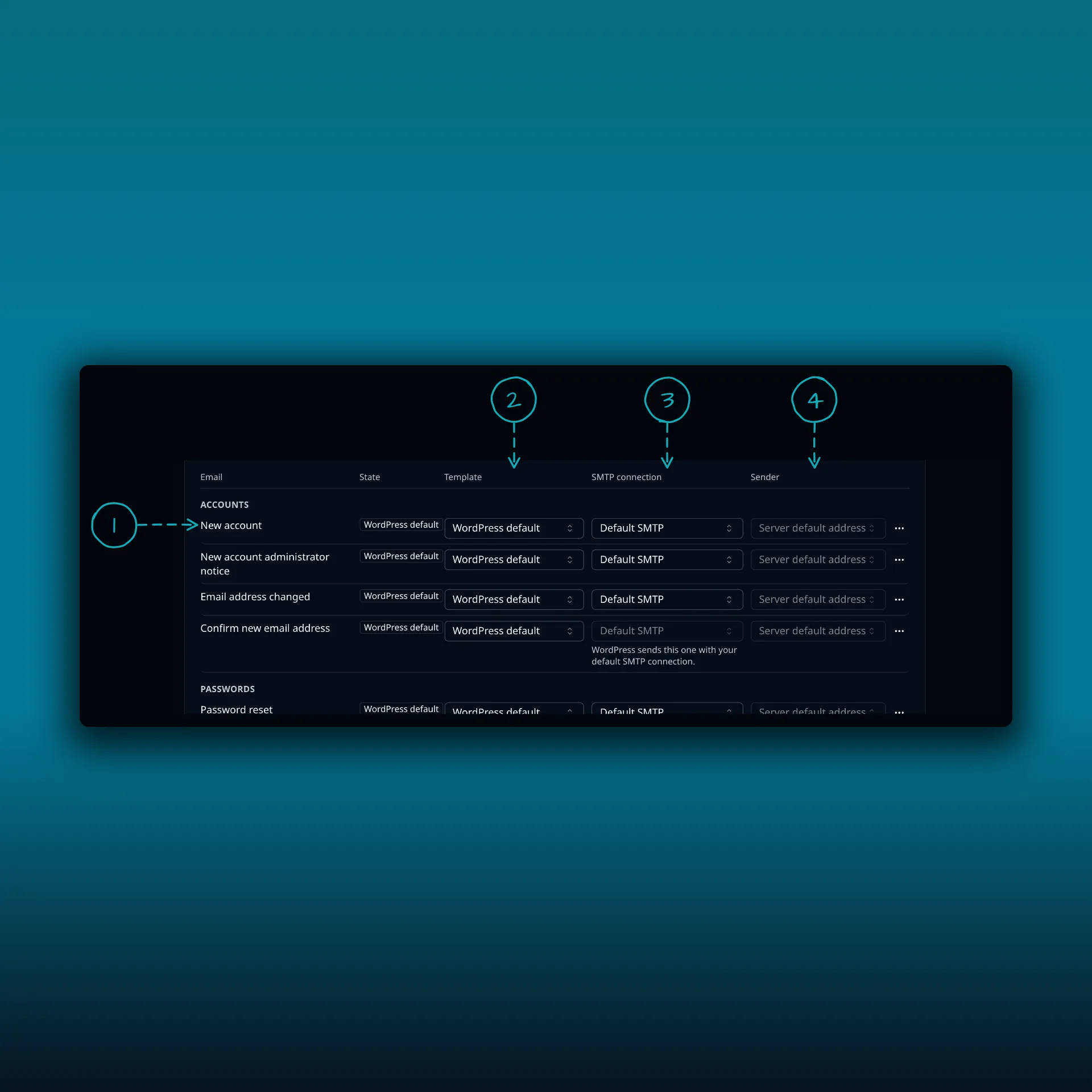
- An email WordPress sends, grouped under headings such as Accounts.
- Template. Keep the default, or pick a template to change the wording.
- SMTP connection. Choose which server sends that message, or leave it on the default.
- Sender. Use the server’s default address or pick another.
That screenshot shows WordPress’s own system emails, because this demo site has no WooCommerce. The Woo Bridge panel gives you the same choices for each shop email.
The first time you open the WooCommerce list, five starter templates land in your template library, ready to edit. Delete one and it stays deleted. Any general template you can open will work.
A sender you choose changes the address but not the name. The email still carries the From name WooCommerce gives it, usually your shop’s name. Only an SMTP account set to force its own From replaces the name as well. The sender list contains addresses the chosen account owns.
Anything you leave unassigned goes out exactly as WooCommerce writes it, through the site’s default routing. Save a row, then use Send test to mail yourself a copy filled with a sample order.
A template replaces WooCommerce’s body, so a shop set to plain-text email still sends that email as HTML. If the templates feature is off, or your license does not include it, only the connection and sender choices apply and WooCommerce’s own wording goes out. An email is never lost because a template is missing.
How it works
WooCommerce hands every finished message to WordPress’s mail function. The bridge catches it at the last point WooCommerce offers it, swaps in the rendered template’s subject and body when one is assigned, and names the SMTP connection for that one email. Nothing else about the message changes.
Order details that are not plain text, such as the item and totals tables, the address blocks and the account link, are placed by the bridge itself. Everything else goes through PressedMail’s template engine, which escapes every value.
Fields you can use in a template
Templates and the campaign composer offer a woo group of fields, for example {{woo.order_number}}, {{woo.customer_first_name}} and {{woo.payment_method}}. A few are ready-made blocks: {{woo.order_items}} and {{woo.order_totals}} for the tables, {{woo.billing_address}}, {{woo.shipping_address}}, {{woo.account_link}} and {{woo.payment_link}}. Put a block on a line of its own, not inside a link. Blocks fill transactional emails only. In a campaign they stay empty, and the other values come from each contact’s most recent order. The template guide explains fields.
Links a customer cannot lose
The new-account, password-reset and email-confirmation emails each exist to deliver one link. If your template leaves out {{woo.account_link}}, the bridge adds the link at the bottom anyway. The invoice for an unpaid order always carries WooCommerce’s Pay for this order link too, whether or not your template has {{woo.payment_link}}. A template cannot lock a customer out.
The customers list
The panel can copy every billing email address from your orders into a PressedMail contact list, for campaigns. Each administrator who syncs gets their own list, because contacts belong to a person in PressedMail. A big shop syncs in slices, so it finishes however many orders you have, and running it again only adds what is new.
Syncing addresses is not consent. Email only people who agreed to hear from you. A contact who opted out stays opted out, even if a later order adds their address again. The double opt-in guide explains how opt-outs work.
Removing the bridge
Uninstalling the companion deletes its routing choices and nothing else. The templates it seeded, the customers list and its contacts are your work and stay. Install it again and it picks them back up, with no second set of starters and no second list.
Check that it worked
Send yourself a test from the panel and then place a test order. Open the message and check the sender, the subject and the body. Then open the delivery log, which names the connection that sent each message, as the delivery log guide shows.
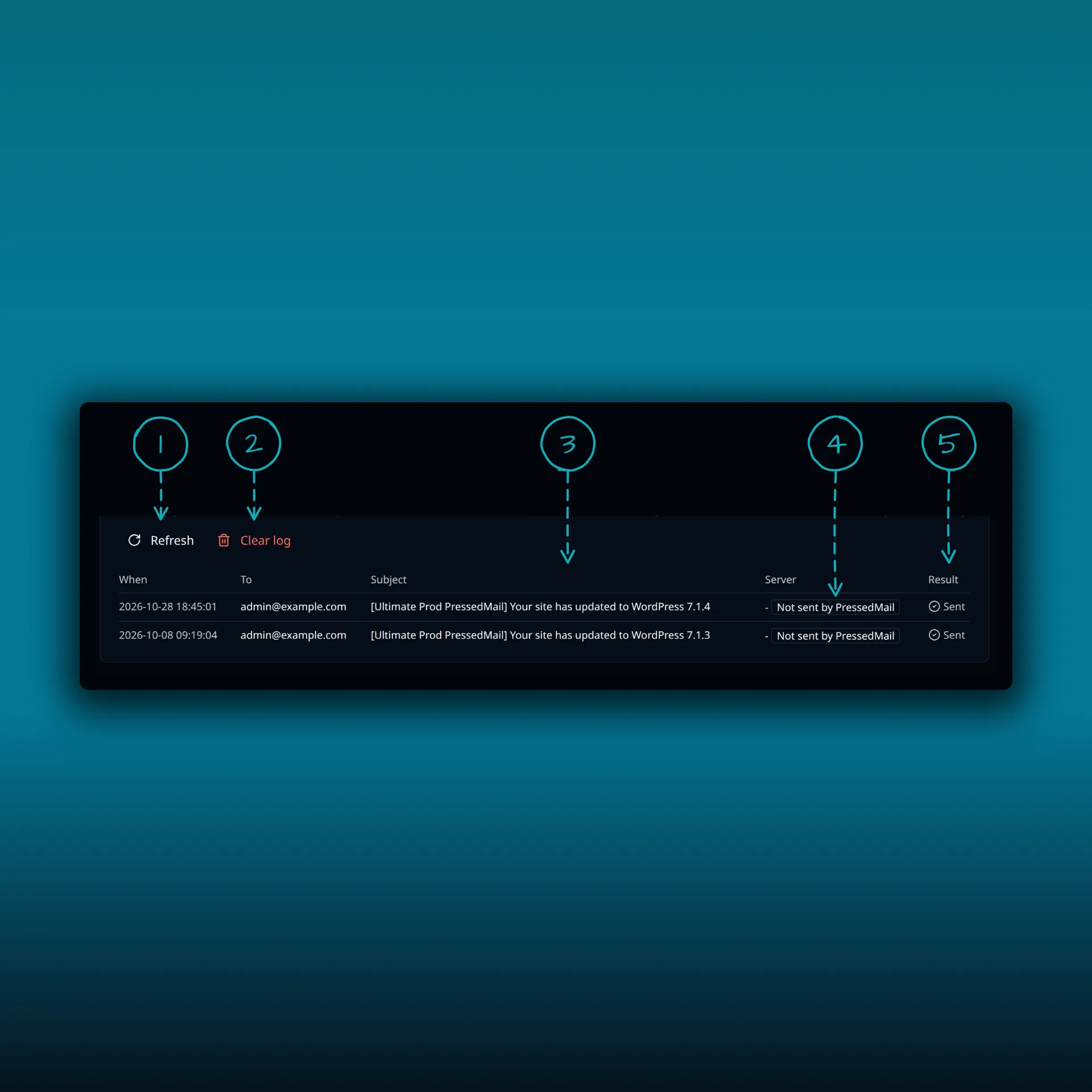
- Refresh. Reloads the log.
- Clear log. Removes the history after you confirm.
- Subject. Match an entry by its subject.
- Server. Names the connection that sent the message. Not sent by PressedMail means it went out by PHP mail() or another plugin’s transport.
- Result. Whether the send was observed as sent or failed.
The rows come from a seeded test site. The log never stores the message body, headers or attachments.
The WooCommerce SMTP guide covers the plain sending setup that sits underneath all of this.
Common questions
Do I need Woo Bridge to send WooCommerce email through SMTP?
No. Without it, WooCommerce’s email goes through your WordPress Email settings. The bridge adds per-email templates, servers and senders.
Does it work on Free?
No. It needs PressedMail Pro 1.8.3 or newer.
Will a template break my order emails?
Not by losing links. Account and payment links are added if your template omits them, and an email falls back to WooCommerce’s own wording if a template is off.
Does it work with high-performance order storage?
Yes. PressedMail’s documentation says the order tables are fine.
What happens to my templates if I remove it?
They stay, along with the customers list.
Manage your email inside WordPress
PressedMail Free adds an email client directly to your WordPress dashboard. Connect a compatible IMAP/SMTP mailbox, read and send mail, organize messages, and configure WordPress SMTP.

