

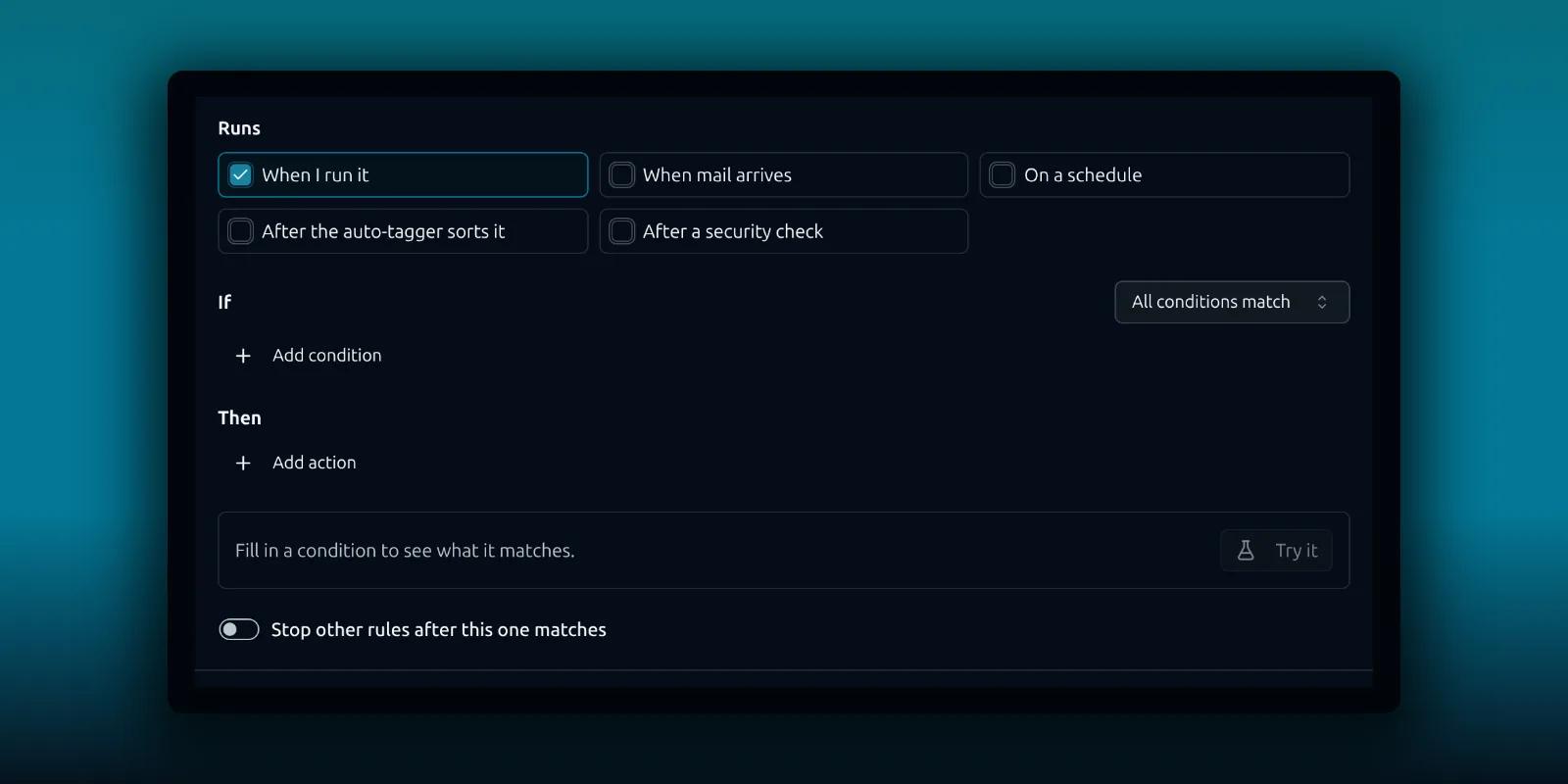
You saved a rule, and a message that should match it is still in the inbox. Nothing failed. Nothing happened either.
Most of the time the rule is fine and one setting around it is not. This guide lists the causes in the order they come up, from the most common to the least. Check them one by one and stop when you find yours.
1. The rule only runs when you run it
New rules start on When I run it. That setting means the rule does nothing by itself. It waits until you press Run rules now.
Open the rule and look at the Runs section in the editor. If only When I run it is ticked, tick When mail arrives as well, then save.
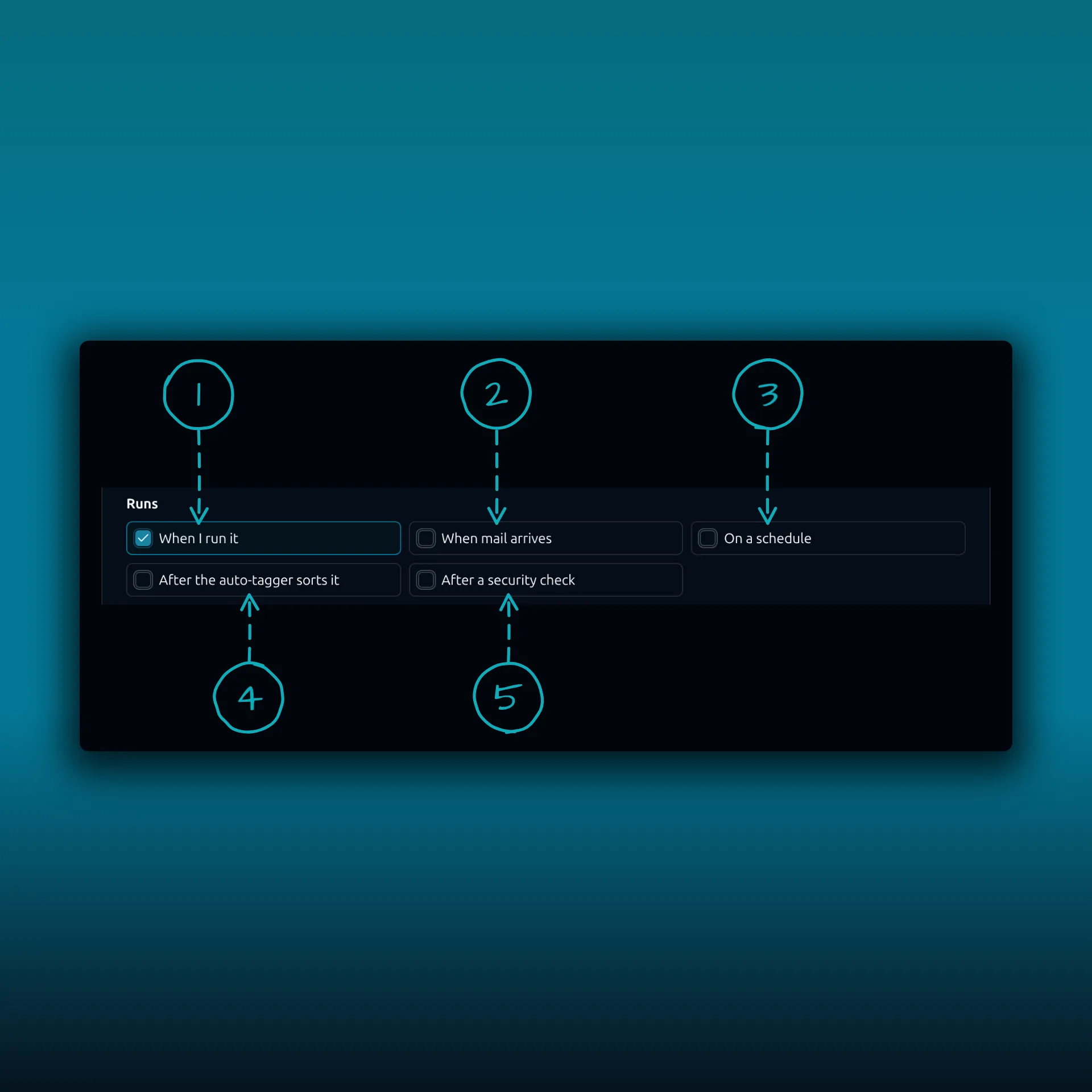
- When I run it. The default. Manual only.
- When mail arrives. Checks new messages as they come in.
- On a schedule. Checks the whole inbox at an interval. Paid builds only.
- After the auto-tagger sorts it. Paid builds only.
- After a security check. Paid builds only.
The picture comes from a paid build. A Free build shows the first two choices.
2. The mail is older than the rule
When mail arrives looks only at messages that just came in. Mail that was already in the inbox when you saved the rule is not touched. To apply the rule to it, press Run rules now.
That button synchronizes the mailbox first, then processes the inbox. It does not sweep every folder on your provider. A rule meant for mail in some other folder needs a different approach, so test with a message in the inbox first.
3. Background work is late
Rules that run when mail arrives or on a schedule depend on two things: PressedMail has to synchronize the mailbox, and WordPress has to run its scheduled tasks. WordPress does that with WP-Cron, which WordPress documents as triggered by page loads. On a quiet site, a task can sit waiting.
Open Diagnostics in the admin settings and read the background sync status. If the last sync is old, the rule has nothing new to look at. Ask your host to check the cron setup if syncing has stopped. The snooze and scheduled send post covers the same cron checks.
4. The rule is off or scoped to another account
Look at the two controls at the top of the editor. The Rule is on switch must be on. Applies to must be All accounts, or the mailbox the message arrived in. A rule for one account never looks at mail in another.
5. A condition does not match what you think
This is the most common real cause once the trigger is right. Use Try it in the editor. It checks your newest 200 messages and shows up to five matches. If the message you expected is not listed, the condition is the problem.
Some things to check.
- Contains looks for the text anywhere in the field. Equals exactly needs the whole value.
- Body conditions read only the first 256 KB of the body. A phrase far down in a very long message is not seen.
- A regular expression longer than 512 characters cannot be stored.
- With All conditions match, one false line makes the whole rule false. Check whether Any condition matches is what you meant.
6. Another rule got there first
Rules run in priority order, and Stop other rules after this one matches ends the line for that message.
A message also takes only one action that moves it out of its folder. If two matching rules both want to move it, the first one wins and the second is skipped. Marking and tagging actions are not limited that way. Two rules asking for the same mark or the same tag do it once.
Two Junk actions pull against each other in one direction. Never send to Junk beats Send to Junk when both match the same message. Never send to Junk also does nothing unless the message is already in Junk.
If rules disagree about where a message belongs, reorder them and put the narrow one first.
7. The action is one that no longer runs
Old rules may still carry Apply label or Forward. PressedMail now labels them “no longer runs” in the editor, and they do nothing. They were saved by earlier builds and cannot be saved any more. Remove the action and choose a current one. If you wanted a label, Add tag is the action that runs.
If you ask for an automatic run and the rule includes a part that cannot run automatically, PressedMail refuses the save. It points at the Runs section and says: “This rule can only run manually because automatic runs do not support” followed by the conditions or actions that block it. Remove those parts or keep the rule manual.
8. A limit stopped it
A few caps apply to paid rules. Rules that trigger other rules are limited to three hops every 15 minutes. Rules that start AI work are capped at 200 per owner per hour, and manual runs do not count against that cap. AI actions spend credits the same way the AI tools do, so check your balance if tagging stops.
Shared mailboxes have one more limit. A manager of a shared mailbox cannot use the Tag condition or the Add tag and Remove tag actions in its rules, because tags belong to the mailbox owner.
Read the Activity tab
Open Email Rules and choose Activity. It shows what your rules did in the last seven days, split into rules that ran on their own and runs you started. Press Refresh to load the latest.
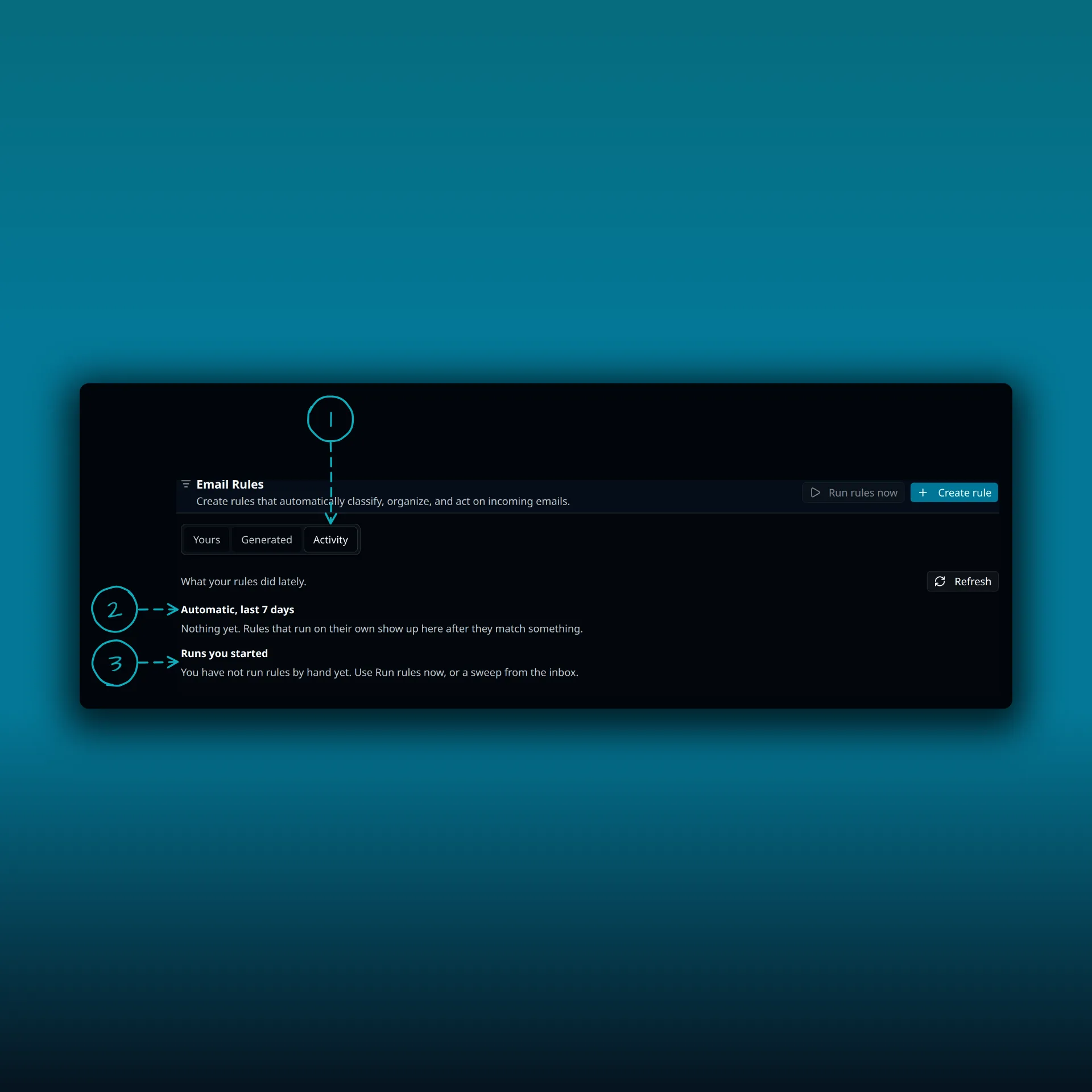
- The Activity tab.
- Automatic, last 7 days. Rules that ran on their own show up here after they match something.
- Runs you started. Your own Run rules now clicks.
The picture shows a test site where no rules have run yet, so both lists are empty. On a site where a rule worked, you will see its runs here. If Automatic stays empty after you tick When mail arrives, go back to causes 1 to 3.
A short test that settles it
- Make one rule with a single condition on a sender you control.
- Set the action to Mark as read, which is easy to see and easy to reverse.
- Send yourself a message from that sender.
- Press Run rules now and check the message.
- Tick When mail arrives, send another and wait a few minutes.
If step 4 works and step 5 does not, the problem is background processing, not the rule. If step 4 fails too, the condition is wrong. The first rule guide walks through building one from the start, and the post on tags and folders covers the organizing side.
Frequently asked questions
Why does the rule work when I press Run rules now but not on its own?
The rule has the manual trigger only, or background processing is late. Tick When mail arrives, then check Diagnostics for sync status.
Does a rule fix mail that arrived before it existed?
Not on its own. When mail arrives checks new messages only. Use Run rules now for what is already there.
Do rules need a paid plan?
No. Free and paid builds run the same basic conditions and actions. Scheduled runs and the AI triggers need a paid plan, as the plan comparison shows.
Why did a message skip my move rule?
Another matching rule asked for a move first, or Stop other rules after this one matches ended the run. Check the priority order.
Do rules behave differently on a shared mailbox?
A little. Tag conditions and the Add tag and Remove tag actions are not available there, because tags belong to the mailbox owner.
Manage your email inside WordPress
PressedMail Free adds an email client directly to your WordPress dashboard. Connect a compatible IMAP/SMTP mailbox, read and send mail, organize messages, and configure WordPress SMTP.

