

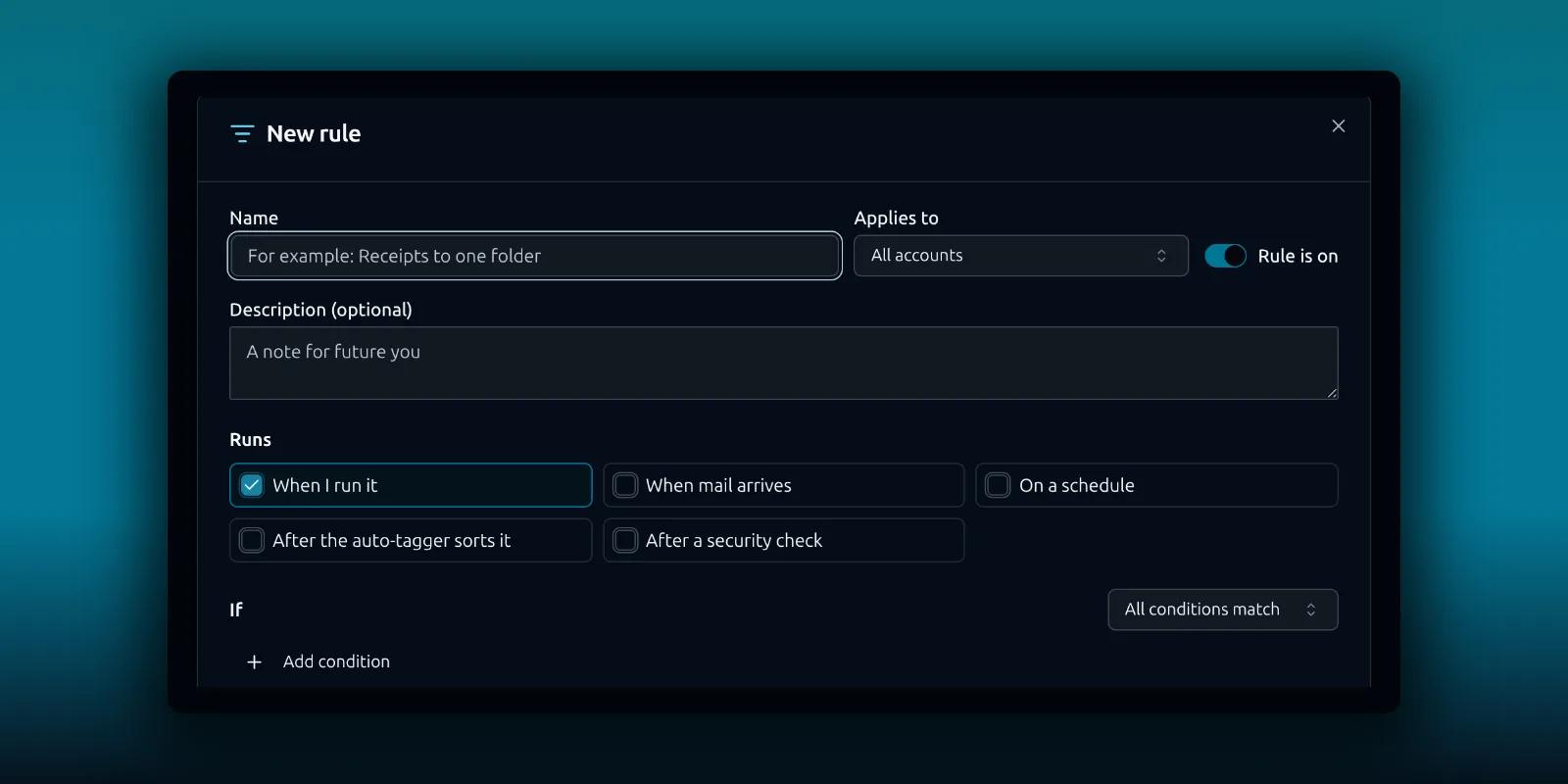
An email rule is a small instruction that PressedMail follows for you. If a message looks like this, do that. Receipts go to one folder. Newsletters get marked as read. A sender you never want to hear from goes to Junk.
Rules exist in Free and in the paid editions. This guide builds one from the empty Email Rules tab. It uses a plain example so you can see every part of the editor, then shows how to check the rule before it touches real mail.
What a rule is made of
Every rule has four parts. A trigger says when it runs. Conditions say which messages it applies to. Actions say what happens to them. A name and an optional account scope keep it tidy.
Rules change real messages. Moving, archiving and deleting all affect the mailbox, so start small. Pick one narrow sender and an action you can undo.
Open the Email Rules tab
Open Settings and choose Email Rules in the Personal group. A new site shows an empty list.
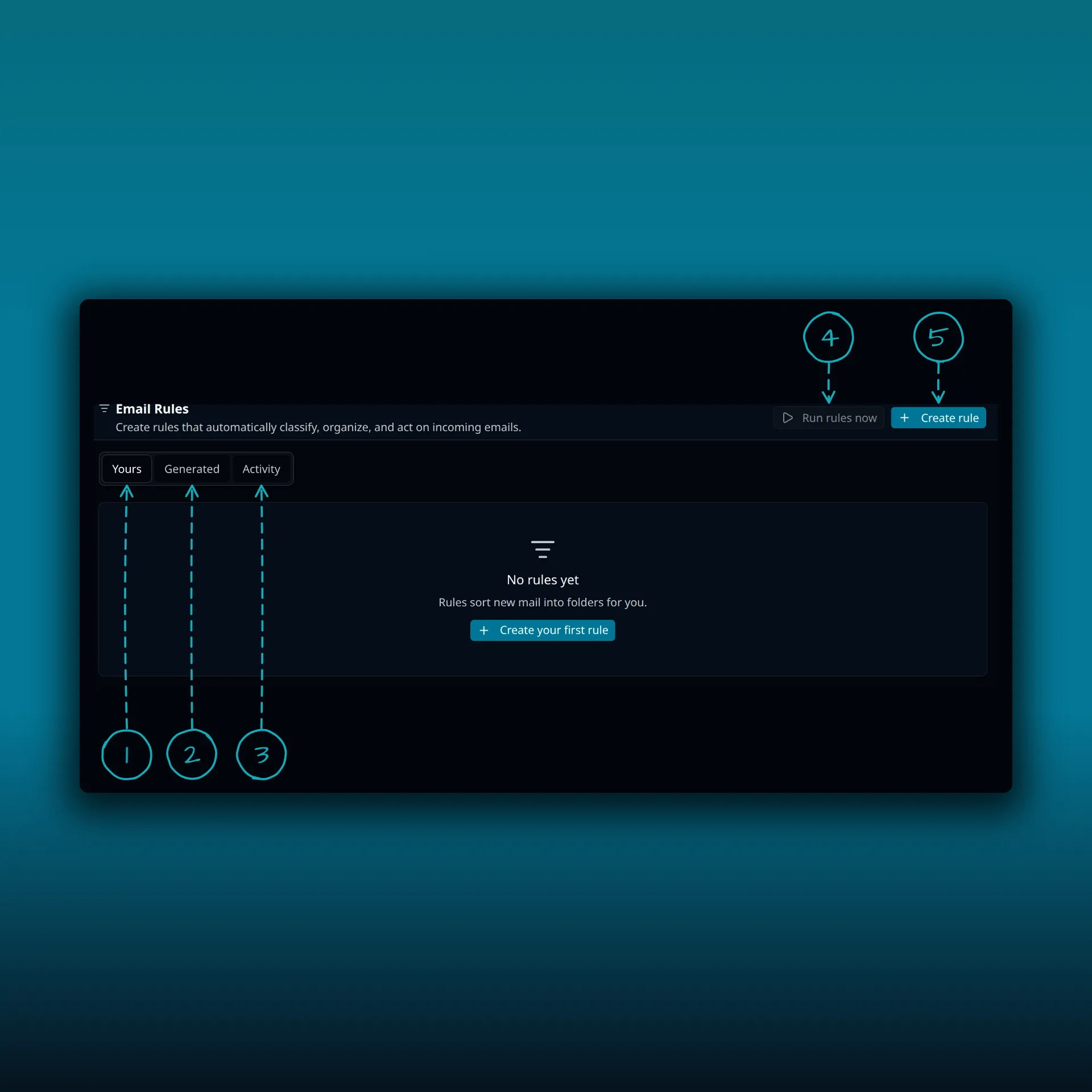
- Yours, where the rules you write live.
- Generated, which holds rules created by bulk sweep actions.
- Activity, a short history of what your rules did lately.
- Run rules now, which runs your rules on the inbox right away.
- Create rule, which opens the editor.
The empty state has a Create your first rule button that does the same thing as Create rule.
Build the rule
Open the editor. The dialog is titled New rule.
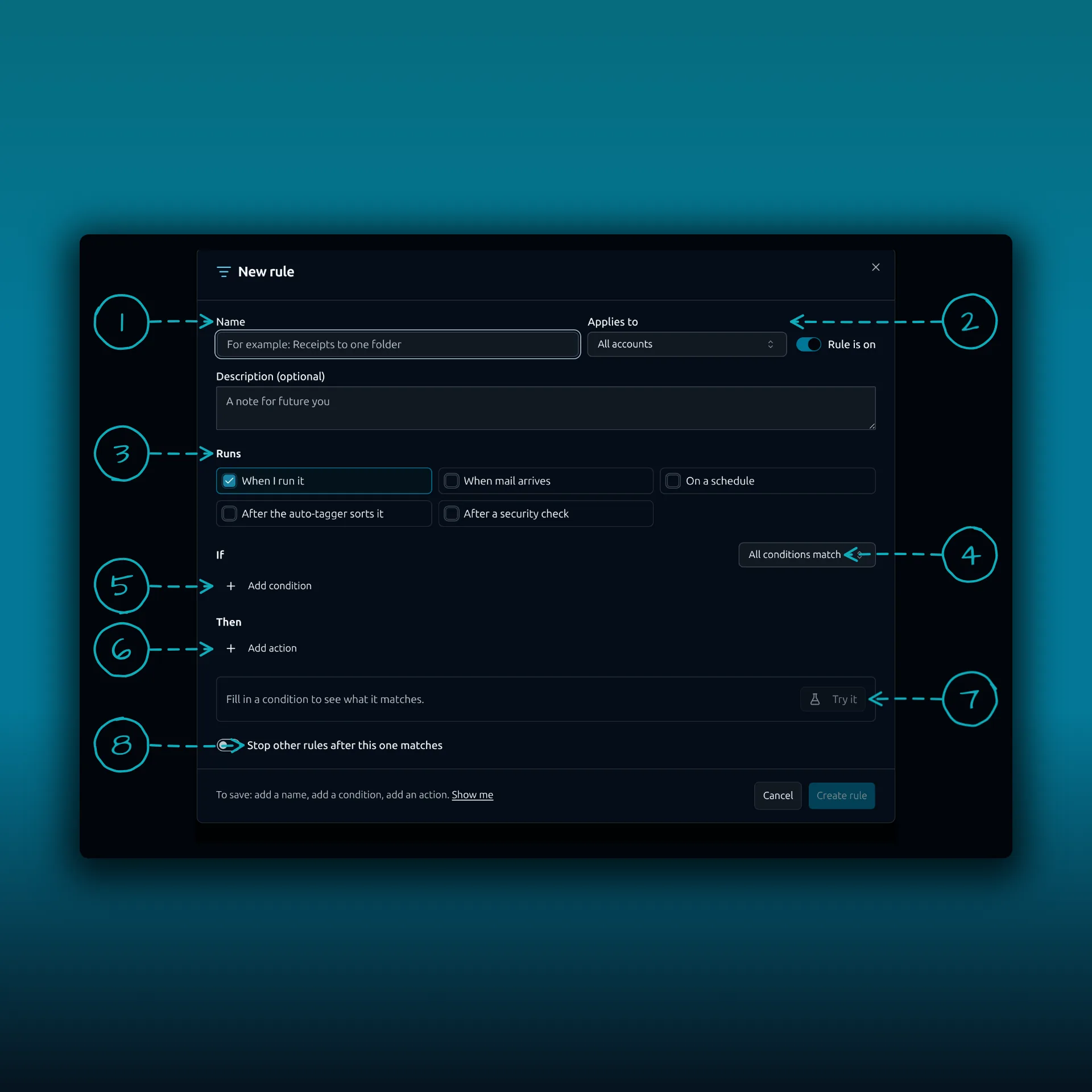
- Name. Describe the result, not the sender. “Supplier receipts to Receipts” tells you more later than “Rule 1”.
- Applies to. All accounts, or one connected mailbox. The Rule is on switch beside it turns the rule off without deleting it.
- Runs. When I run it, When mail arrives, and On a schedule. Paid builds also offer After the auto-tagger sorts it and After a security check.
- How the conditions combine. All conditions match means every line must be true. Any condition matches means one is enough.
- Add condition. Each line is a field, a comparison and a value.
- Add action. Each line is one thing to do to a matching message.
- The preview strip, with the Try it button.
- Stop other rules after this one matches.
The picture shows a new rule with nothing filled in. The editor will not save until you give it a name, at least one complete condition and at least one action. A line at the bottom lists what is still missing.
Pick the trigger
New rules start on When I run it. That means nothing happens until you press Run rules now. It is the safest starting point.
When mail arrives checks only the messages that just came in. On a schedule checks the whole inbox at an interval you pick, from every 15 minutes to every day, and needs a paid plan. Both automatic triggers depend on mail sync and on WP-Cron, WordPress’s scheduled-task runner, which WordPress documents as triggered by page loads. They can lag on a quiet site.
Add a condition
Say you want receipts from one supplier out of your inbox. Add a condition with the field From, the comparison Contains and a value such as the supplier’s domain.
The field menu groups what you can test.
- People: From, To, Cc, Bcc and Reply-To.
- Content: Subject, Body, Mailing list (List-Id), Has attachment, Body size in bytes and Date.
- Status: Tag, Read, Starred and Important.
- Where: Folder and Account.
The comparisons change with the field. Text fields offer Contains, Does not contain, Equals exactly, Does not equal, Starts with, Ends with and Matches pattern (regex). Size offers Equals, Does not equal, More than, Less than, At least and At most. Date offers Before, After and On, plus Older than and Newer than, counted in days. Tag, Folder and the status fields keep it simpler, with choices such as Has tag, Is inside, Yes and No.
Add a second line if one is not enough. Then choose whether All conditions match or Any condition matches.
Add an action
The action menu is grouped too.
- Move: Move to folder, Archive, Move to Trash and Delete.
- Junk: Send to Junk and Never send to Junk.
- Mark: Mark as read, Mark as unread, Star and Mark important.
- Tags: Add tag and Remove tag.
For our example choose Move to folder and pick the folder. Delete moves a message to Trash like every other delete in PressedMail. No rule action skips Trash.
A message takes only the first action that moves it out of its folder. Marking and tagging actions are not limited that way.
Check it before you trust it
Press Try it in the editor. PressedMail looks at your newest 200 messages and shows up to five that match. Read them. If one surprises you, tighten the condition. A sender’s full address is safer than a whole domain, and a subject phrase is safer than a single word.
Save the rule with Create rule. Then press Run rules now at the top of the Email Rules tab. It synchronizes the mailbox first and then processes the inbox. It does not sweep every folder on your provider. Run rules now is not a preview. It changes the messages it matches.
Open the Activity tab afterwards. It lists what your rules did in the last seven days, and the runs you started by hand. If the number is not what you expected, read the next section.
When you want it automatic
Once a rule does what you want when you run it by hand, edit it and add When mail arrives. Leave When I run it ticked if you also want to run it manually. A rule can have more than one trigger.
If you stack several rules, order matters. They run in priority order, and Stop other rules after this one matches prevents later rules from acting on the same message. The post on organizing mail with tags and folders shows how folders and tags fit together, and the search guide helps you find the messages a rule moved.
A rule that does nothing is almost always a trigger or a timing issue. The post on rules that do not run goes through the causes one by one.
Which plan do I need?
Rules work in Free and paid builds with the same conditions and the same basic actions. Scheduled runs and the AI triggers need a paid plan. The plan comparison lists the rest.
Frequently asked questions
Does a rule run on mail I already have?
Yes, when you press Run rules now, and for rules on a schedule. When mail arrives only looks at messages that just came in.
Can I undo what a rule did?
Disabling or deleting a rule stops future runs. It does not move messages back. Test with a narrow sender and an action you can reverse by hand.
Does Delete remove mail for good?
No. Delete moves the message to Trash, the same as everywhere else in PressedMail.
Can I use more than one condition?
Yes. Add as many lines as you need, and choose whether all of them or any of them must match.
Do rules work for every mailbox?
A rule applies to all accounts or to one. Pick the account in the Applies to menu.
Manage your email inside WordPress
PressedMail Free adds an email client directly to your WordPress dashboard. Connect a compatible IMAP/SMTP mailbox, read and send mail, organize messages, and configure WordPress SMTP.

