


WordPress’s admin on a phone is rarely pleasant. PressedMail does not squeeze it. Below a certain width it swaps the desktop layout for a separate phone shell: one screen at a time, a bottom tab bar and gestures that match a mail app. This guide covers when it appears, what each part does, what it leaves out and how to put PressedMail on your home screen.
When the phone shell appears
PressedMail measures its own container, not the browser window. That is why the responsive preview inside wp-admin triggers it too. There are three bands:
- Under 640 pixels is a phone.
- 640 to 1,023 pixels is a tablet.
- 1,024 pixels and up is desktop.
Anything under 1,024 pixels gets the phone shell. A touch device whose window is narrower than 640 pixels also counts as a phone, because inside wp-admin the container can still measure wide on a real handset.
When the shell mounts it hides the WordPress admin bar and side menu so mail gets the whole screen. The chevron in the screen header brings the WordPress chrome back, and your choice stays as you move around.
The screen
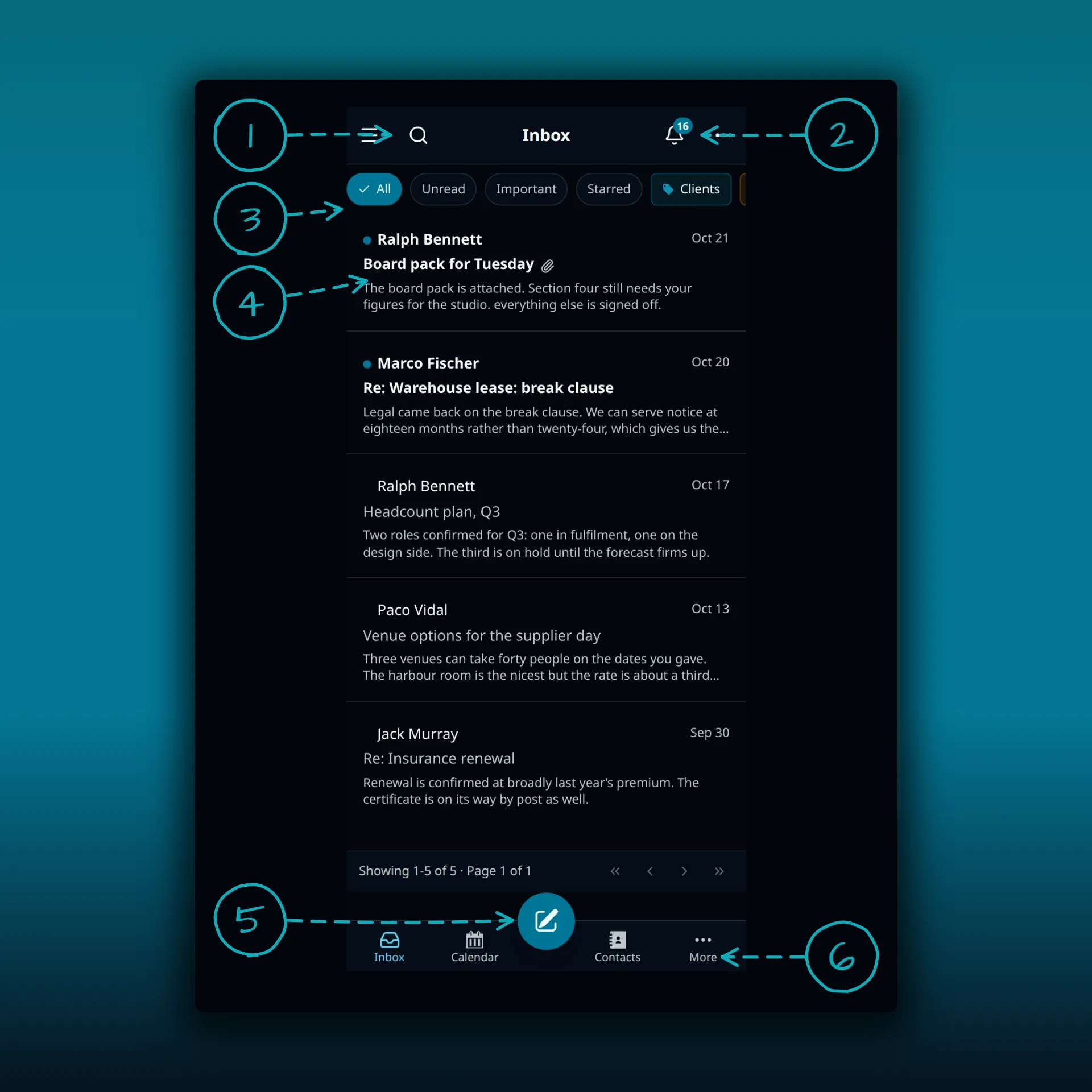
- The header buttons on the left: the menu and search.
- The bell, with its count of unread notifications, and a menu beside it.
- The filter chips: All, Unread, Important, Starred and your own tags, such as Clients here. The row scrolls sideways.
- A message. The unread ones are bold with a blue dot.
- The round compose button, in the middle of the tab bar.
- The tab bar. Inbox, Calendar, Contacts and More.
The picture comes from a paid build. Calendar and Contacts are paid features and are left out of the Free build, so Free shows two tabs: Inbox and More. Unread counts sit on the tab as a badge and stop counting at 99+.
The tab bar gets out of the way on its own. Reading a message or writing one hides it until you come back.
What More holds
More opens a sheet with everything that does not fit in the tab bar. On the test site it lists notifications, activity, switching account, folders and labels, and a group of template items. Add to Home Screen lives there too, as covered below.
Touch actions
- Swipe a message right to archive it, or left to delete it. Either takes 80 pixels of travel. If an unintended swipe moves a message, check the action.
- Long-press a message to enter bulk select. A bottom action bar replaces the tab bar with the actions for the selection.
- Pull down to refresh. It only arms when the list is already scrolled to the top.
- Drag in from the left edge to go back through the screens you opened. A composer with unsaved changes turns that gesture off rather than lose your draft.
- Touch targets are large, at least 44 pixels. If a gesture is difficult, use the visible action controls instead.
- A Skip to content link is the first focusable item on every screen.
What the phone shell leaves out
This is not the desktop layout made smaller. It replaces the resizable multi-pane view with a single routed column, so the reading pane, the panel splitters and the layout-specific headers are not there. The desktop status bar with its sync and folder counters goes too. Your theme, typeface and density settings still apply.
For comparison, here is the desktop screen the shell replaces.
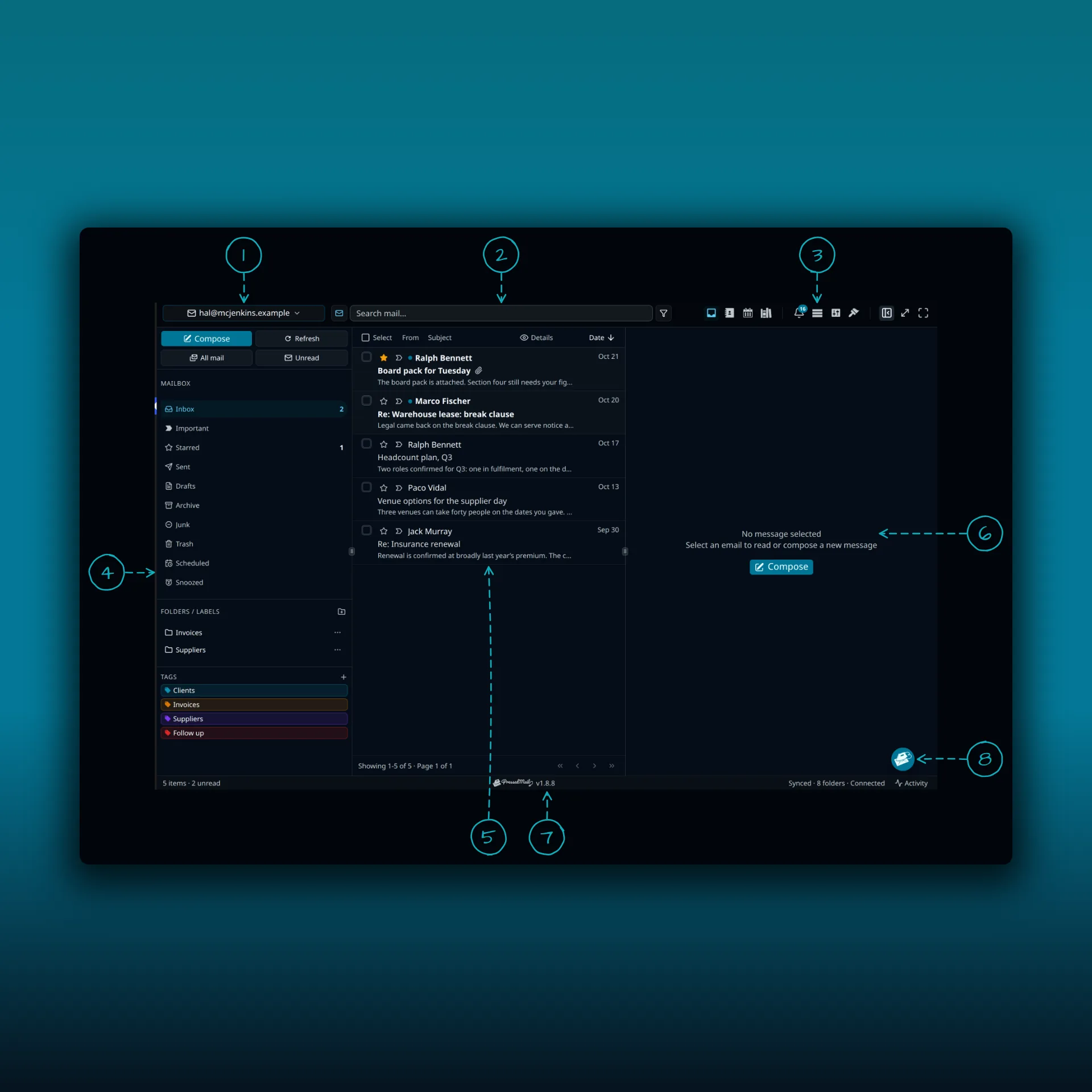
- The account switcher.
- The search box.
- The icon cluster.
- The folder pane.
- The message list.
- The reading pane.
- The status bar.
- The speed dial.
Put it on your home screen
PressedMail serves its own web app manifest on its admin screens, scoped to the plugin page and set to open standalone. The manifest is a web standard, and MDN’s guide to the web app manifest explains what its fields do. Go to More, then Add to Home Screen.
If your browser offers an install prompt, the Install button on that screen triggers it. If it does not, the same screen carries the steps for Safari on iPhone (Share, then Add to Home Screen) and Chrome on Android (browser menu, then Install app).
The manifest also registers a mailto handler, and the screen has a button that asks the browser to route mailto links to PressedMail. Browser support for this varies. It also declares a share target, so sharing a link or text from another app can open a new message with it.
A web app inside WordPress cannot become the operating system’s default mail client the way a native app can. Supported browsers will hand it mailto links, and that is as far as the web platform goes.
Installing it does not give you offline access. WordPress and your mail provider still need to be reachable. The app takes its name, icons and theme color from your branding settings, so a white-labelled install shows your own name on the home screen.
Frequently asked questions
Is there a native PressedMail app?
No. The phone shell and the installable web app are how you use PressedMail on a phone.
Why does my tablet show the phone layout?
Anything under 1,024 pixels gets the phone shell, which includes tablets in portrait.
Can I set PressedMail as my default mail app?
Not as the operating system’s default. A supported browser can send mailto links to it.
Does it work without a connection?
No. PressedMail needs WordPress and your provider to be reachable.
Do I need a paid plan?
No. Free includes the phone shell with the Inbox and More tabs. Calendar and Contacts tabs need a paid plan. See the plan comparison.
If you have not connected a mailbox yet, start with the first-run walkthrough, and for more on reading mail see the first-message tutorial and the guide to managing mail without leaving WordPress.
Manage your email inside WordPress
PressedMail Free adds an email client directly to your WordPress dashboard. Connect a compatible IMAP/SMTP mailbox, read and send mail, organize messages, and configure WordPress SMTP.

